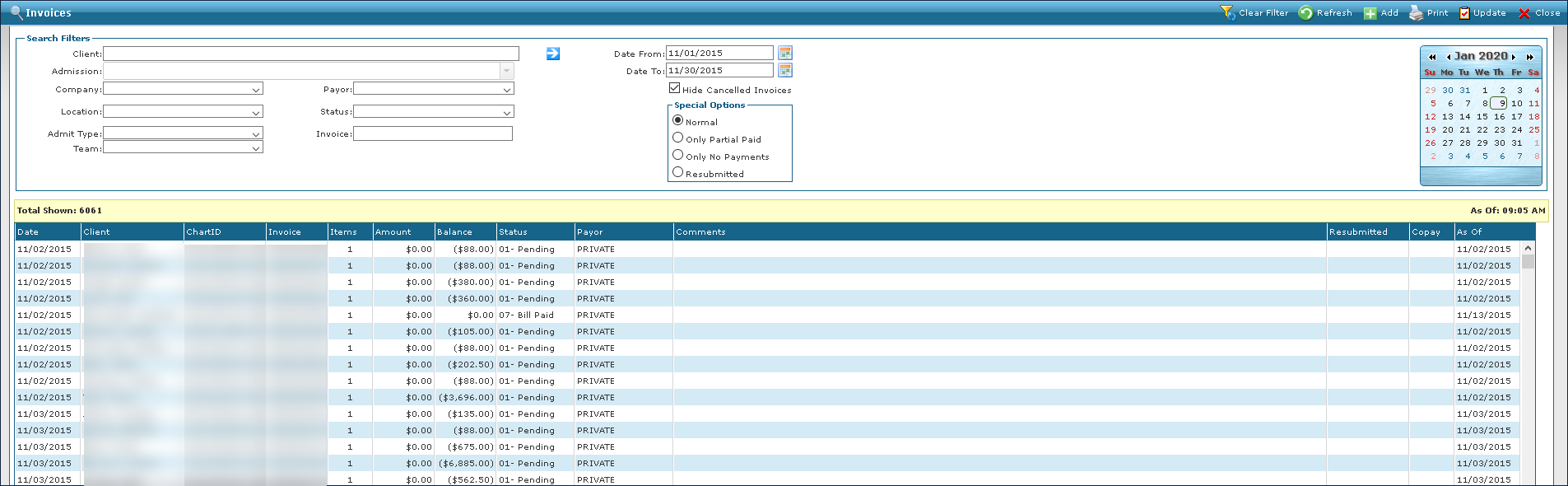
Sandata Agency Management 02-Invoices Window
The Invoices window contains all invoice related functionality including: Invoice Status, Payments, Credits and attaching items to an Invoice. The window is divided into two parts: Search Filters and Results List.
To access the Invoices window, select Invoices under Main Menu > Billing > Invoices.
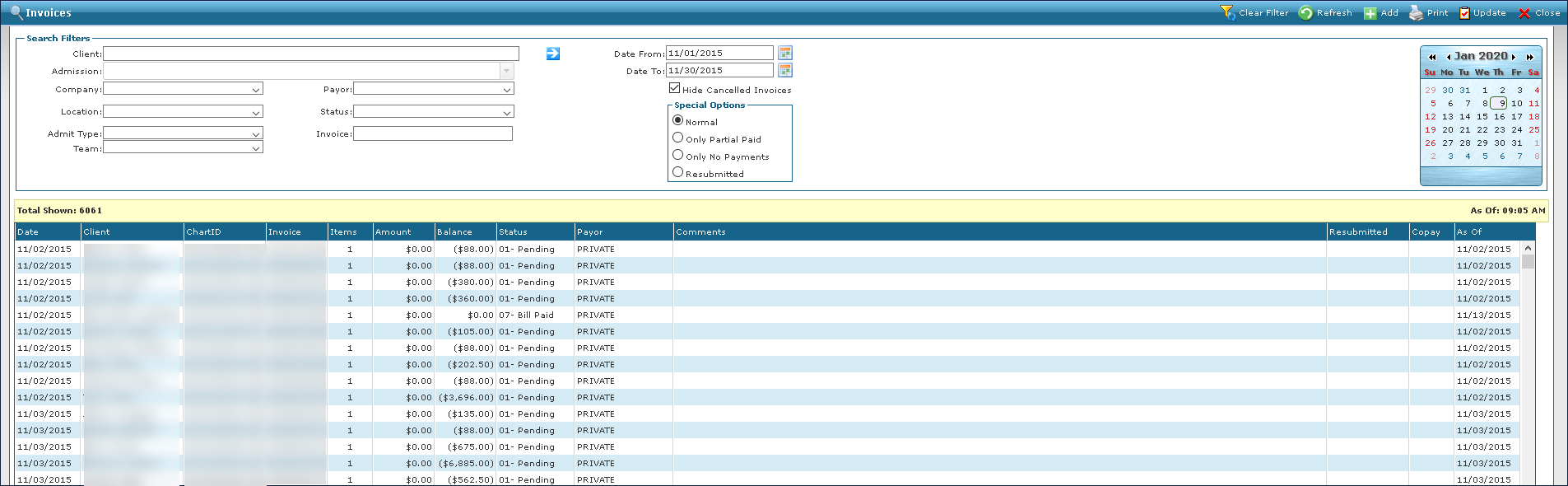

The search filters allow users to narrow the results list to meet specific criteria. It is possible to use a particular field as well as a combination of fields.
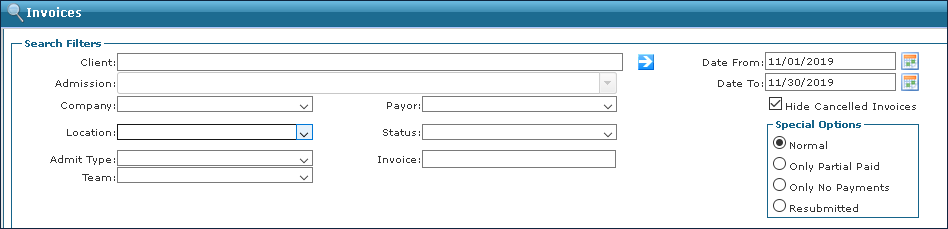
|
Field |
Description |
|---|---|
|
Client |
Use this field to filter invoices by Client name. |
|
Admission |
Use this field to filter invoices by Client admission. |
|
Company |
Use this field to filter invoices by the associated company. |
|
Location |
Use this field to filter invoices by the associated location. |
|
Admit Types |
Use this field to filter invoices by the associated admission type. |
|
Team |
Use this field to filter invoices by the associated team. |
|
Payer |
Use this field to filter invoices by the associated Payer. |
|
Status |
Use this field to filter invoices by status. |
|
Invoice |
Use this field to filter for an invoice-by-invoice number. Using a partial invoice number displays the invoice most closely matching that number. Invoice numbers are established during implementation. |
|
Date From |
Use the selected to and from date to filter results by visits that occurred within the selected date range. |
|
Date To |
|
|
Hide Canceled Invoices |
Select this checkbox to hide canceled invoices. |
|
Normal |
Select this checkbox to include all invoices in the search. |
|
Only Partial Paid |
Select this checkbox to filter for only partially paid invoices. |
|
Only No Payments |
Select this checkbox to filter for only invoices without payment applied. |
|
Resubmitted |
Select this checkbox to filter for only resubmitted invoices. |
The Results List displays invoices corresponding to the selected filters.
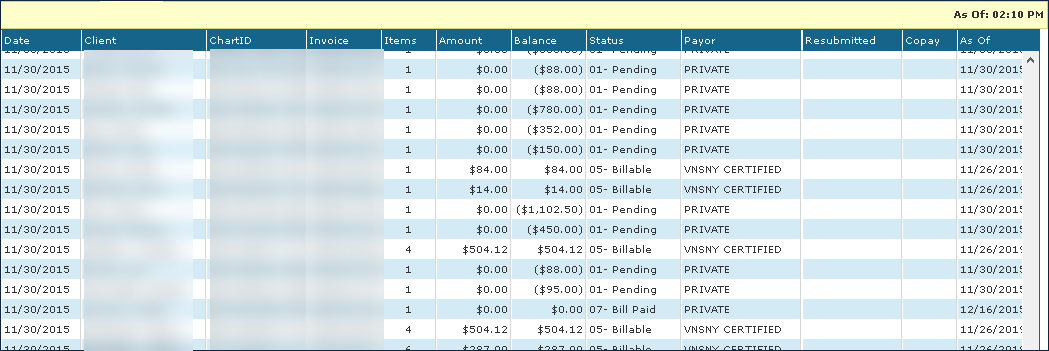
|
Field |
Description |
|---|---|
|
Date |
Displays the date of the invoice. |
|
Client |
Displays the name of the invoiced Client. |
|
ChartID |
Displays Client’s ChartID number. |
|
Invoice |
Displays the invoice number. |
|
Items |
Displays number of visits included in the invoice. |
|
Amount |
Displays the invoice amount. |
|
Balance |
Displays the remaining balance on the invoice. |
|
Status |
Displays the invoice status. |
|
Payor |
Displays the Client’s Payer. |
|
Comments |
Displays any comments attached to an invoice. |
|
Resubmitted |
Displays the invoice’s resubmission date. |
|
Copay |
Displays the total copay for the invoice. |
|
As Of |
Displays the date of the most recent invoice activity. This can be payment activity as well as editing the status or making corrections. |
From the results list, Users can review invoice summaries, open an invoice, reprint invoices, or edit the status of invoices as needed.
Open an invoice by double-clicking an invoice or right-clicking the invoice and then selecting Open.
Select All or Select None highlights all items in the results list or deselects any items previously selected item.
It is also possible to select multiple items by holding the Ctrl key on your keyboard while selecting items. To select multiple items in a row, hold the Shift key and select the first and last item.
To open and reprint multiple invoices in PDF format, complete the following steps:
-
Go to the Invoices window under Main Menu > Billing > Invoices.
-
Search for applicable invoices.
-
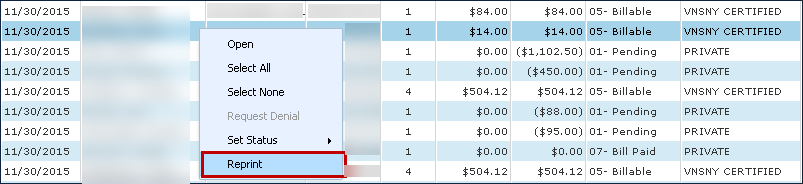
Select the invoices that will be reprinted: Use the Ctrl or Shift key or use Select All (Located on the right click menu) to select multiple invoices.
-
Right click and select Reprint.
-
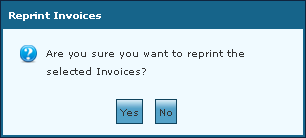
Select Yes when the Reprint Invoices confirmation window appears.
-
Each invoice displays in the Billing Format for that Payer.
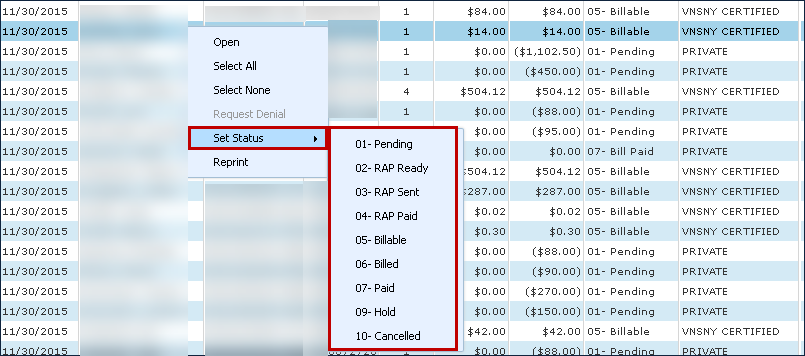
Most billing statuses update automatically when invoices are edited but users can manually change invoice statuses from the Invoice window. An invoice’s status can also be manually changed from the invoice details window. Some invoice statuses are only used for Episodic Billing.
To manually change multiple invoice statuses from the Invoice window, complete the following steps:
-
Go to the Invoices window under Main Menu > Billing > Invoices.
-
Search for the applicable invoices.
-
Select the invoices that will be edited.
-
Use the Ctrl or Shift key or use Select All (located on the right click menu) to select multiple invoices.
-
Right click on the invoices, then hover over Set Status, and select the new status.
The invoice statuses are now updated.
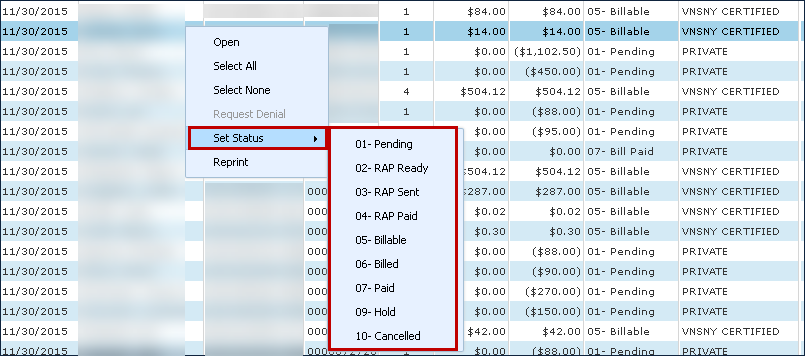
Most billing statuses update automatically when invoices are edited but users can manually change invoice statuses from the Invoice window. An invoice’s status can also be manually changed from the Invoice details window .
Some invoice statuses are only used for Episodic Billing.
To manually change multiple invoice statuses from the Invoice window, complete the following steps:
-
Go to the Invoices window under Main Menu > Billing > Invoices.
-
Search for the applicable invoices.
-
Select the invoices that will be edited.
-
Use the Ctrl or Shift key or use Select All (Located on the right click menu) to select multiple invoices.
-
Right click, then hover over Set Status, and select the new status.
The invoice statuses are now updated.
The invoice status names (pending, billable) in the following table can be edited by the agency from the Value Items window, although the number and the description remain the same.
|
Field |
Traditional/Commercial Billing Status for billing without episodes. |
Episodic Billing Status for billing with episodes (OASIS billing) |
|---|---|---|
|
01-Pending |
This is the initial status of an invoice created as a Deposit/Prepay from the Invoice window. |
This status is automatically set upon completion of the OASIS. Note: Upon completion of an OASIS, an invoice and an episode in Episode Tracker is automatically created. |
|
02-RAP Ready |
N/A |
This status is automatically set, when the first billable schedule of the episode is confirmed. |
|
03-RAP Sent |
N/A |
This status is automatically set when a RAP invoice is electronically exported through the system. |
|
04-RAP Paid |
N/A |
This status is automatically set, when the first initial payment is imported through the Electronic Remittance window and posted. |
|
05-Billable |
This is the initial status of an invoice created from the Billing Review window. |
This status is automatically set with the completion of a recertification or resumption OASIS. Note: If the client is not being recertified the billing status must manually change the status to billable when all parameters for the final claim have been met. |
|
06-Bill Sent |
This status is automatically set when the invoice has been printed or electronically exported. |
This status is automatically set when the final invoice for the episode is exported electronically. |
|
07-Bill Paid |
This status is automatically set when the invoice is paid in full and the remaining invoice balance is $0.00. |
This status is automatically set, when the final payment or void is imported through the Electronic Remittance window and posted. |
|
08-LUPA |
N/A |
N/A |
|
09-Hold |
When the invoice status is 09-Hold, the invoice cannot be exported. (Example: Client admitted in AM, hospitalized in the PM of same day, agency may want to hold the RAP |
When a user manually changes the status to 09-Hold, the related episode cannot be exported. |
|
10-Cancelled |
This is automatically set, when the client status is ‘03-Hold’ or ‘05-Cancelled,’ or their schedule status is ‘09-Hold’ or ‘10-Canceled.’Note: you cannot cancel an invoice that has payments or credits. Invoices are not automatically set to canceled. The user must manually change the status to Canceled. |
This is automatically set, when the client status is ‘03-Hold’ or ‘05-Cancelled,’ or their schedule status is ‘09-Hold’ or ‘10-Cancelled.’ Only manually set this status if the entire episode has been canceled. Note: you cannot cancel an invoice that has payments or credits Invoices are not automatically set to canceled. The user must manually change the status to Canceled.
|
|
11-Resubmit |
Status used to re-export a claim after a correction or edit has been made. |
To resubmit an invoice, review Billing Resubmission. |
The Invoices Screen displays invoices that match the criteria selected. Users can confirm an invoice’s status or open it up to make further corrections or edits as needed.
-
Go to the Invoiceswindow under Main Menu > Billing > Invoices.
-
Select the appropriate search criteria.
-
Select Refresh.
-
Double click the invoice or right click and select Open.