Sandata Agency Management 06-Admission Type Window

The Admission Type window displays all settings, documents and compliance information associated with an admission type created by a company or agency.
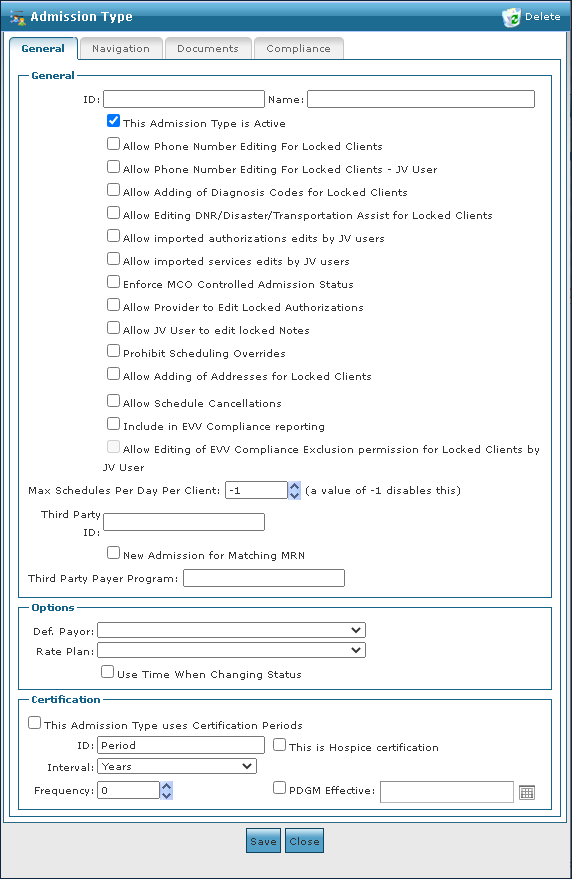
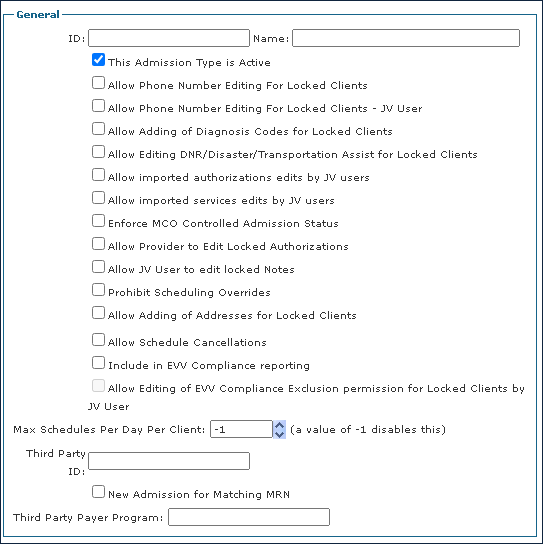
The General Tab of the Admission Type window displays the basic settings and details of the admission type including active status, name and payer associations.
|
Field |
Description |
|---|---|
|
ID |
Use this field to enter the admission type identification code. |
|
Name |
Use this field to enter the admission type name. |
|
This Admission Type Is Active |
Select this checkbox to indicate that the admission type is active. |
|
Allow Phone Number Editing For Locked Clients |
Select this checkbox to allow phone number editing for locked clients. |
|
Allow Phone Number Editing For Locked Clients – JV User |
Select this checkbox to allow JV users to edit the phone numbers of locked clients. |
|
Allow Adding of Diagnosis Codes for Locked Clients |
Select this checkbox to allow the adding of diagnosis codes for locked clients. |
|
Allow Editing DNR/Disaster/Transportation Assist for Locked Clients |
Select this checkbox to allow the editing of DNR/Disaster/Transportation Assist for locked clients. |
|
Allow imported authorization edits by JV users |
Select this checkbox to allow JV users to import authorization edits. |
|
Allow imported service edits by JV users |
Select this checkbox to allow JV users to edit imported services. |
|
Enforce MCO Controlled Admission Status |
Select this checkbox to enforce MCO controlled admission statuses. |
|
Allow Provider to Edit Locked Authorizations |
Select this checkbox to allow providers to edit locked authorizations. |
|
Allow JV User to edit locked Notes |
Select this checkbox to allow JV users to edit locked notes. |
|
Prohibit Scheduling Overrides |
Select this checkbox to prohibit scheduling overrides. |
|
Allow Adding of Addresses for Locked Clients |
Select this checkbox to allow adding of addresses for locked clients. |
|
Allow Schedule Cancellations |
Select this check box to allow schedule cancellations. |
|
Include in EVV Compliance reporting |
Select this checkbox to include the admission type in EVV Compliance reporting. |
|
Allow Editing of EVV Compliance Exclusion permission for Locked Clients by JV User |
Select this checkbox to allow JV users to edit EVV Compliance Exclusion permissions. |
|
Max Schedules Per Day Per Client |
Use this field to set the maximum number of schedules per day for a Client. |
|
Third Party ID |
Use this field to enter the admission type’s third-party identification code. |
|
New Admission for Matching MRN |
Select this checkbox to indicate a new admission for matching MRN. |
|
Third Party Payer Program |
Use this field to enter the third-party payer program code. |
Navigation
The Navigation tab on the Admission Type window displays data elements that are included in the Client’s admission.
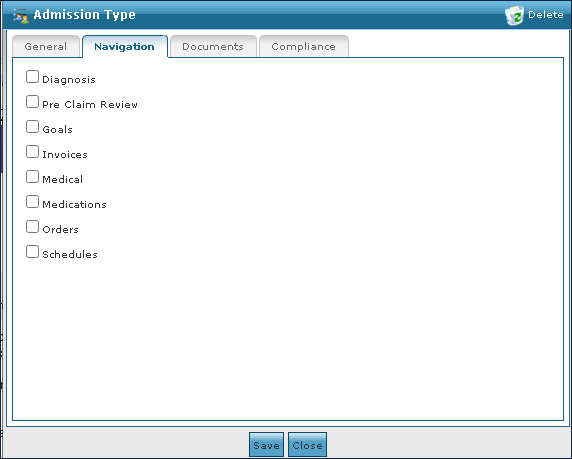
|
Field |
Description |
|---|---|
|
Diagnosis |
Select this checkbox to include this admission type on the client’s Diagnosis panel. |
|
Pre Claim Review |
Select this checkbox to include this admission type on the client’s Pre-Claim Review panel. |
|
Goals |
Select this checkbox to include this admission type on the client’s Goals panel. |
|
Invoices |
Select this checkbox to include this admission type on the client’s Invoices panel. |
|
Medical |
Select this checkbox to include this admission type on the client’s Medical panel. |
|
Medications |
Select this checkbox to include this admission type on the client’s Medications panel. |
|
Orders |
Select this checkbox to include this admission type on the client’s Orders panel. |
|
Schedules |
Select this checkbox to include this admission type on the client’s Schedules panel. |
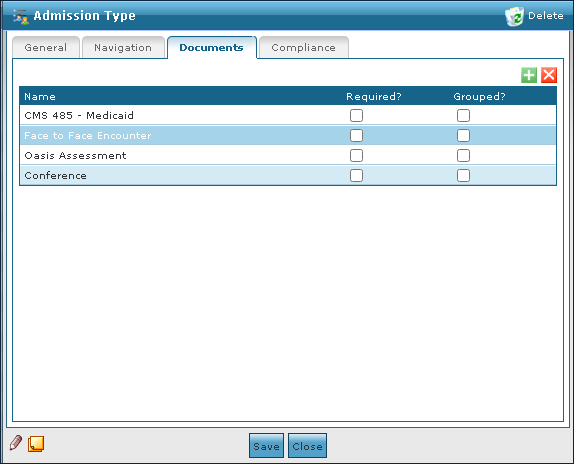
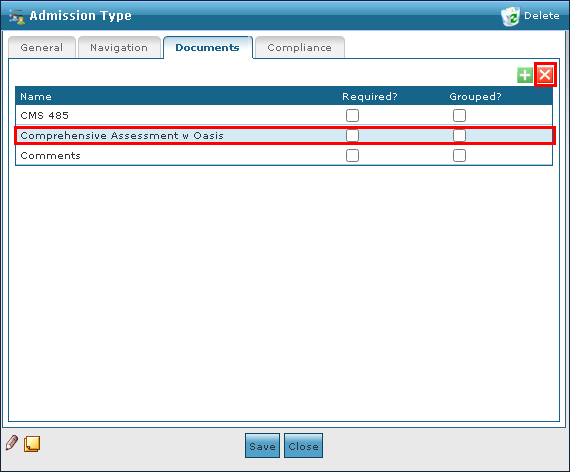
The Documents tab on the Admission Type window displays all documents associated with the admission type.
When an agency is setup to use SPoC or scanned documents, do not select the Required checkbox.
|
Field |
Description |
|---|---|
|
Name |
Displays the name of the document. |
|
Required? |
Select this checkbox to add a document to the Client’s associated Documents window. |
|
Grouped? |
Select this checkbox to add a document to the Client’s navigation panel. |
To add a new document:
-
Go to the Documents tab on the Admission Type window under Main Menu > Admin > System Setup > Admission Type > Documents.
-
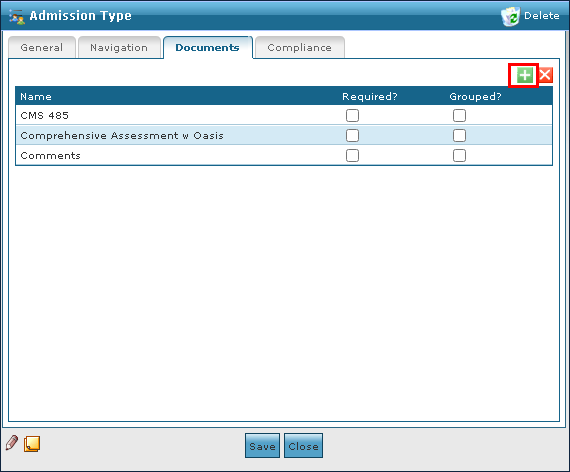
Select the Add icon.
-
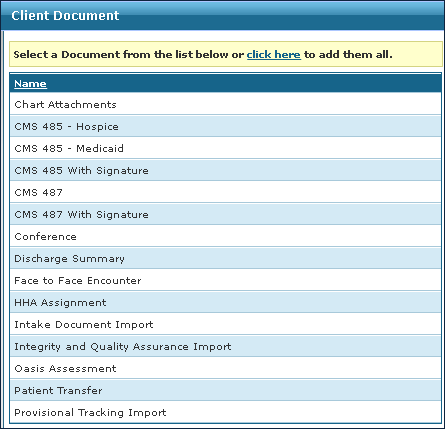
Double click the document to be added from the list.
-
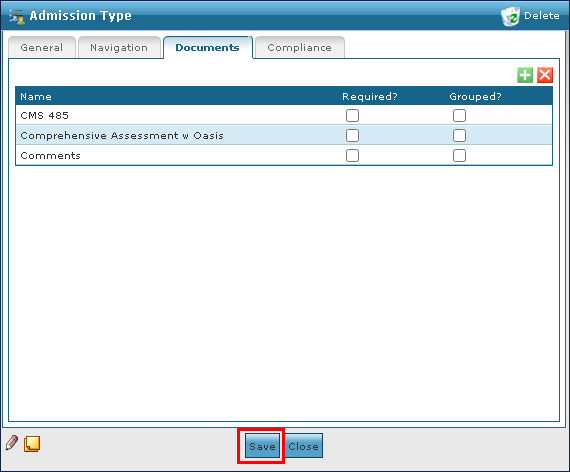
Select the Save button.
To remove an invalid or out of date document:
-
Go to the Documents tab on the Admission Type window under Main Menu > Admin > System Setup > Admission Type > Documents.
-
Select the document to be removed.
-
Select the Delete icon.
-
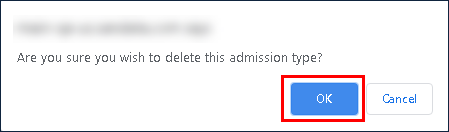
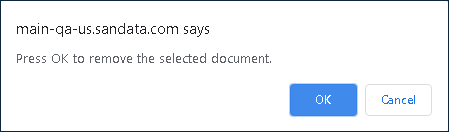
Select the Ok button.
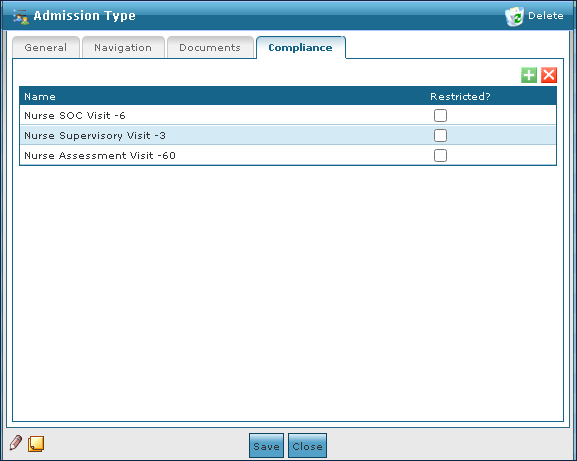
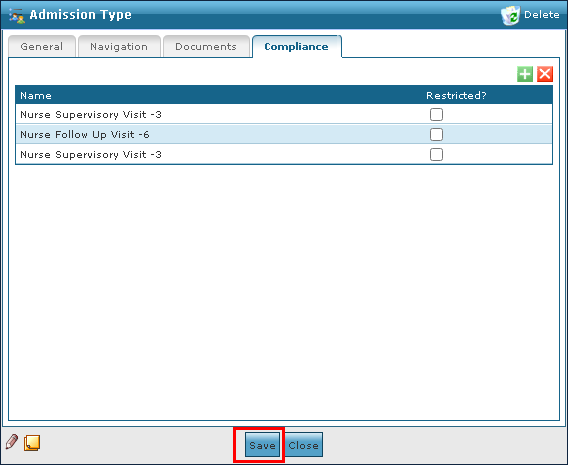
The Compliance tab on the Admission Type window displays compliance associated with the admission type.
|
Field |
Description |
|---|---|
|
Name |
Displays the name of the compliance item. |
|
Restricted? |
Select this check box to indicate a restriction. |
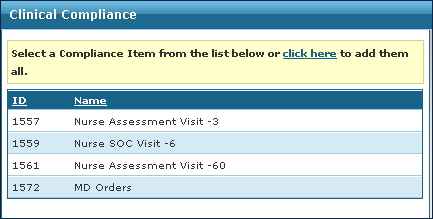
To add a new compliance document:
-
Go to the Compliance tab on the Admission Type window under Main Menu > Admin > System Setup > Admission Type > Compliance.
-
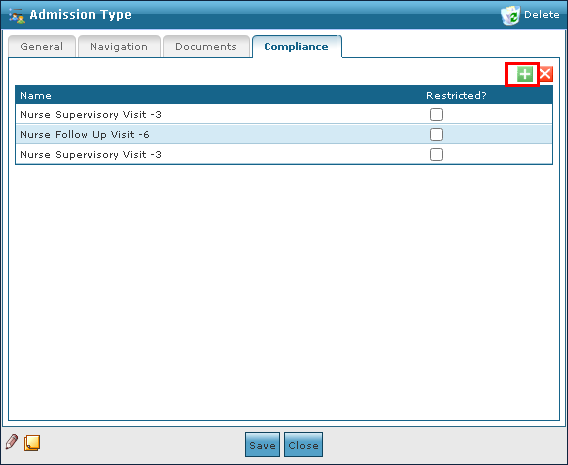
Select the Add icon.
-
Double click the document type to be added.
-
Select the Save button.
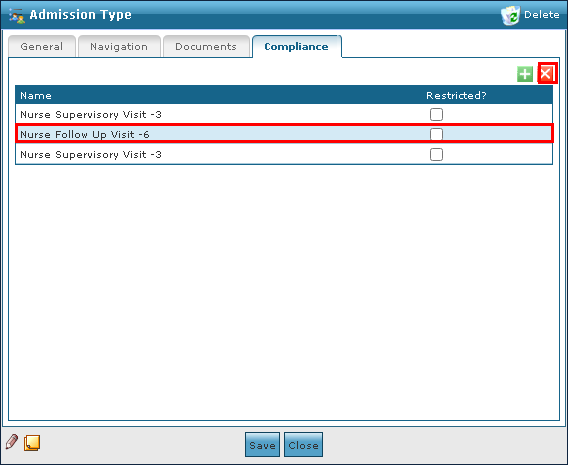
To remove an invalid or out of date compliance document:
-
Go to the Compliance tab on the Admission Type window under Main Menu > Admin > System Setup > Admission Type > Compliance.
-
Select the document to be removed.
-
Select the Delete icon.
-
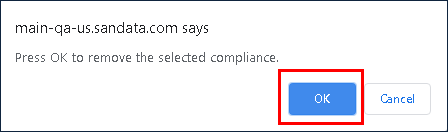
Select the Ok button.
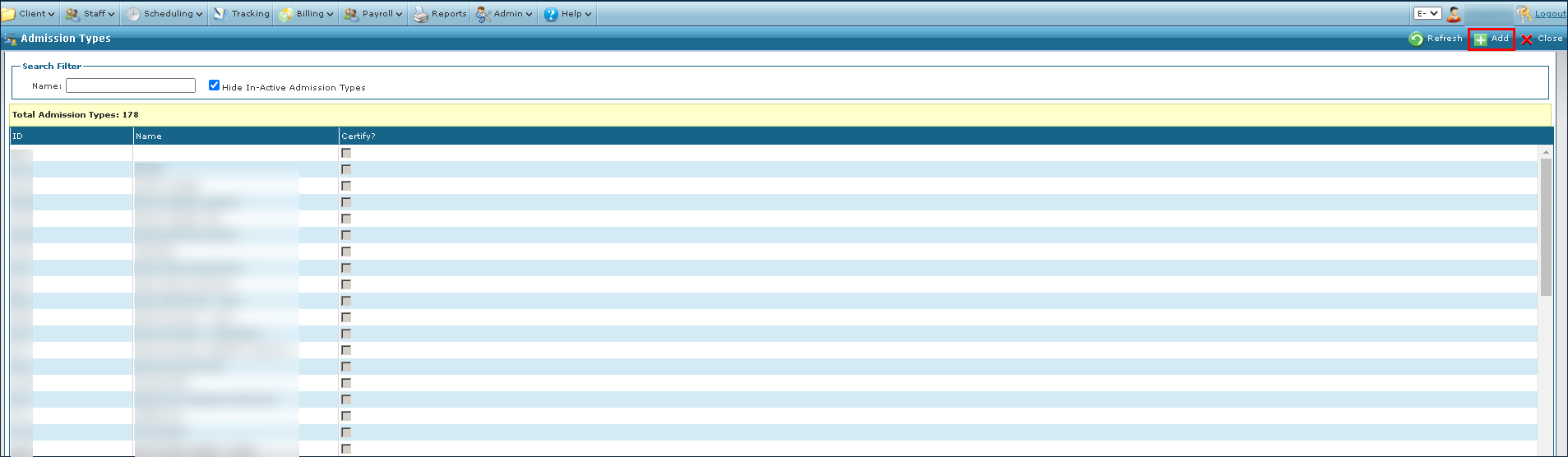
To add a new admission type:
-
Go to the Admission Types window under Main Menu > Admin > System Setup > Admission Types.
-
Select the Add icon.
-
Complete the fields to enter the required admission type information.
-
Select the Save button.
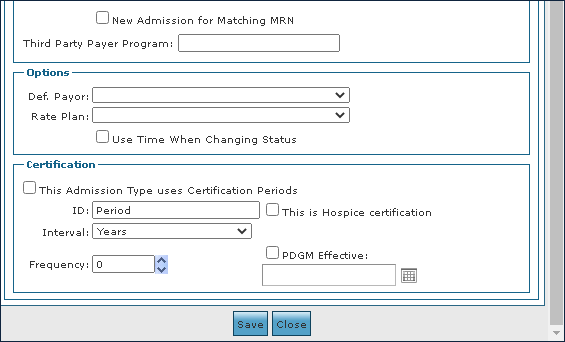
Admission types can be marked inactive rather than deleted by opening the Admission Type window and deselecting the This Admission Type Is Active check box. Admission Types cannot be deleted if they are attached to any admission. Attempting to delete an in-use Admission Type displays a warning message.
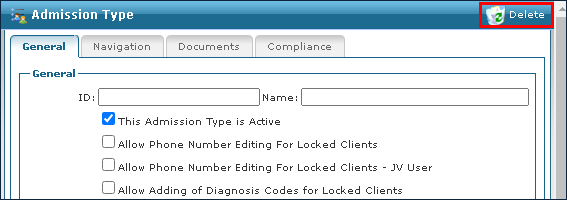
To remove an invalid or out of date admission type:
-
Go to the Admission Types window under Main Menu > Admin > System Setup > Admission Types.
-
Double click on the admission type to be removed.
-
Select the Delete icon.
-
Select the Ok button.