Sandata Agency Management 04-Location Detail Window

The Location Detail window displays information and settings about a location’s payroll, shifts, tax codes, and other details specific to them.
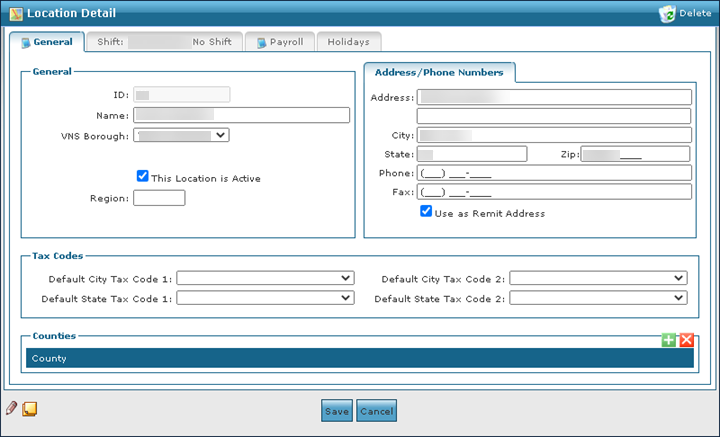
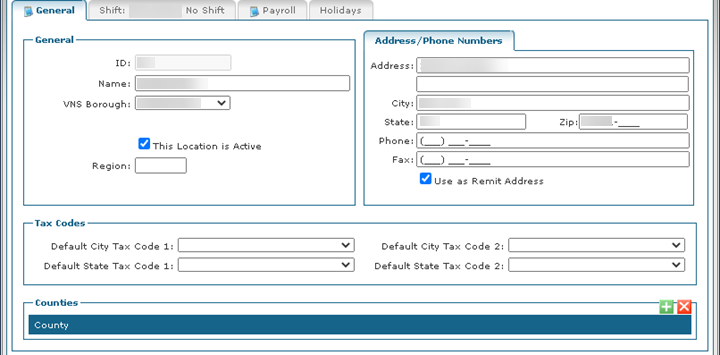
The General tab on the Location Detail window displays basic identifying information about the location such as physical address, region, and tax code details.
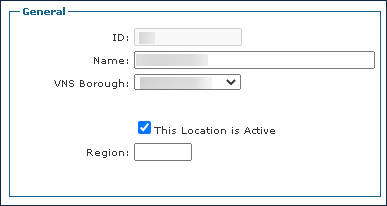
The General section on the General tab displays basic information about the location.
|
Field |
Description |
|---|---|
|
ID |
Displays the location identification code. This code is entered when the location is created. |
|
Name |
Use this field to enter the location name. |
|
VNS Borough |
Use this dropdown to select if the location is associated with a VNS Borough. |
|
This Location is Active |
Select this checkbox to indicate that this location is active. |
|
Region |
Use this field to enter the location’s region. |
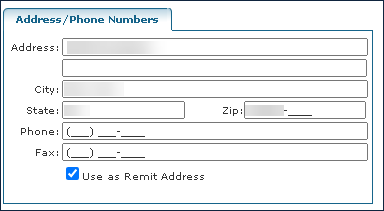
The Address/Phone Numbers section on the General tab displays physical address and phone information.
|
Field |
Description |
|---|---|
|
Address |
Use this field to enter the location’s address. |
|
City |
Use this field to enter the location’s city. |
|
State |
Use this field to enter the location’s state. |
|
Zip |
Use this field to enter the location’s zip code. |
|
Phone |
Use this field to enter the location’s phone number. |
|
Fax |
Use this field to enter the location’s fax number. |
|
Use as Remit Address |
Select this checkbox to use this address as the location’s remittance address. |
The Tax Codes section on the General tab displays the tax code settings for a location.

|
Field |
Description |
|---|---|
|
Default City Tax Code 1 |
Use this dropdown to select the default city tax code. |
|
Default State Tax Code 1 |
Use this dropdown to select the default state tax code. |
|
Default City Tax Code 2 |
Use this dropdown to select the secondary city tax code. |
|
Default State Tax Code 2 |
Use this dropdown to select the secondary state tax code. |
The Shift tab on the Location Detail window displays information about shift types, hours, and days of the week as defined by the company.
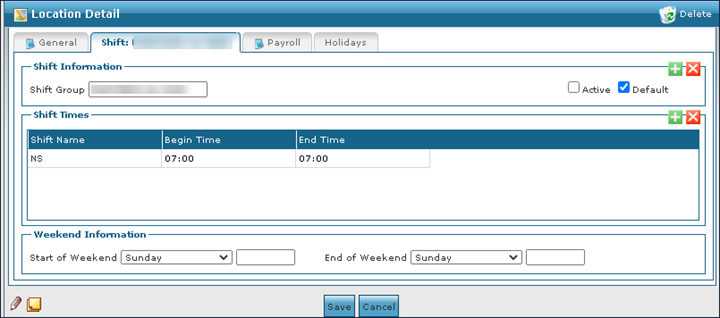
The Shift Information section of the Shift tab displays information about the company’s shift groups and which are currently active.
|
Field |
Description |
|---|---|
|
Shift Group |
Use this field to enter the name of the shift group. |
|
Active |
Select this checkbox to indicate that the shift group is active. |
|
Default |
Select this checkbox to indicate that this is the default company shift group. |
To add a new shift group to a location:
-
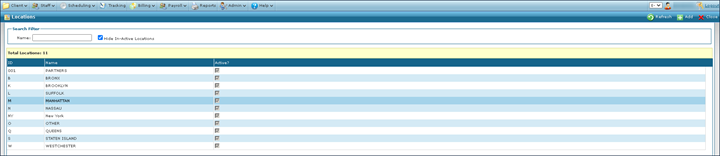
Go to the Shift tab on the Location Detail window under Main Menu > Admin > System Setup > Locations > Location.
-
Select the Add icon.
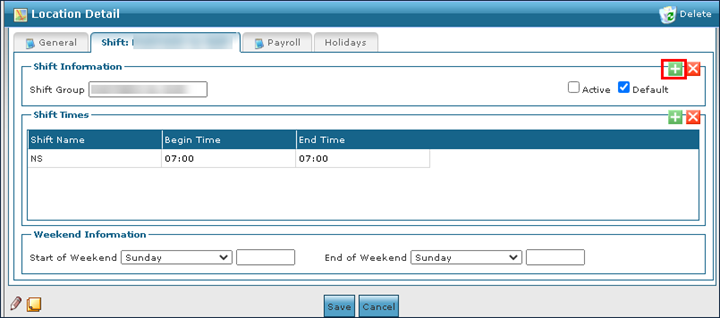
-
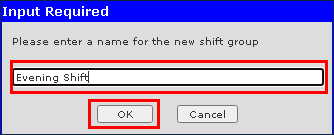
Enter the name of the new shift.
-
Select the Ok button.
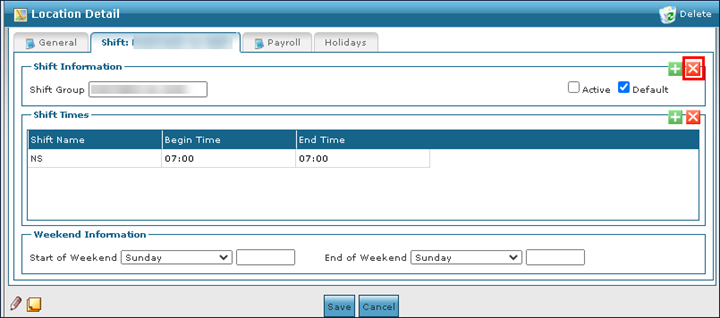
To remove an out of date or invalid shift group:
-
Go to the Shift tab of the shift group to be deleted on the Location Detail window under Main Menu > Admin > System Setup > Locations > Location > Shift Group.
-
Select the Delete icon.
-
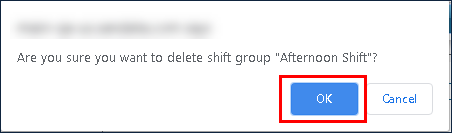
Select the Ok button.
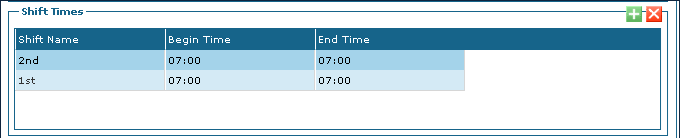
The Shift Times section of the Shift tab displays the names and times of the shifts as established by the company.
|
Field |
Description |
|---|---|
|
Shift Name |
Use this field to select the shift name. |
|
Begin Time |
Use this field to enter the shift begin time. |
|
End Time |
Use this field to enter the shift end time. |
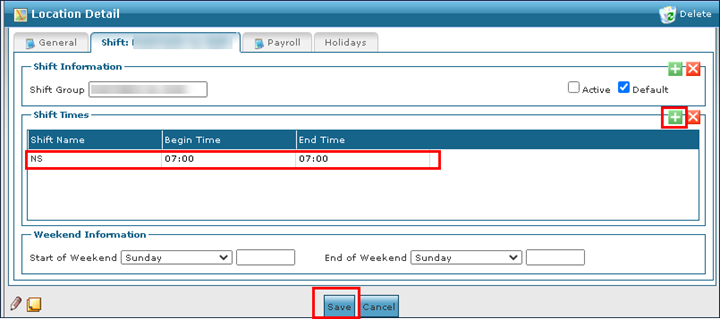
To add a new shift time:
-
Go to the desired Shift tab on the Location Detail window under Main Menu > Admin > System Setup > Locations > Location > Shift Group.
-
Select the Add icon.
-
Complete the fields to enter shift details.
-
Select the Save button.
To remove an invalid or out of date shift:
-
Go to the desired Shift tab on the Location Detail window under Main Menu > Admin > System Setup > Locations > Location > Shift Group.
-
Select the shift to be removed.
-
Select the Delete icon.
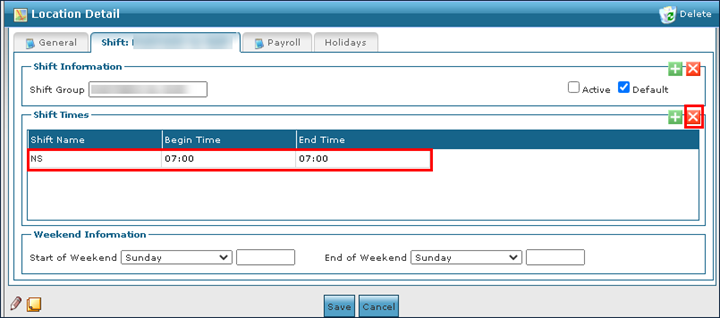
The Weekend Information section of the Shift tab displays information about the company’s designated weekend days.

|
Field |
Description |
|---|---|
|
Start of Weekend |
Use this dropdown and field to select the start of weekend day and time. |
|
End of Weekend |
Use this dropdown and field to select the end of weekend day and time. |
The Payroll tab on the Locations Detail window displays pay, holiday, and overtime rates in addition to other settings needed when performing payroll.
Any payroll settings including overtime that are set at the location level override the corresponding settings at the company level.
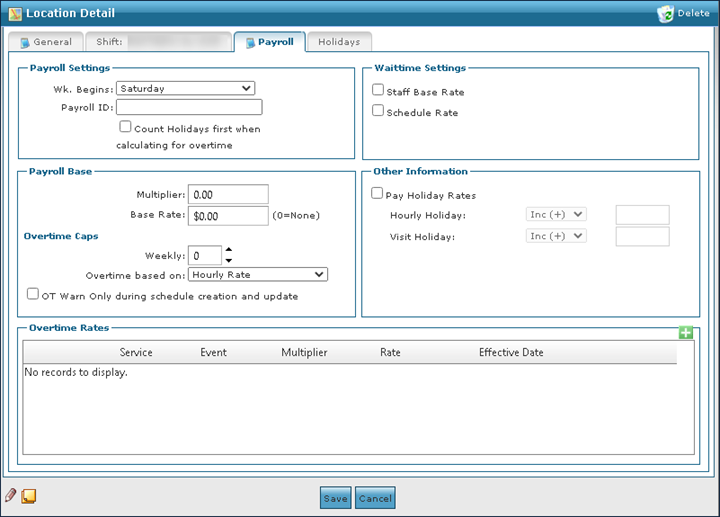
The Payroll Settings section on the Payroll tab displays basic information about payroll frequency, identification numbers, and other settings.
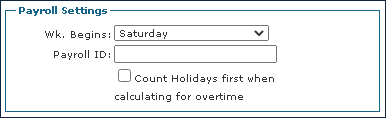
|
Field |
Description |
|---|---|
|
Wk Begins |
Use this dropdown to select when the pay week begins. |
|
Payroll ID |
Use this field to enter the payroll ID number. |
|
Count Holidays first when calculating for overtime |
Select this check box to include holiday hours prior to calculating overtime. |
The Payroll Base section on the Payroll tab displays rate information and salary cap details that are calculated when doing payroll.
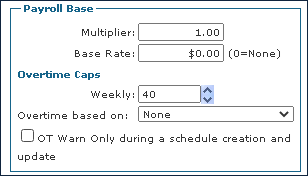
|
Field |
Description |
|---|---|
|
Multiplier |
Use this field to enter the payroll multiplier. |
|
Base Rate |
Use this field to enter the payroll base rate. |
|
Weekly |
Use this field to enter the weekly hour amount. |
|
Overtime based on |
Use this dropdown to determine how overtime is calculated. |
|
OT Warn Only during a schedule creation and update. |
Select this checkbox to receive a warning that a staff member is entering overtime when creating or updating a schedule. |
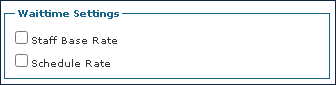
The Waittime Settings on the Payroll tab contain the following fields:
|
Field |
|---|
|
Staff Base Rate |
|
Schedule Rate |
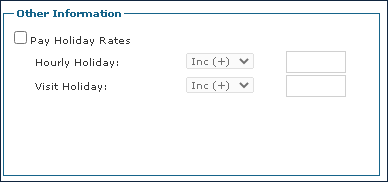
The Other Information section on the Payroll tab displays holiday rate information and additional export settings.
The dropdown next to the Hourly Holiday and Visit Holiday rate fields can be used to increase the rates by either a dollar amount or a set multiplier.
|
Field |
Description |
|---|---|
|
Pay Holiday Rates |
Select this checkbox to enable holiday pay rates. |
|
Hourly Holiday |
Use this field to enter the hourly holiday amount pay rate. |
|
Visit Holiday |
Use this field to enter the visit holiday pay rate. |
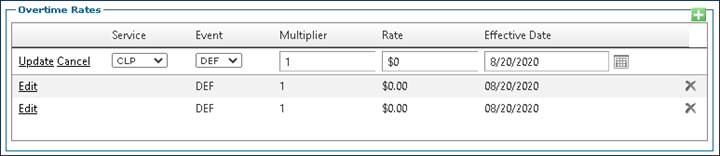
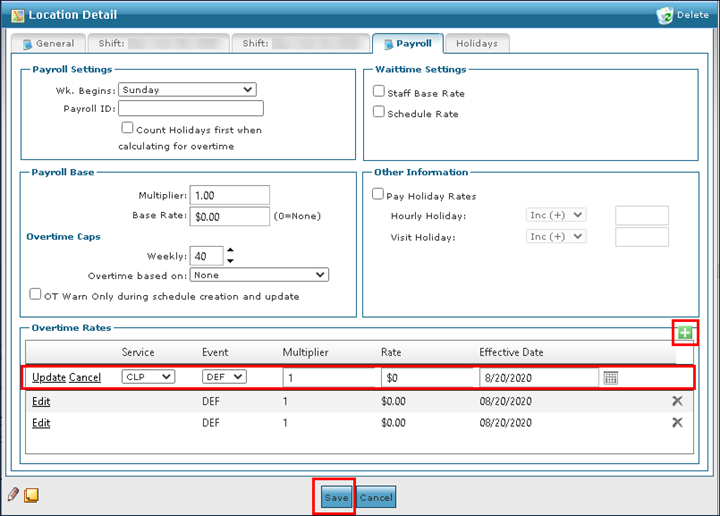
The Overtime Rates section on the Payroll tab displays the overtime rates by service.
|
Field |
Description |
|---|---|
|
Service |
Use this field to select the service. |
|
Event |
Use this field to select the event code. |
|
Multiplier |
Use this field to enter the rate multiplier. |
|
Rate |
Use this field to enter the rate amount. |
|
Effective Date |
Use this field to enter the effective date of the rate. |
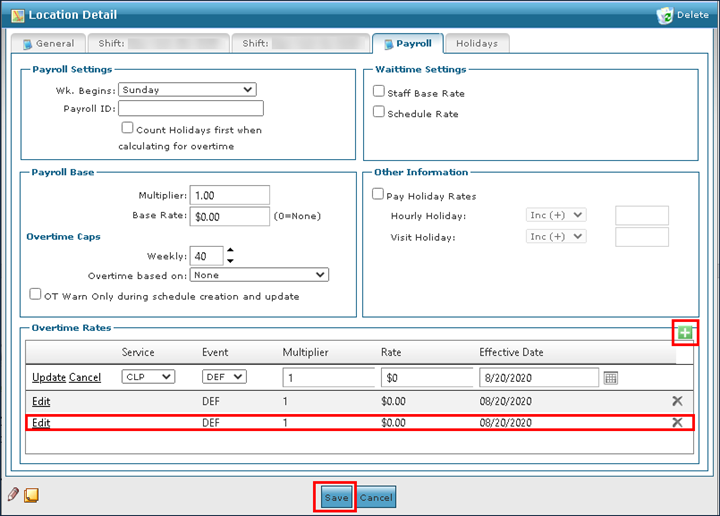
To add a new overtime rate:
-
Go to the Payroll tab on the Location Detail window under Main Menu > Admin > System Setup > Locations > Location > Payroll.
-
Select the Add icon.
-
Select Edit.
-
Complete the fields to enter new overtime rate information.
-
Select the Save button.
To make changes to an existing overtime rate:
-
Go to the Payroll tab on the Location Detail window under Main Menu > Admin > System Setup > Locations > Location > Payroll.
-
Select Edit on the rate to be edited.
-
Complete the fields to make the necessary edits.
-
Select the Save button.
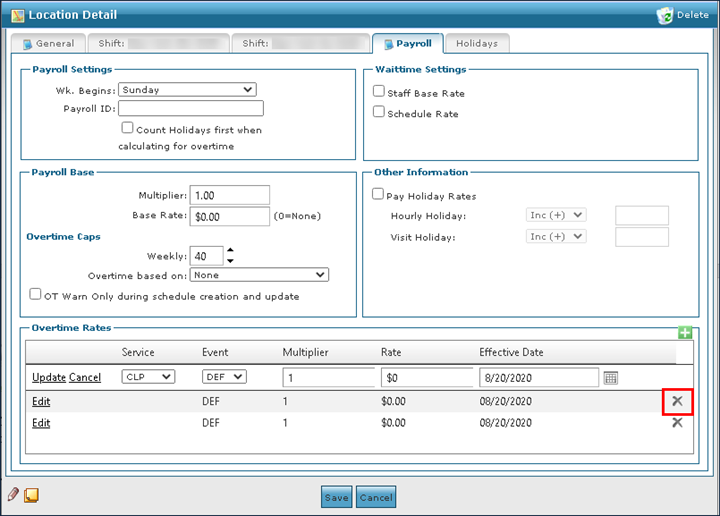
To remove an out of date or invalid overtime rate:
-
Go to the Payroll tab on the Location Detail window under Main Menu > Admin > System Setup > Locations > Location > Payroll.
-
Select the rate to be deleted.
-
Select the Delete icon.
The Holidays tab on the Location Detail window displays all holidays established by the company including their beginning and end times, pay amounts and more.
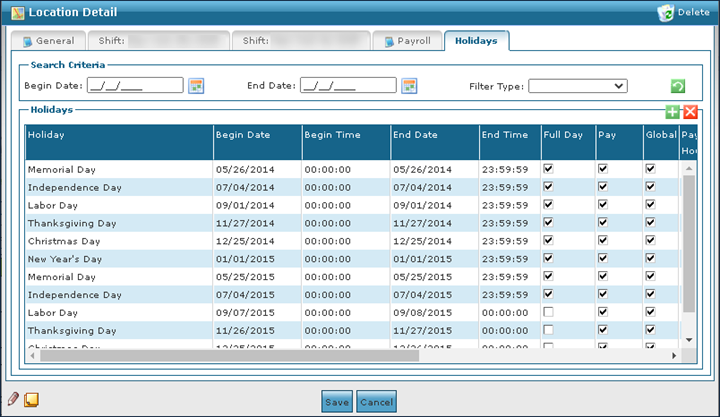
The Search Criteria section of the Holidays tab displays the search filters that can be used to locate a holiday.
|
Field |
Description |
|---|---|
|
Begin Date |
Use this field to filter for holidays beginning with this date. |
|
End Date |
Use this field to filter for holidays ending with this date. |
|
Filter Type |
Use this dropdown to select the filter type. |
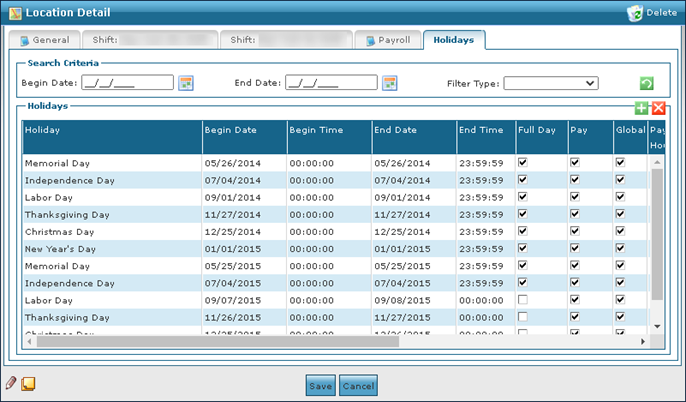
The Holidays section on the Holidays tab displays information about various holidays that have been created in the system.
|
Field |
Description |
|---|---|
|
Holiday |
Use this field to enter the holiday name. |
|
Begin Date |
Use this field to enter the holiday beginning date. |
|
Begin Time |
Use this field to enter the holiday begin time. |
|
End Date |
Use this field to enter the holiday end date. |
|
End Time |
Use this field to enter the holiday end time. |
|
Full Day |
Select this checkbox to indicate that the holiday is a full day. |
|
Pay |
Select this checkbox to indicate that this is a paid holiday. |
|
Global |
Select this checkbox to indicate that this is a holiday for the entire company. |
|
Pay Type Hourly |
Use this field to select the holiday pay type rate. |
|
Pay Inc/Multi Hourly |
Use this field to enter the holiday multi hourly amount. |
|
Earnings Code |
Use this field to select the holiday hourly earnings code. |
|
Pay Type Visit |
Use this field to select the holiday visit rate. |
|
Pay Inc/Multi Hourly Visit |
Use this field to enter the holiday visit amount. |
|
Earnings Code |
Use this field to select the holiday visit earnings code. |
To add a new holiday or event:
-
Go to the Holidays tab on the Locations Detail window under Main Menu > Admin > System Setup > Locations > Location > Holidays.
-
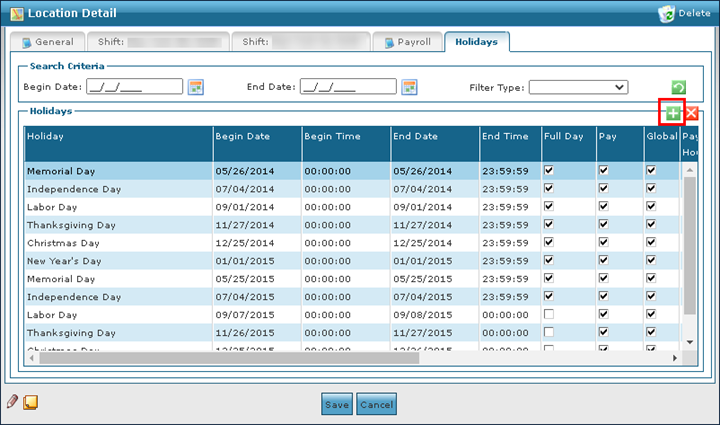
Select the Add icon.
-
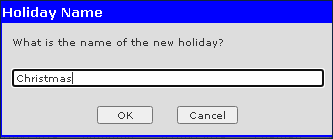
Enter the holiday name.
-
Select the Ok button.
-
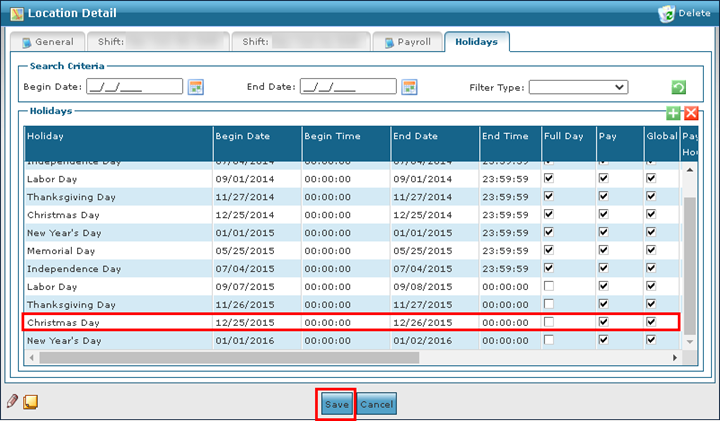
Complete the fields to enter holiday information.
-
Select the Save button.
To remove an invalid or out of date hobby:
-
Go to the Holidays tab on the Location Detail window under Main Menu > Admin > System Setup > Location > Locations > Holidays.
-
Select the holiday to be removed.
-
Select the Delete icon.
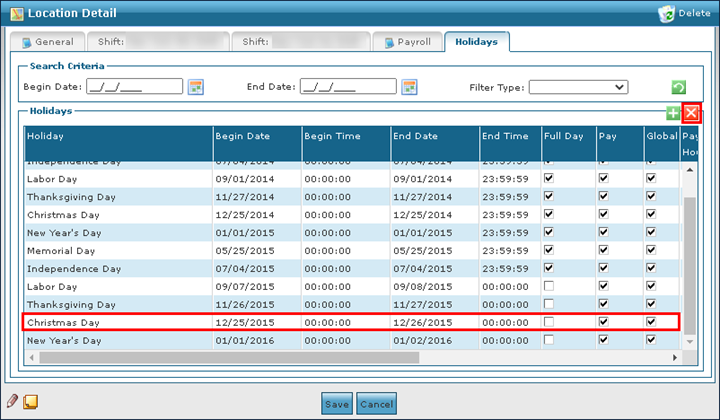
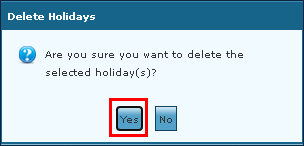
-
Select the Yes button.