Create a Client Permanent Schedule
In this topic, you will find steps for creating a permanent schedule.
-
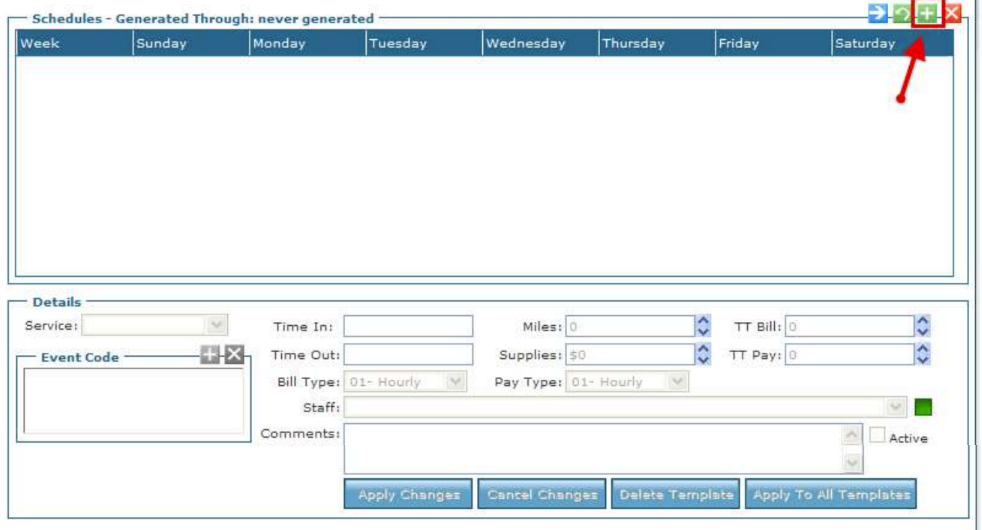
Add Weeks: When creating the first week for permanent schedules, select the add week button (+).
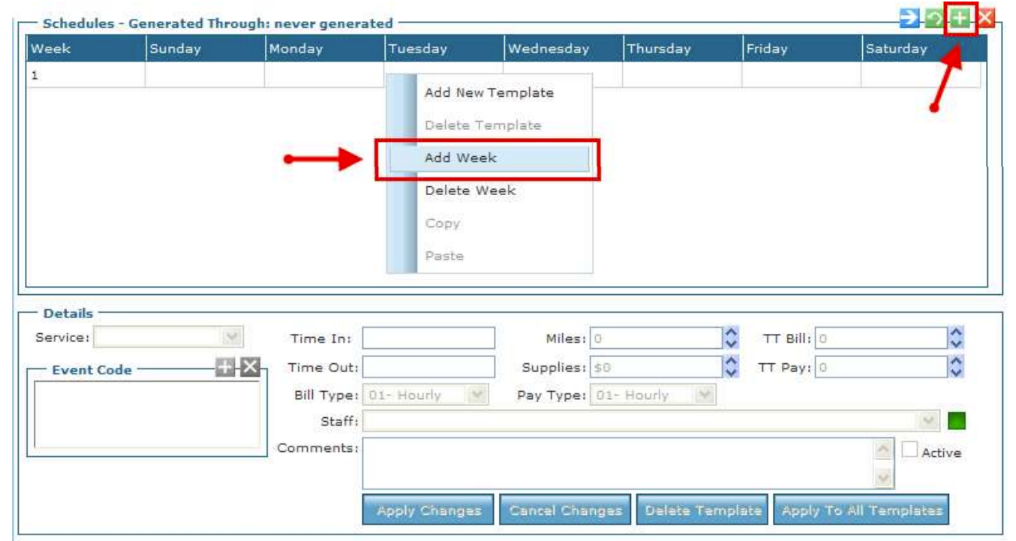
If you are adding an additional week, you may right select the week and select Add Week instead of clicking on the + button.
-
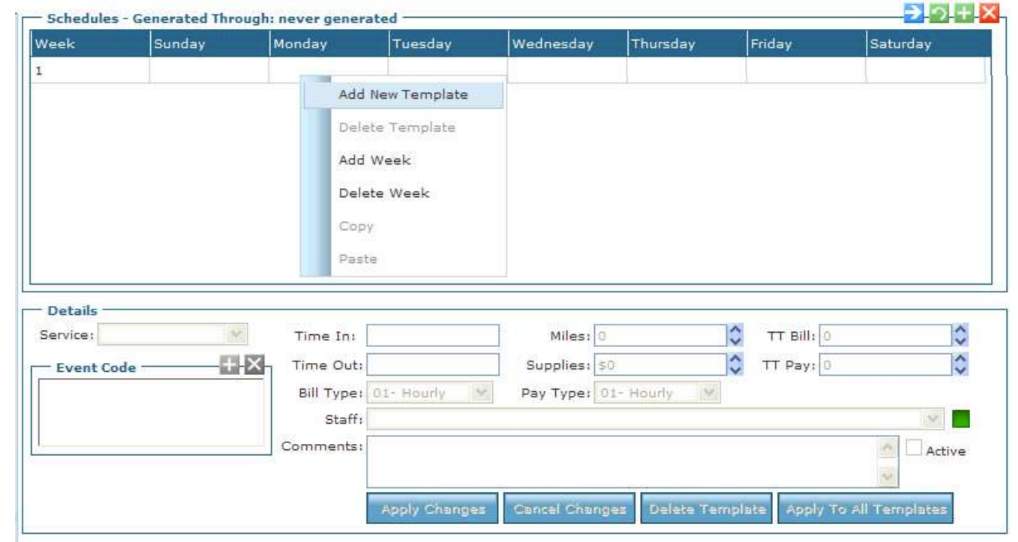
Create Template: To create a scheduled visit, right click the day that will be scheduled and select Add New Template.
-
Apply Changes: Add the required fields - Service, Time In, Time Out, and Staff - and any additional fields, then select Apply Changes.

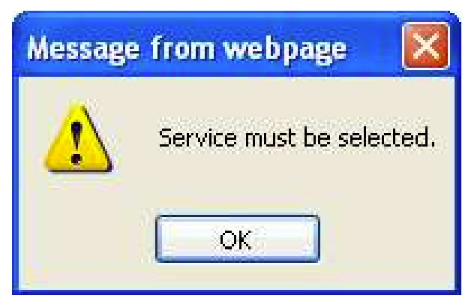
If one of the required fields is not filled a warning message appears. Select OK, fill out the required field, and then select Apply Changes again.
-
Add Additional Templates: If adding additional visits with different schedule details follow the steps above.
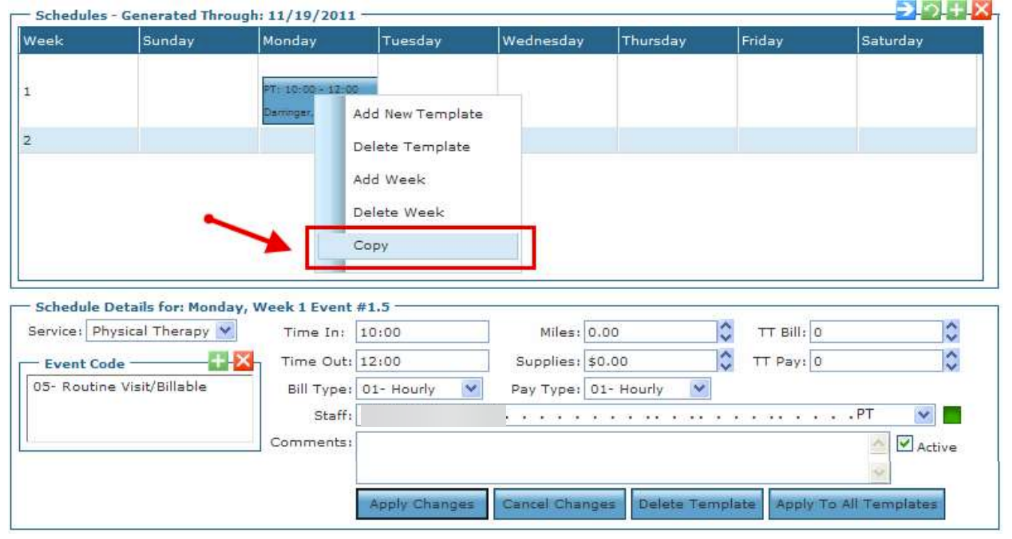
If adding additional visits with the same schedule details, (i.e. same service, schedule time, staff) right click on a template, then select Copy.
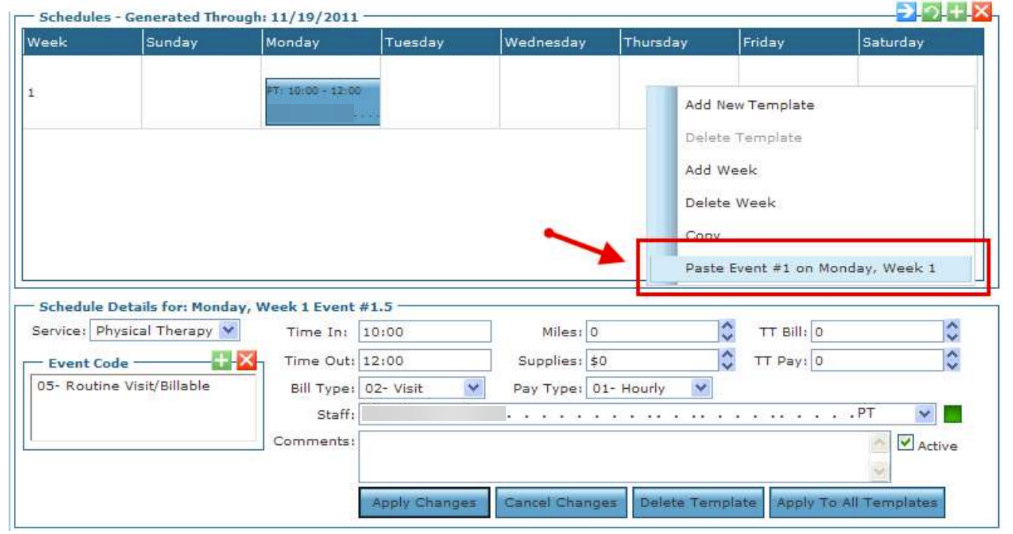
Right click on the day you would like to paste the template into, and then select Paste Event.
-
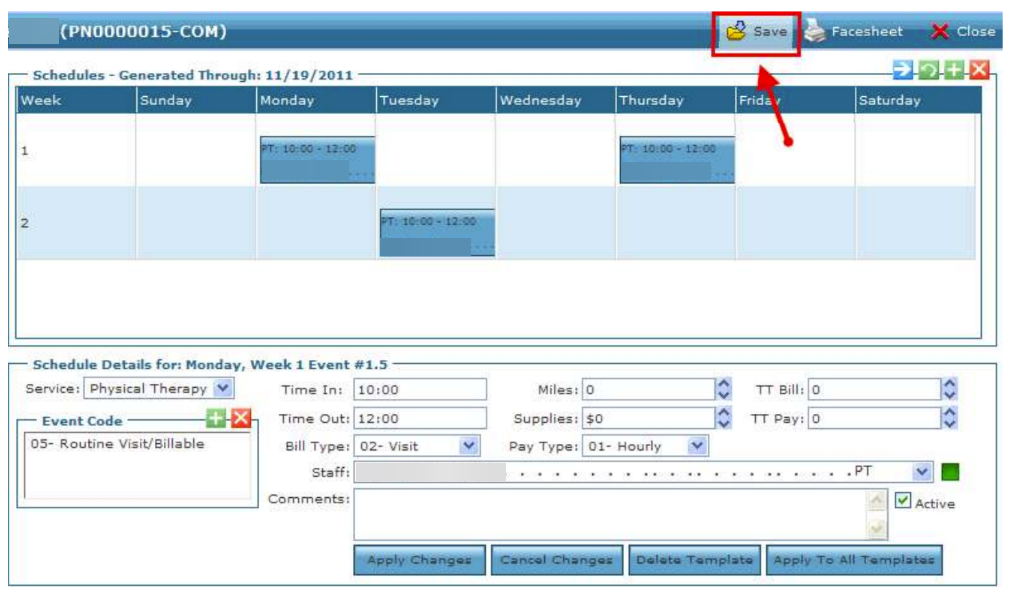
Save Schedule: Once your schedule pattern is complete, select Save.
-
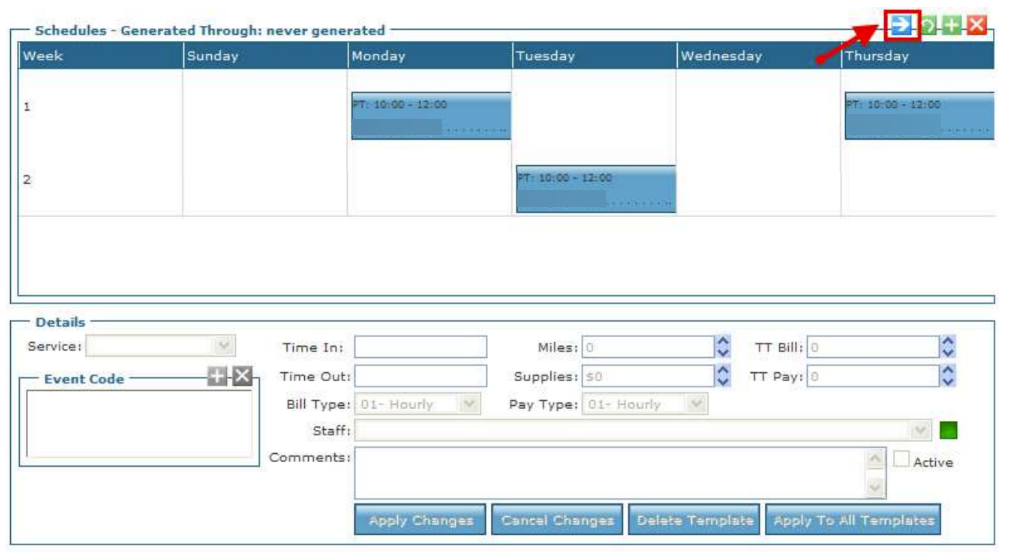
Generate Schedule: To generate the schedule, select the generate button (→).
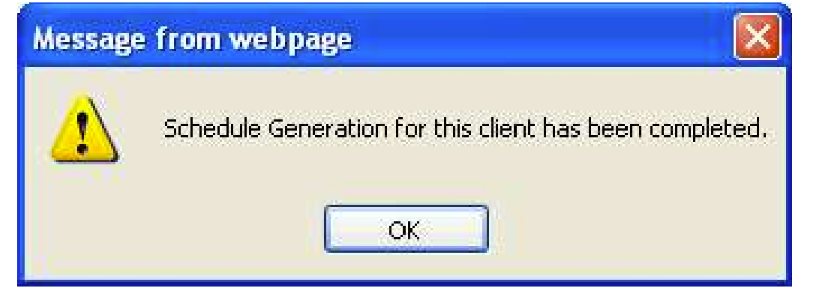
If you saved first, the following message appears. Select OK.
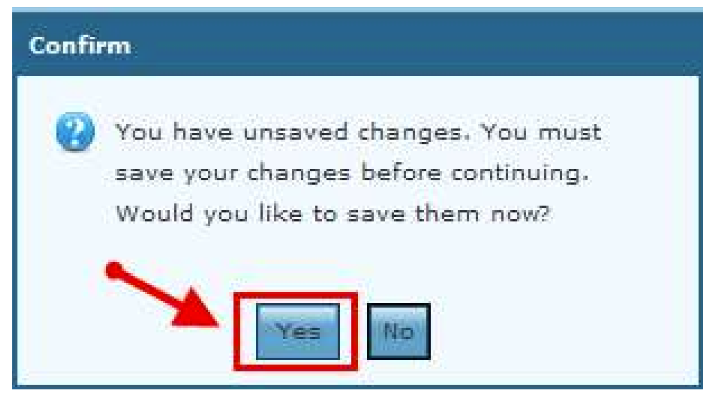
If you did not save before generating, the following message appears. Select Yes.
-
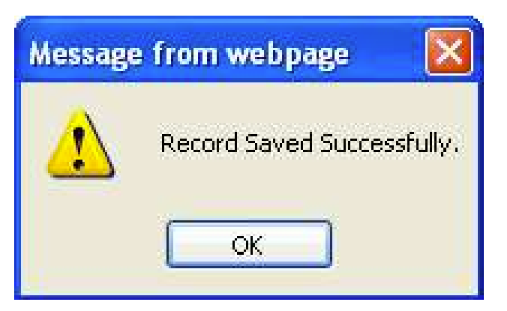
After saving, the Record Saved Successfully message appears. Select OK then select the Generate button again.
-
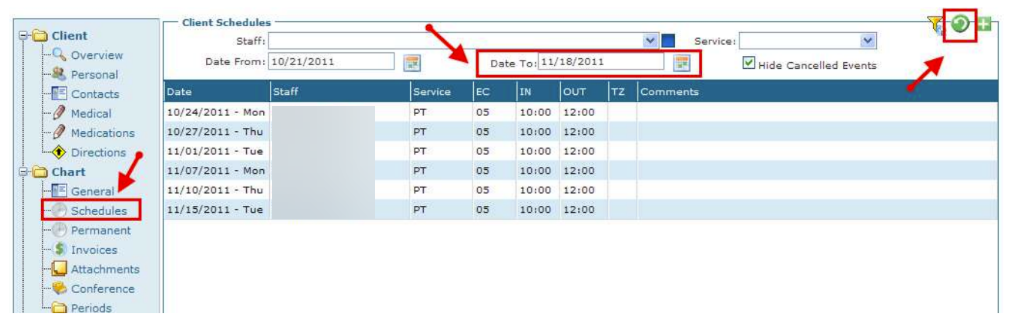
View Schedule: To view the permanent schedule, select Schedules in the navigation bar. Edit the Date To filter to allow you to see multiple weeks, then select the Refresh button, and the scheduled visits created from the permanent schedule appear.