Add a Client to an Existing Schedule
Multiple clients can be added to a schedule if a staff member is performing multiple services simultaneously.
To add another client to an existing schedule:
-
Go to Main Menu > Scheduling.
-
Choose the search filters matching the criteria to locate and open the schedule.

-
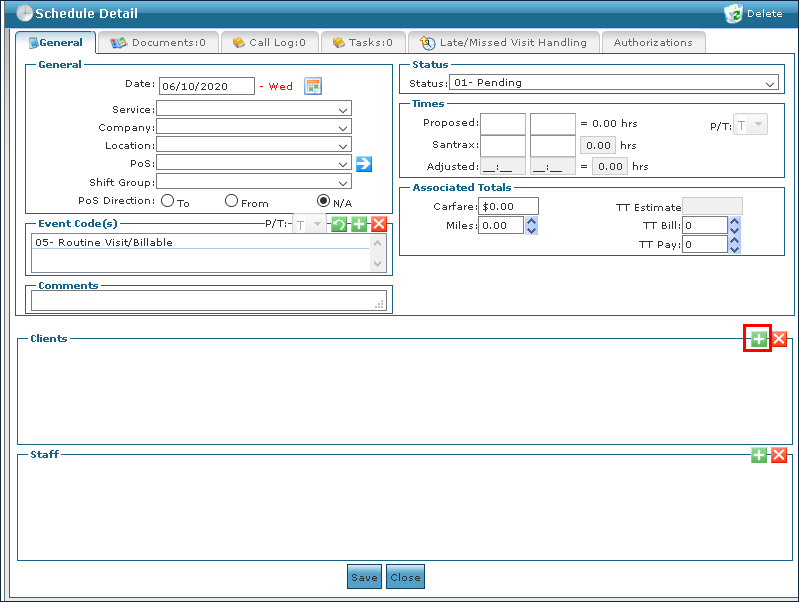
Click Add New Client on the Schedule Detail screen.
-
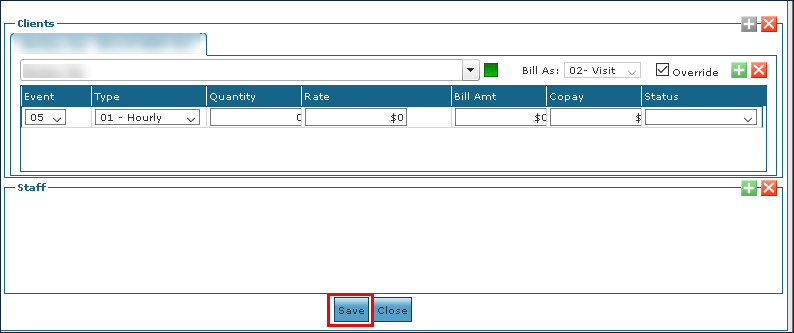
Use the filters to locate the client to be added.
-
Select the Override checkbox if the client information does not auto-populate and enter the appropriate information.
-
Enter the rest of the schedule information as needed.
-
Click Save.