Sandata Agency Management Payors

To add a new payer:
-
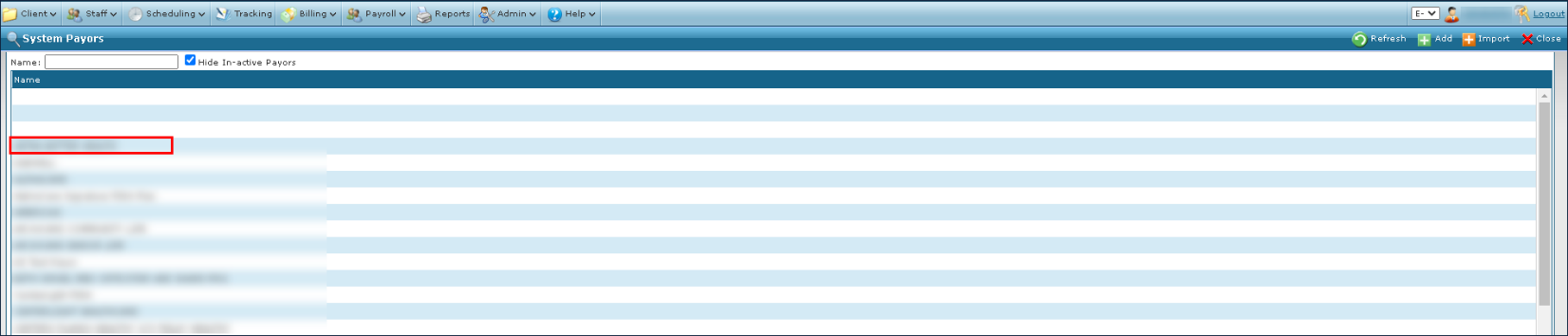
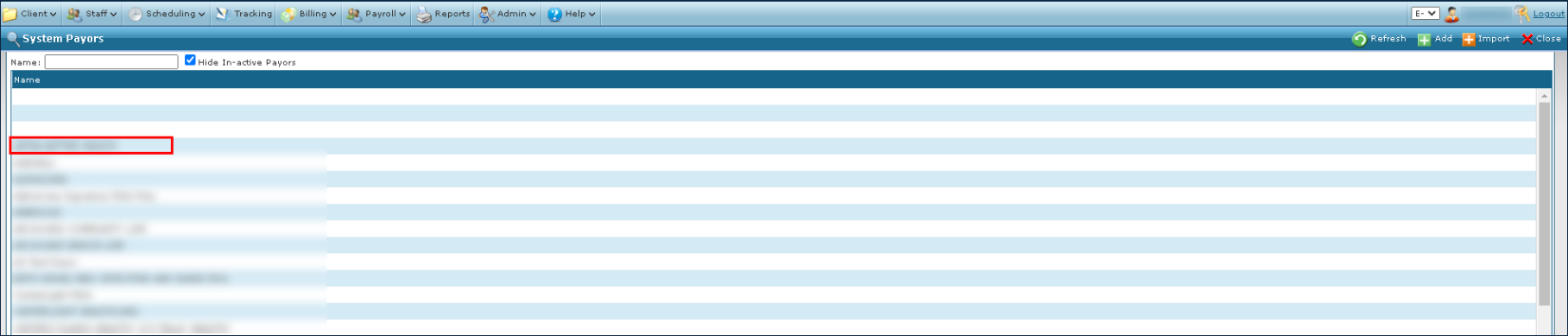
Go to the Payors screen under Main Menu > Billing > Payors.
-
Select Add.

-
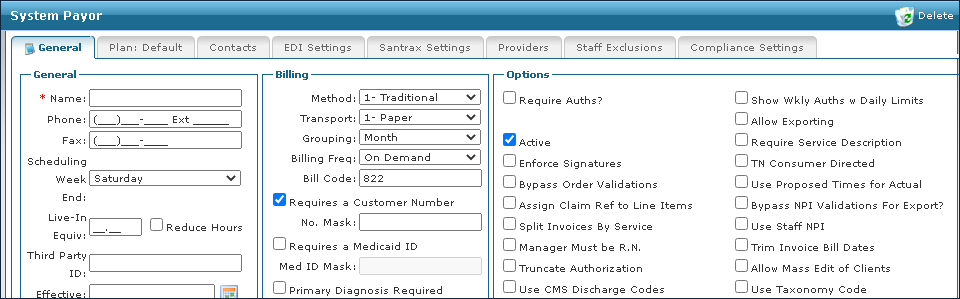
Enter the required information in the System Payor window.
-
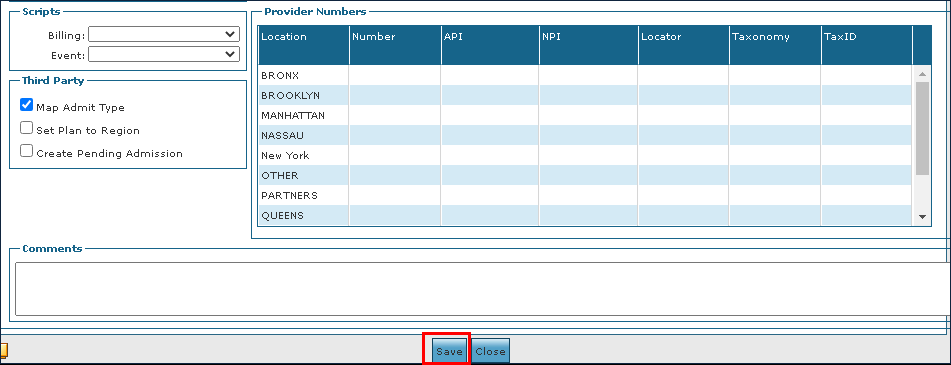
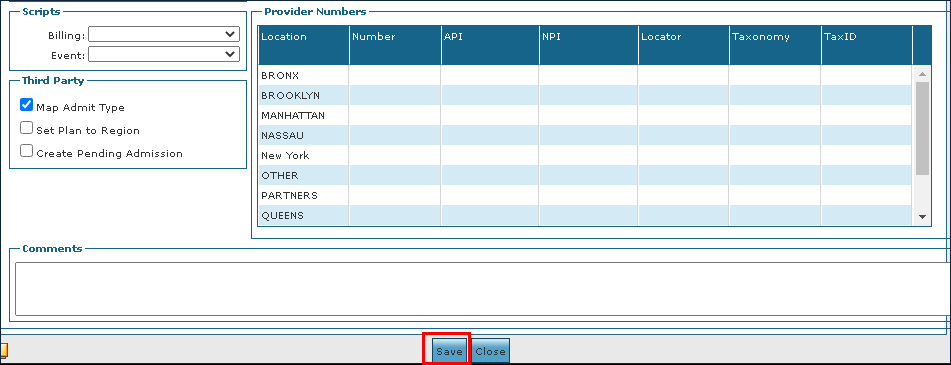
Select Save.
To locate a previously added payer:
-
Go to the Payors window under Main Menu > Billing > Payors.
-
Use the search filters to locate the Payer by name.
-
Select Refresh.

-
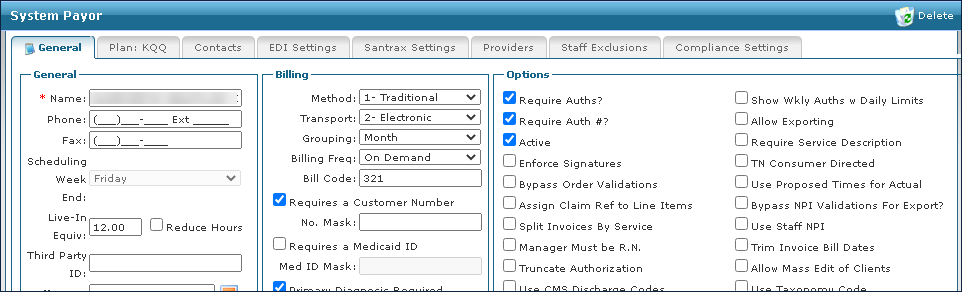
Double click the Payer to open the System Payer window.
To make changes to an existing payer:
-
Go to the Payors window under Main Menu > Billing > Payors.
-
Use the search filters to locate the Payer by name.
-
Select Refresh.

-
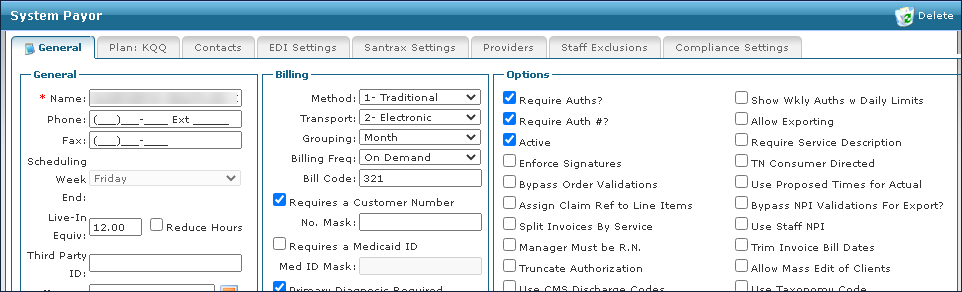
Double click the Payer to open the System Payer window.
-
Make any necessary changes or updates.
-
Select the Save button.
A Payer can only be removed if it was never assigned to a Client admission. To remove an existing payer:
-
Go to the Payors window under Main Menu > Billing > Payors.
-
Use the search filters to locate the Payer by name.
-
Select Refresh.

-
Double click the Payer to open the System Payer window.
-
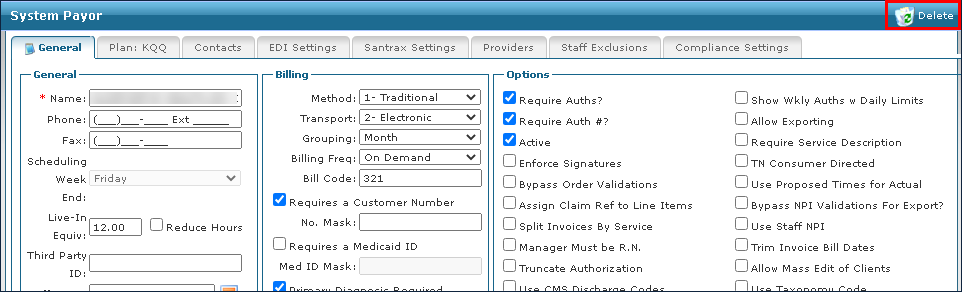
Select Delete.
-
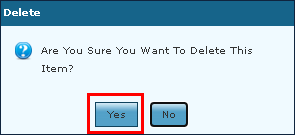
Select the Yes button.
To complete a retro rate adjustment:
-
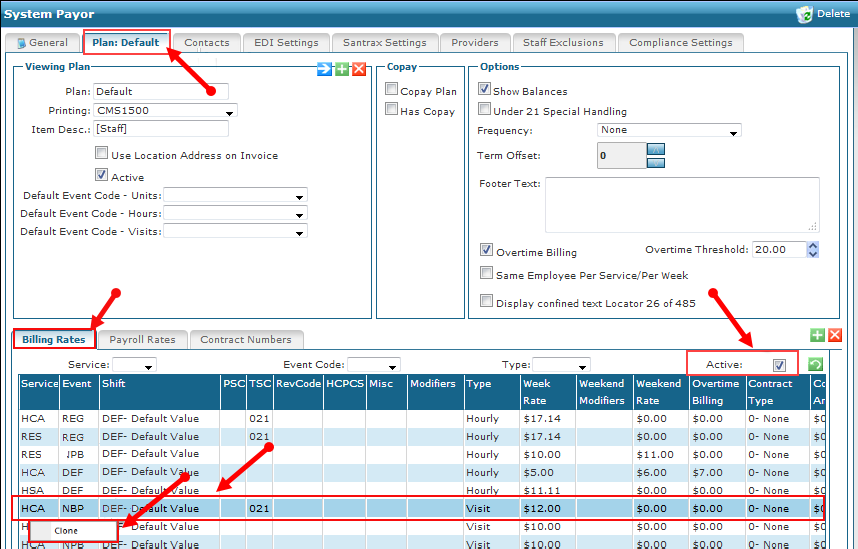
Go to the System Payor window under Billing > Payors > Search for and open a system Payer.
-
Select the appropriate Plan tab.
-
Select the Billing Rates tab.
-
Select a rate line.
-
Right click to display the context menu.
-
Select Clone.
-
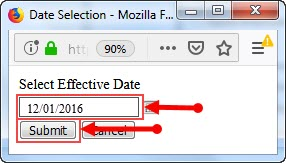
Enter the (retroactive) effective date for the new rate.
-
Select the Submit button.
-
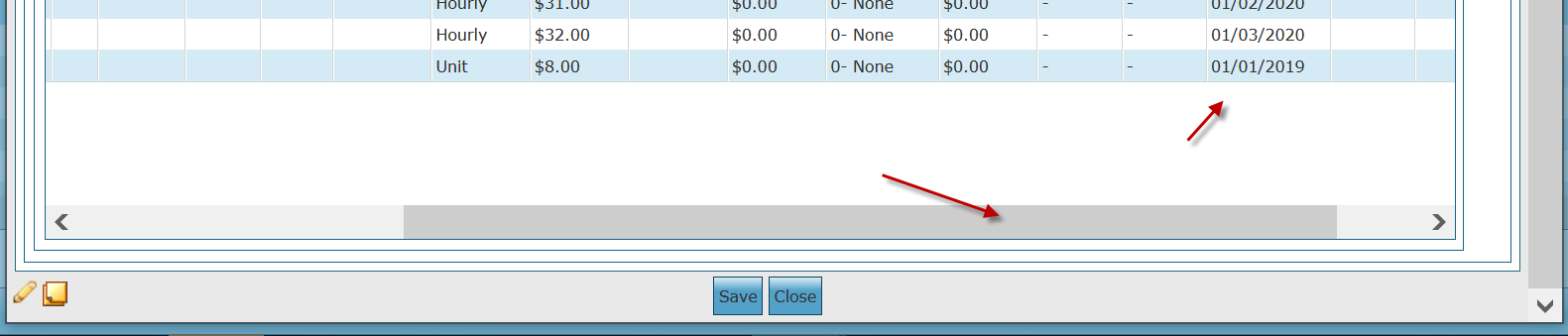
The cloned rate displays at the bottom of the list of Billing Rates. To see the effective date, scroll at the bottom of the Billing Rates tab.
-
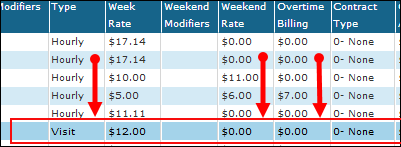
Edit the existing billing rates in the Week Rate, Weekend Rate or Overtime Billing columns of the cloned rate line.
-
If any rates are not defined, enter or leave a rate of $0.00.
-
Next, select the Save button.

-
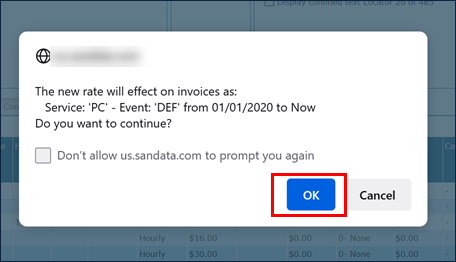
Select OK.
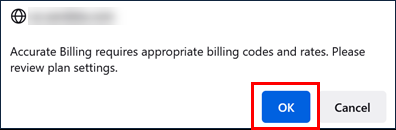
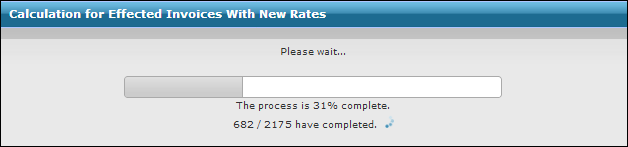
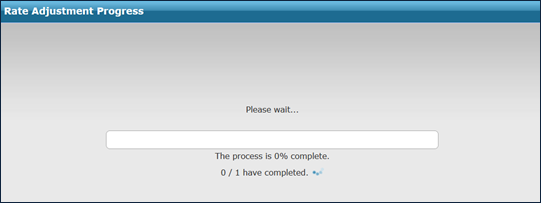
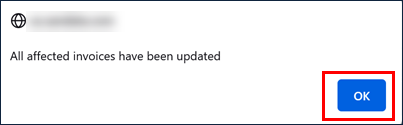
A progress indicator displays as the system edits invoices retroactively. If the indicator displays and closes immediately, no edits were made.
-
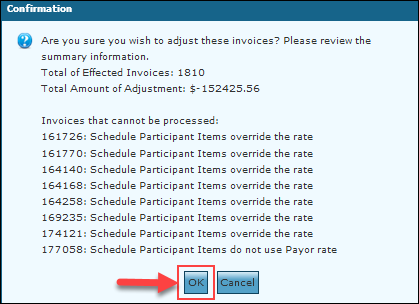
Select the OK button. A pop-up displays, indicating the number of invoices changed and total dollar amount of the adjustments made. It also displays any errors that occur, prompting the user for final confirmation. When confirmed, the system finalizes the changes.
-
Select the OK button.
Payers can have a variety of different rate plans. For example, if providing billable services for Blue Cross/Blue Shield (BCBS) and BCBS has multiple rate plans, Billing Rates can be set up for each plan separately and they can be name accordingly.
To add a new rate plan:
-
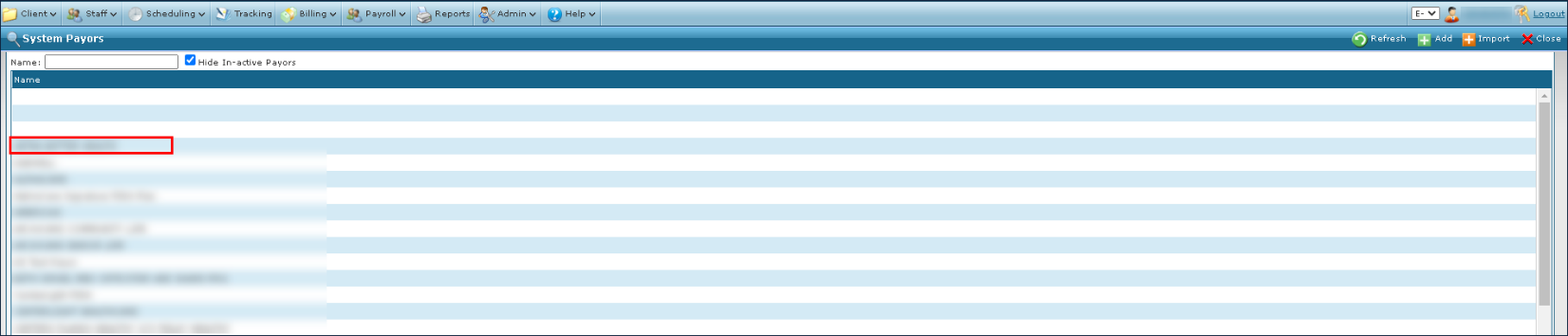
Go to the System Payor window under Main Menu > Billing > Payors.
-
Double click on the desired payer.
-
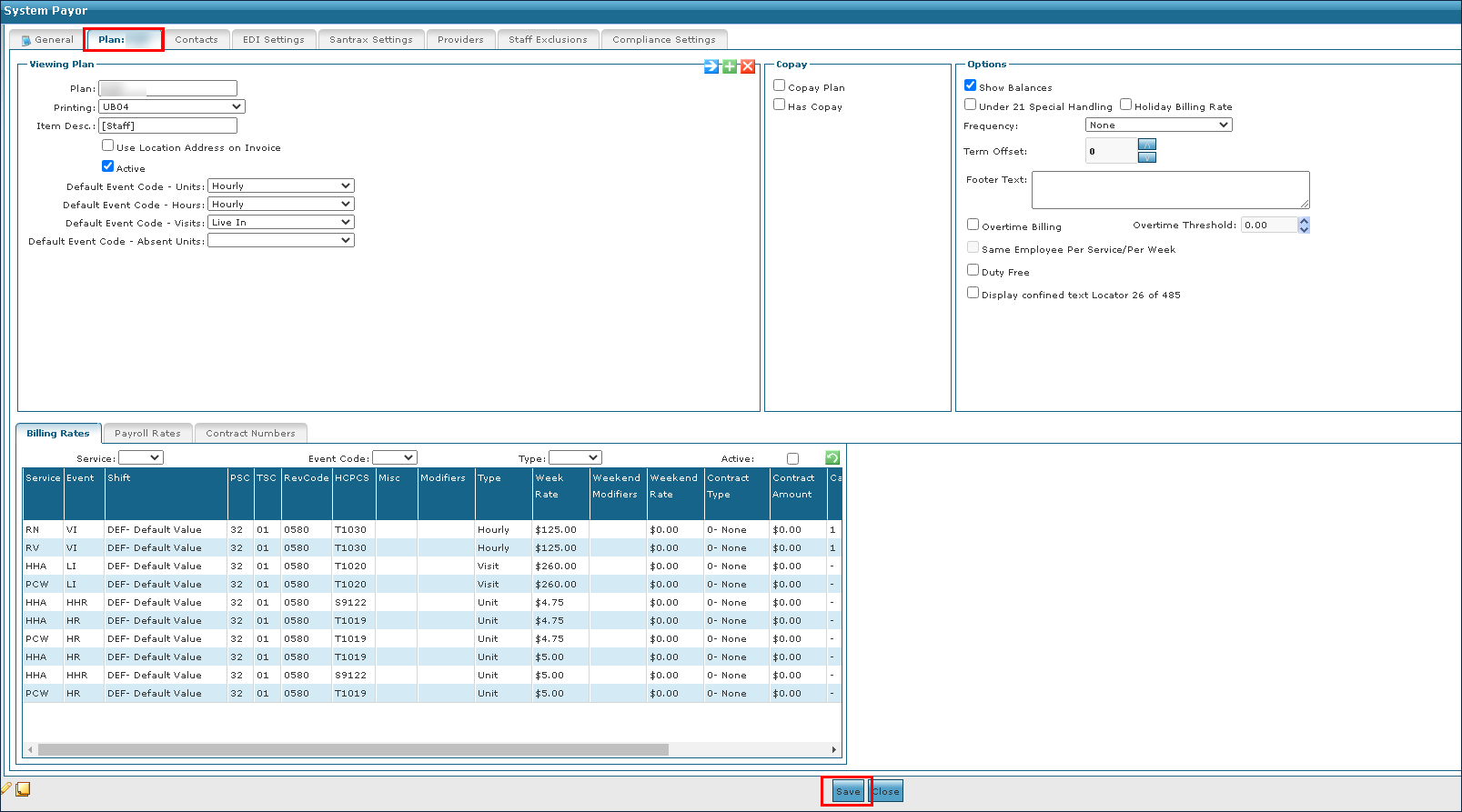
Select the associated Rate Plan tab.
-
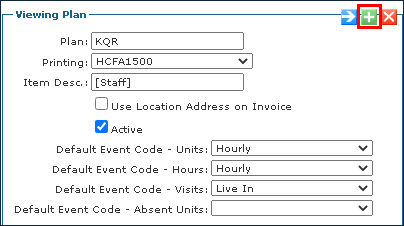
Select the Add icon to add the new rate plan.
-
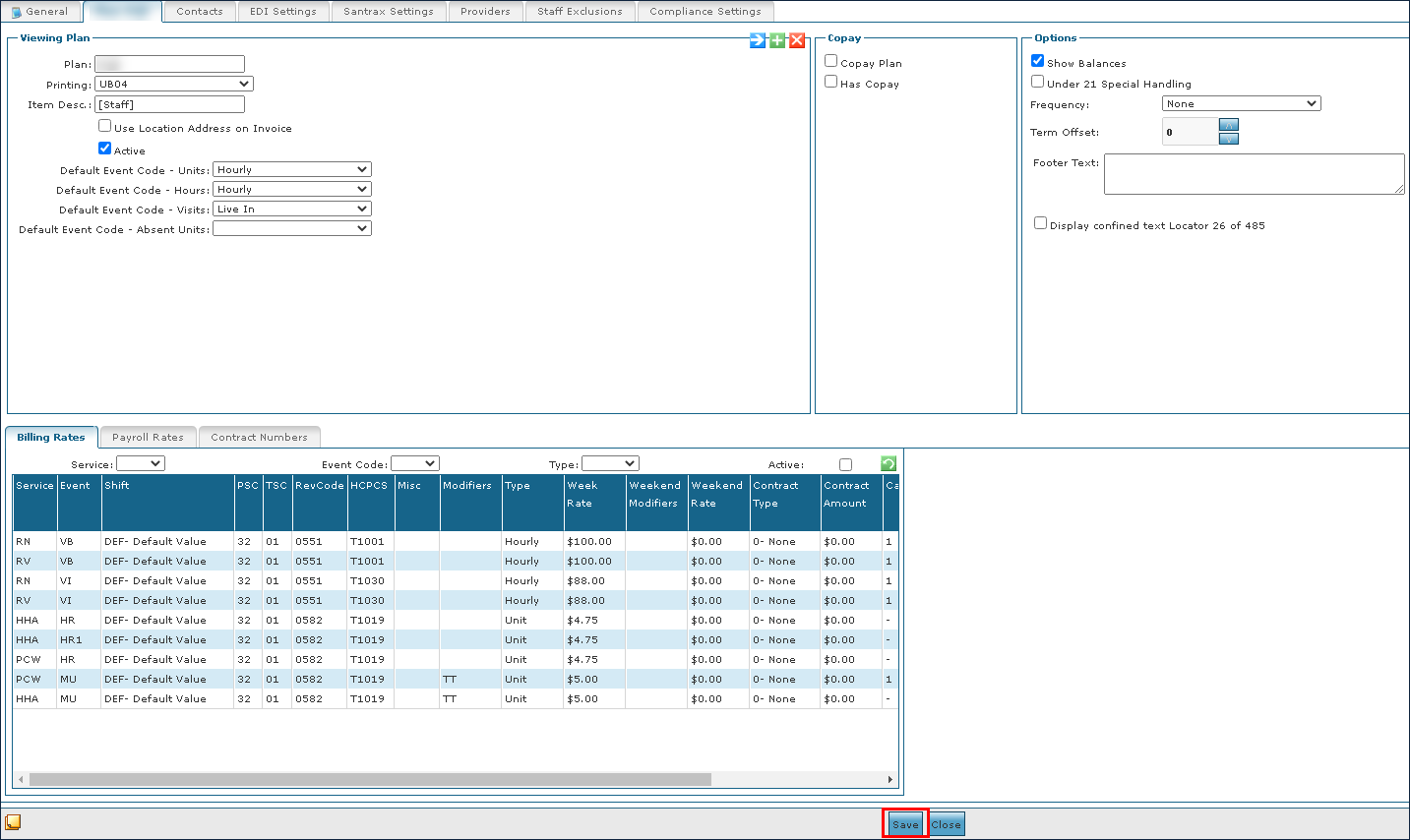
Select the appropriate settings and add the necessary rate information.
-
Select the Save button.
Once a rate plan has been created, it can be edited any time.
-
Go to the System Payor window under Main Menu > Billing > Payors.
-
Double click the desired payer.
-
Select the associated Rate Plan tab.
-
Select the appropriate corrections or changes to the rates and settings.
-
Select the Save button.
Existing rate plans can be copied to the current or a different payer.
-
Go to the System Payor window under Main Menu > Billing > Payors.
-
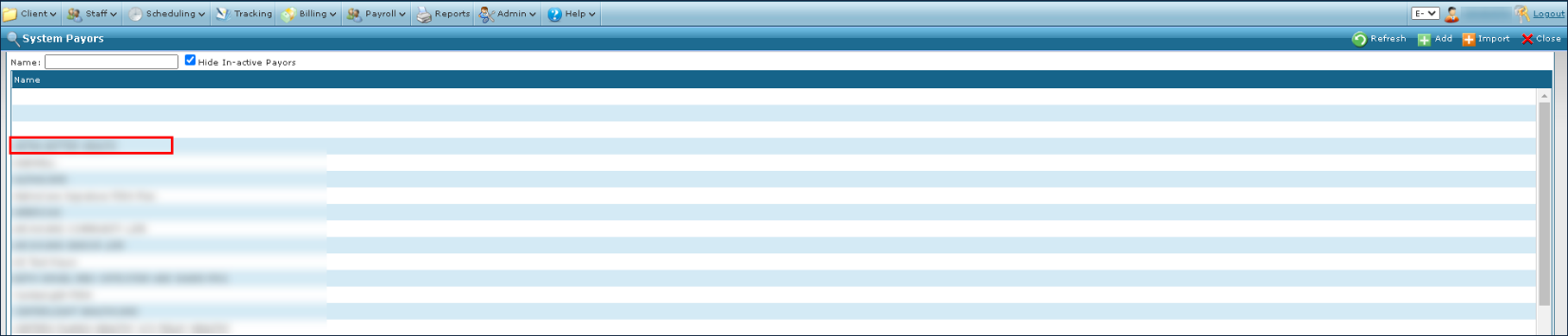
Double click the selected Payer.
-
Select the associated Rate Plan tab.
-
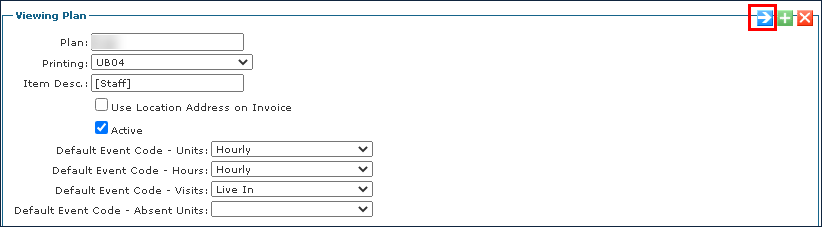
Select the Copyicon to copy the rate plan.
-
Select the Payer to copy the rate plan to.
-
Select the Save button.
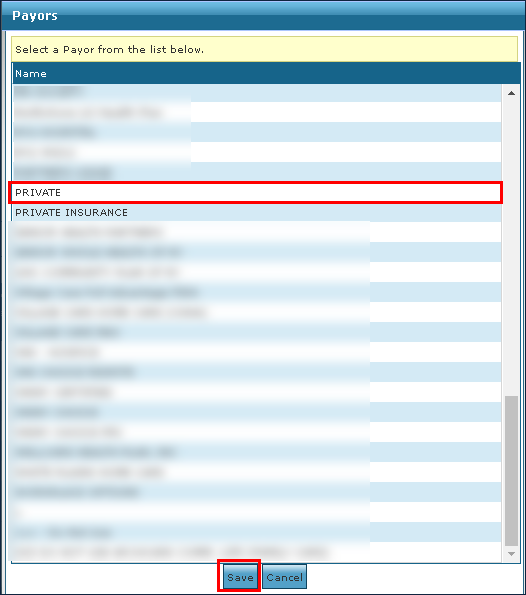
-
Enter the new plan name.
-
Select the Ok button.
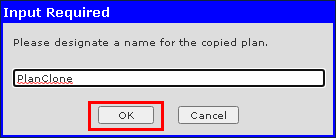
If a rate plan is no longer in use but must be saved for any reason, it can become inactive rather than deleted. To deactivate an existing rate plan:
-
Go to the System Payor window under Main Menu > Billing > Payors.
-
Double click the selected Payer.
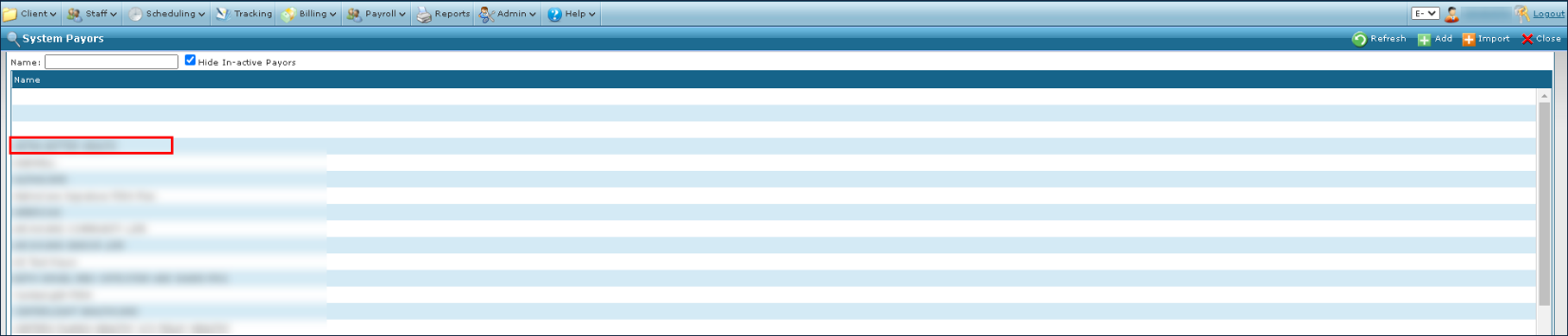
-
Deselect the Active checkbox.
-
Select the Save button.
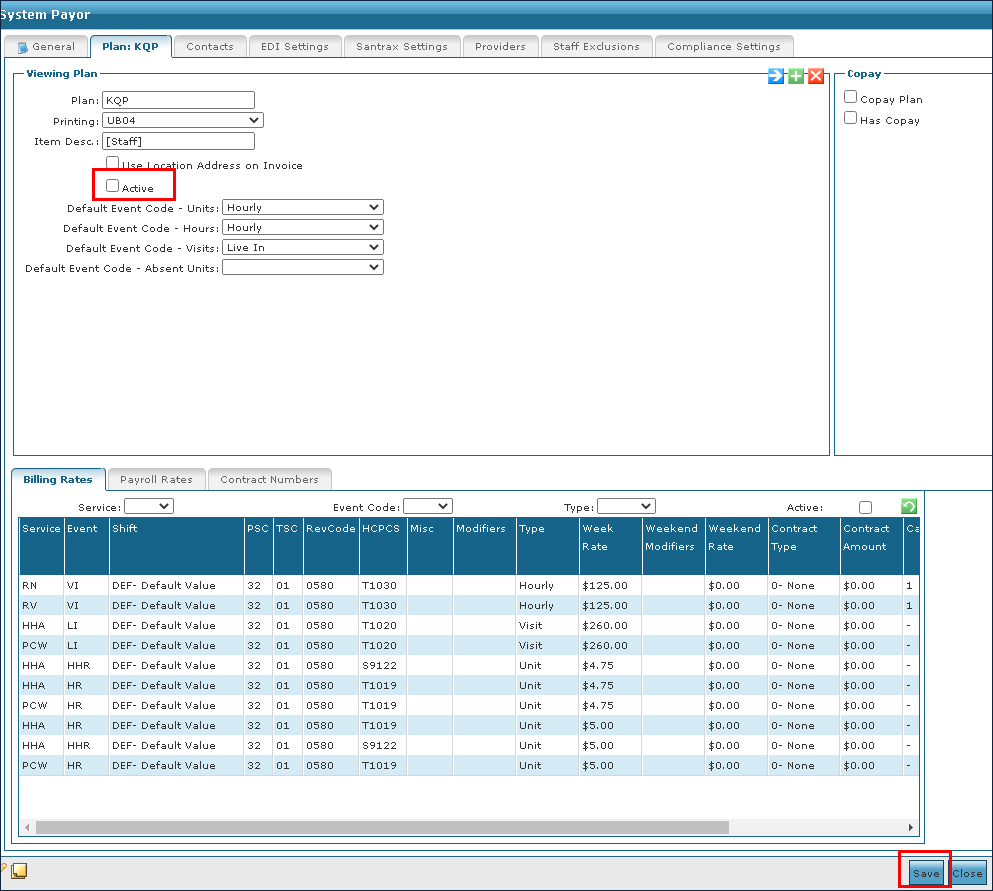
A rate plan can be removed or deleted if it is not in use on any Client admission. To remove an out of date or incorrect rate plan:
-
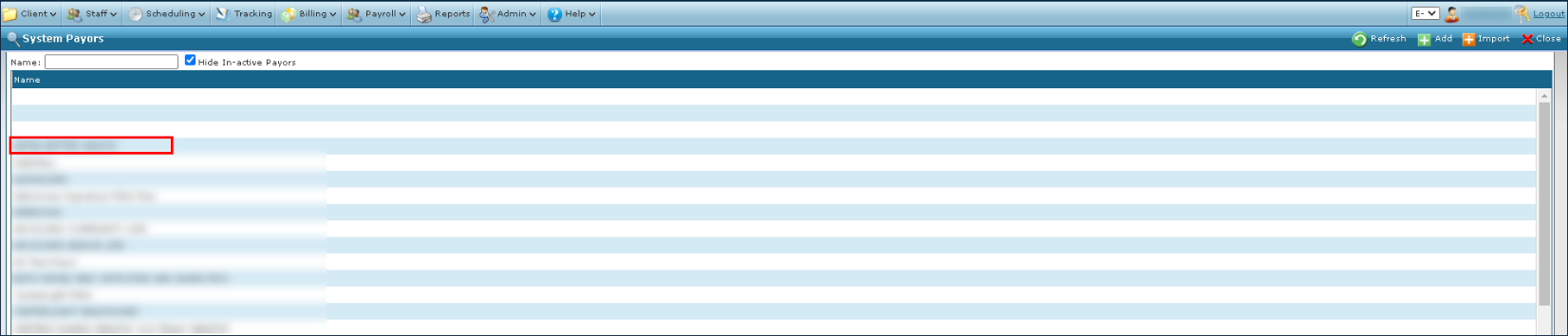
Go to the System Payor window under Main Menu > Billing > Payors.
-
Double click the selected Payer.
-
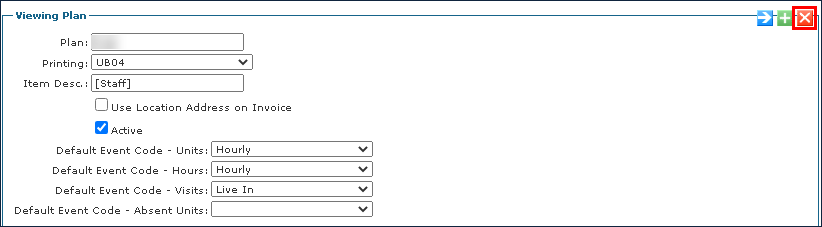
Select the Delete icon to delete the rate plan.
-
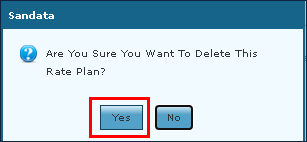
Select the Yes button.
Once a rate plan has been created, it is ready to have new rates added.
-
Go to the System Payor window under Main Menu > Billing > Payors.
-
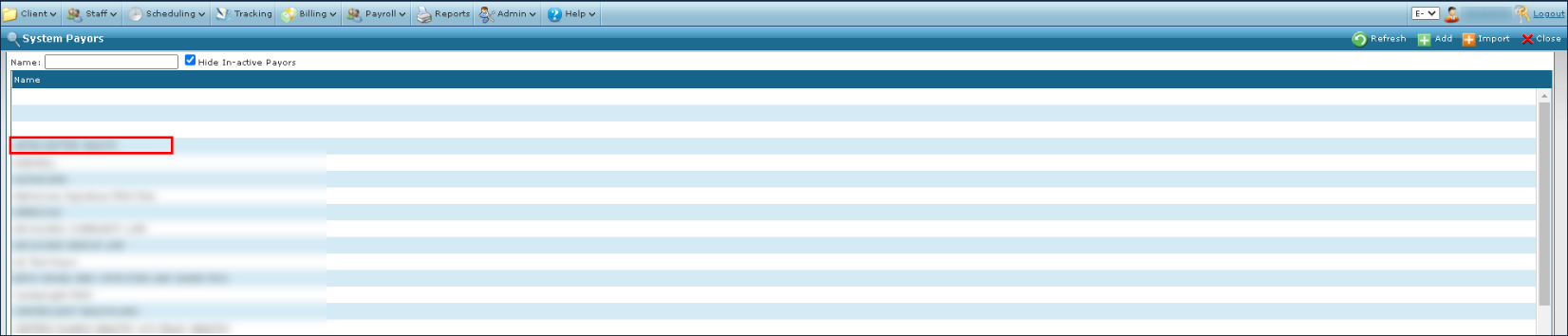
Double click the selected Payer.
-
Select the associated Rate Plan tab.
-
Select the tab of the rate to be added.

-
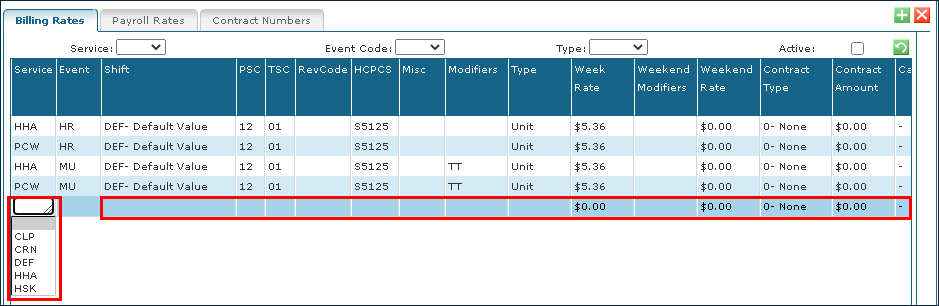
Select the Add icon to add a new rate.

-
Choose the service associated with the rate.
-
Enter the rate information.
-
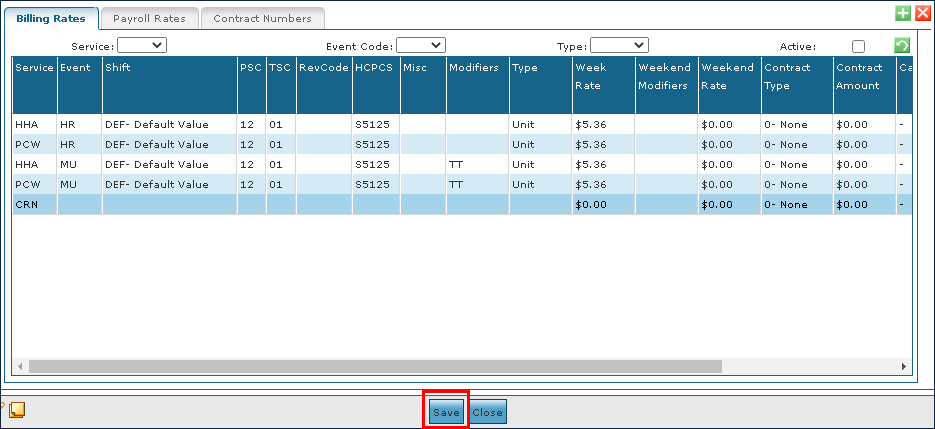
Select the Save button.
Once the rate has been added to an existing plan, it can be edited at any time.
-
Go to the System Payor window under Main Menu > Billing > Payors.
-
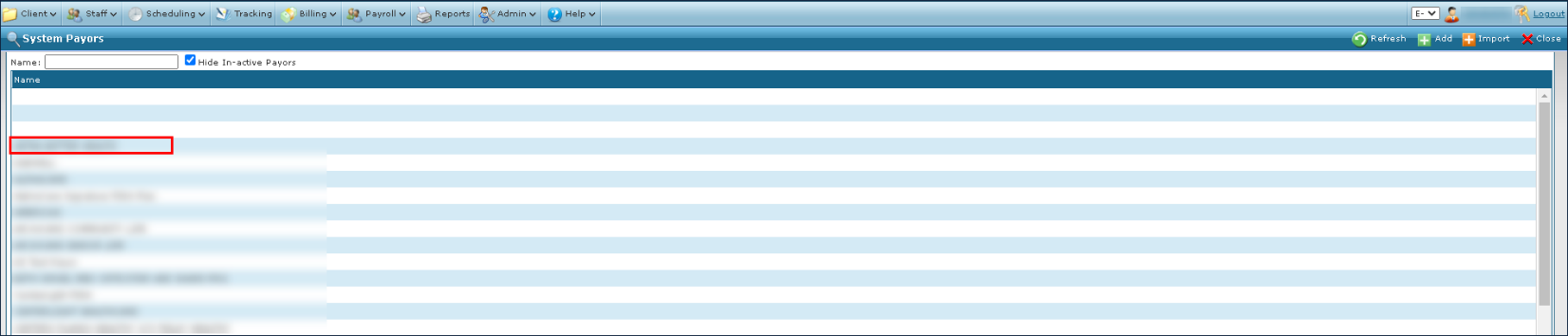
Double click the selected Payer.
-
Select the associated Rate Plan tab.

-
Select the tab of the rate to be edited.
-
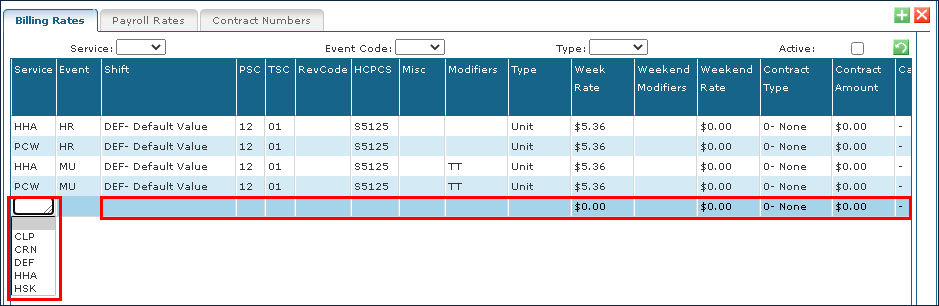
Edit the rate information.
-
Select the Save button.
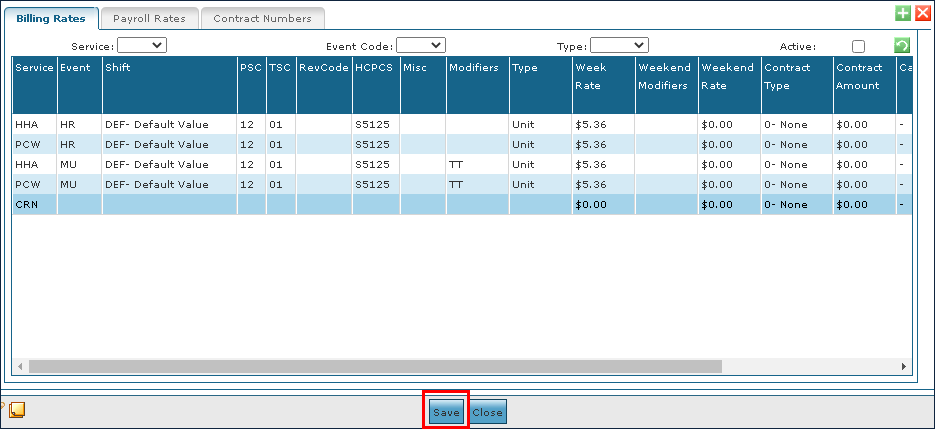
Once a rate has been created and updated, it can be cloned without having to re-add the rate information.
To clone a billing rate, payroll rate, or contract number on a rate plan:
-
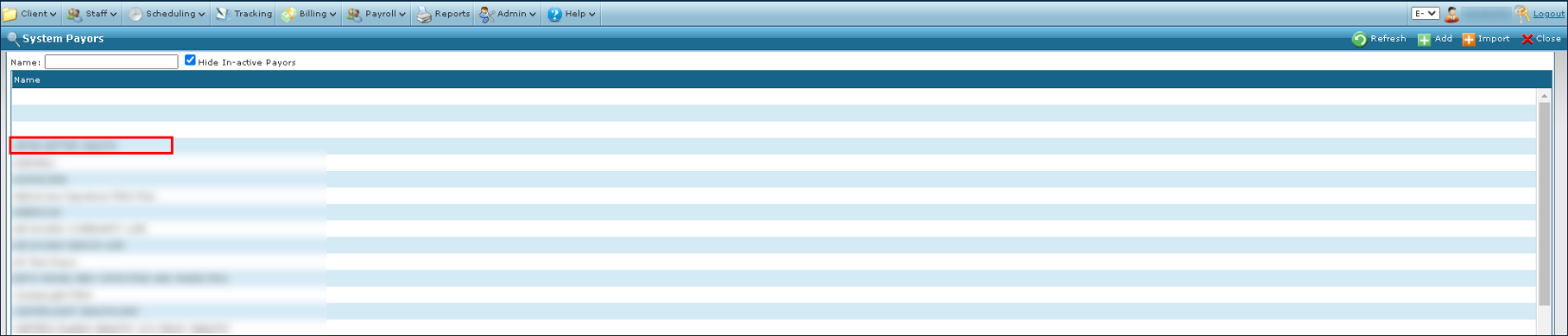
Go to the System Payor window under Main Menu > Billing > Payors.
-
Double click the selected Payer.
-
Select the associated Rate Plan tab.
-
Select the tab of the rate to be cloned.

-
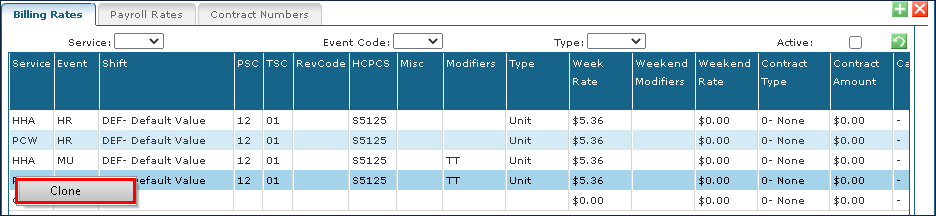
Right click on the rate to be cloned and select Clone.
-
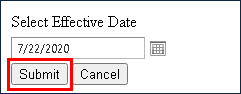
Select the effective date of the cloned rate.
-
Select Submit.
The cloned rate is displayed at the bottom of the rate list.
Existing rates that are no longer active, invalid, or expired can be deleted from the payer plan. To delete a billing rate, payroll rate, or contract number on a rate plan:
-
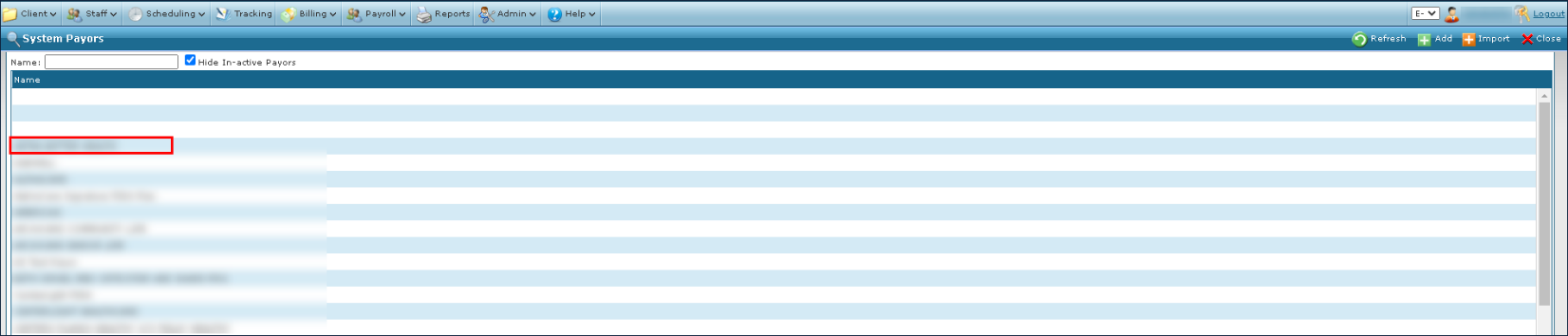
Go to the System Payor screen under Main Menu > Billing > Payors.
-
Double click on the selected Payer.
-
Select the associated rate plan tab.
-
Select the tab of the rate to be deleted.

-
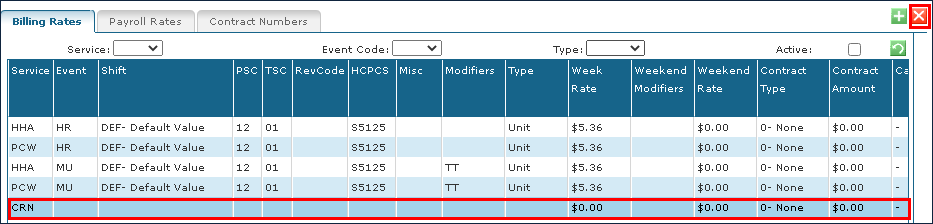
Select the rate to be deleted.
-
Select the Delete icon to delete the selected rate plan.
-
Select the Yes button.
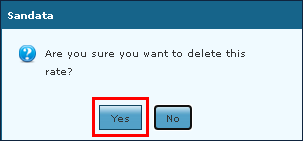
The selected rate is deleted.
To add a new contact to a Payor:
-
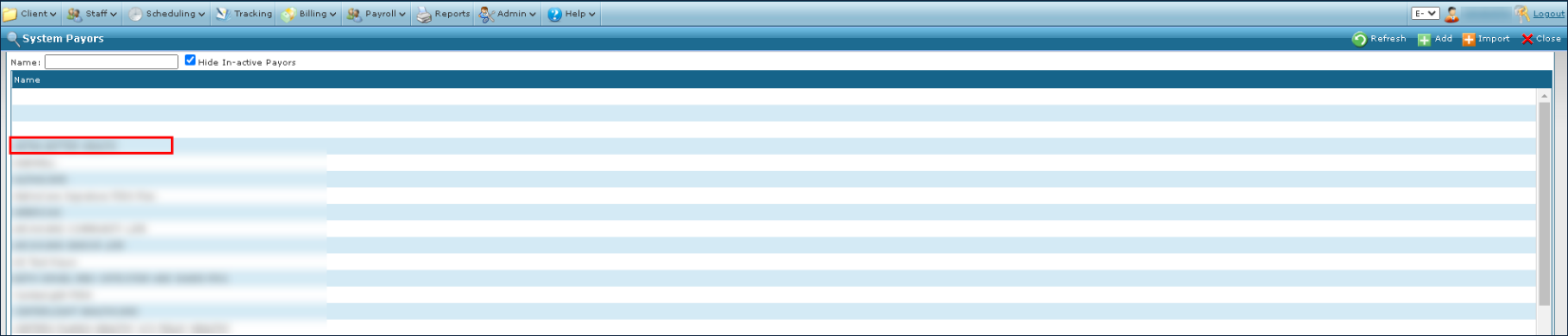
Go to the System Payor screen under Main Menu > Billing > Payors.
-
Double click on the desired Payer.
-
Select the Contacts tab.
-
Select the Add icon to add a new contact.

-
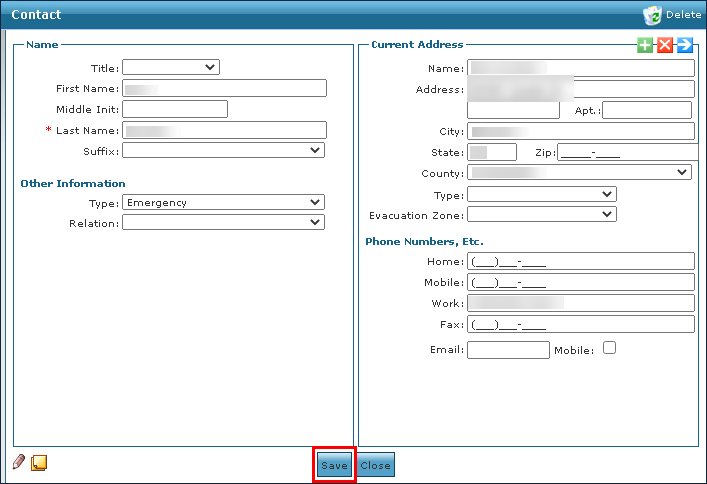
Enter the contact’s information.
-
Select the Save button.
Once a contact has been added to a Payer, it can be edited any time.
-
Go to the System Payor window under Main Menu > Billing > Payors.
-
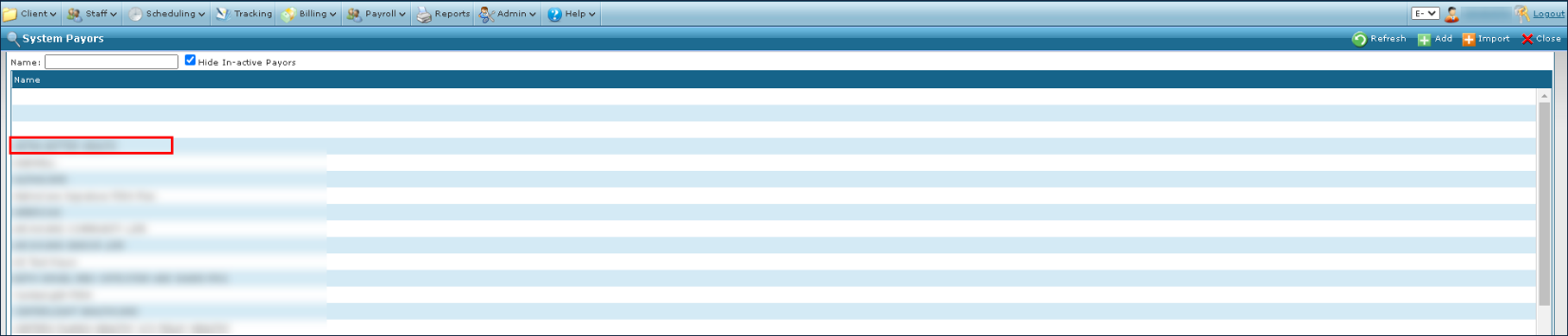
Double click the desired Payer.
-
Select the Contacts tab.
-
Double click the contact to be edited.

-
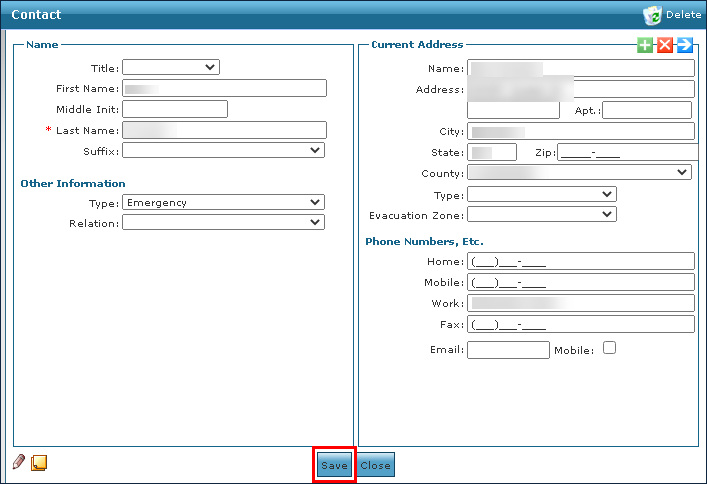
Edit the contact’s information as needed.
-
Select the Save button.
Contacts who have moved on or changed roles can be removed from a Payer at any time.
-
Go to the System Payor window under Main Menu > Billing > Payors.
-
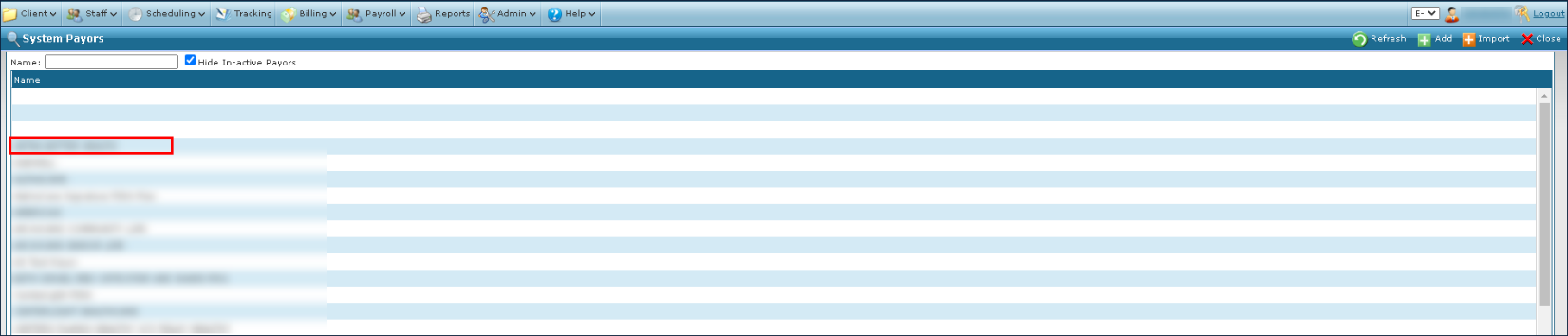
Double click the desired Payer.
-
Select the Contacts tab.
-
Double click on the contact to be edited.

-
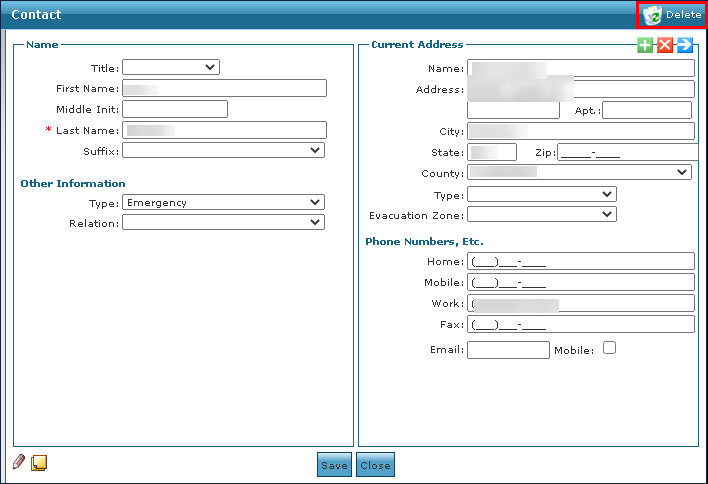
Select Delete.
-
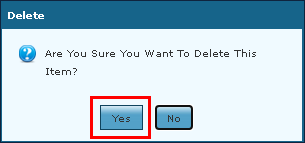
Select the Yes button.
To add a new program code on the Santrax Settings tab:
-
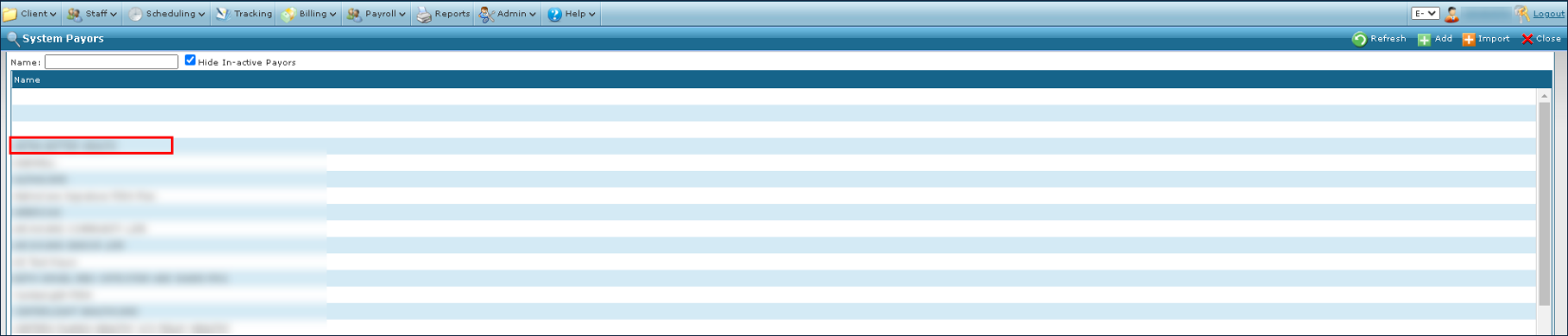
Go to the System Payor window under Main Menu > Billing > Payors.
-
Double click the desired payer.
-
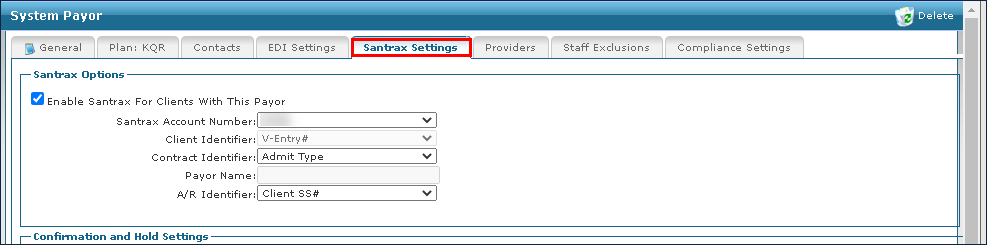
Select the Santrax Settings tab.
-
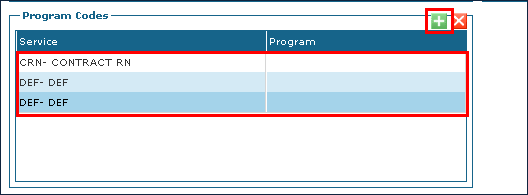
Select the Add icon to add a new program code.
-
Use these fields to enter the service and program code.
-
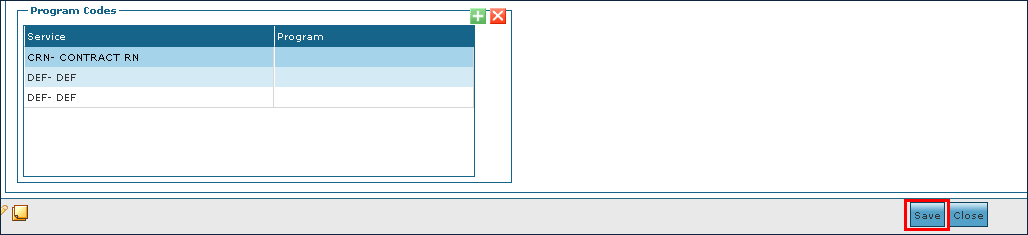
Select the Save button.
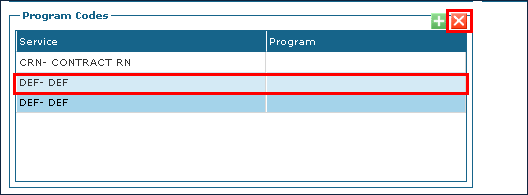
To delete a program code from the Santrax Settings tab:
-
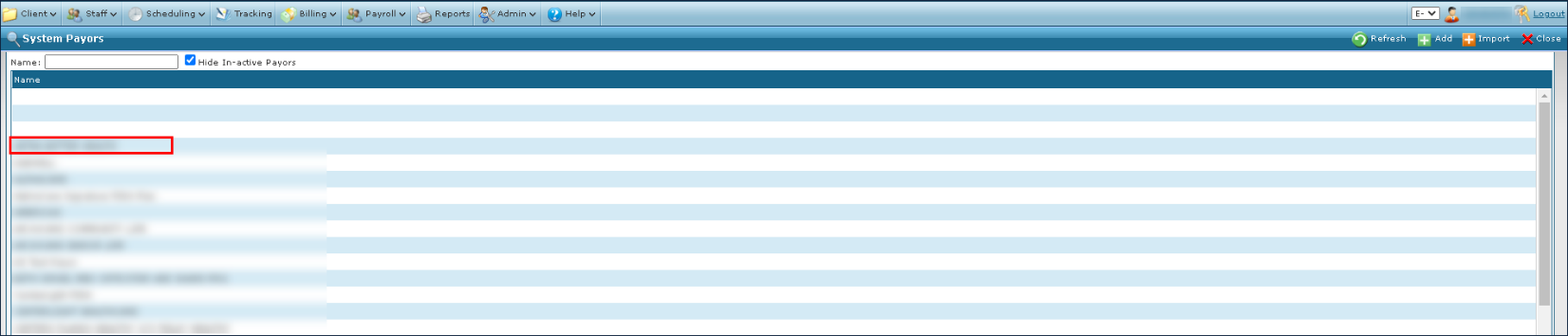
Go to the System Payor window under Main Menu > Billing > Payors.
-
Double click the desired Payer.
-
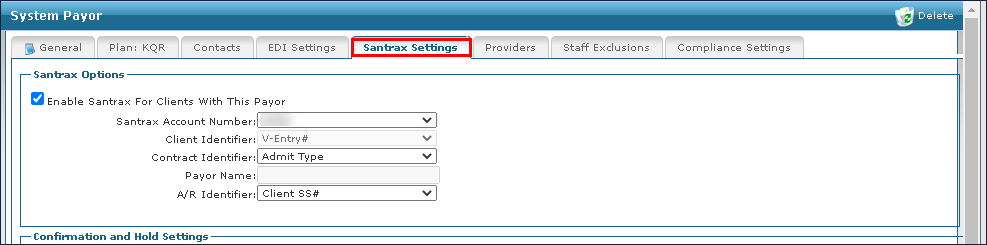
Select the Santrax Settings tab.
-
Select the program code to be deleted.
-
Select the Delete icon to delete the program code.
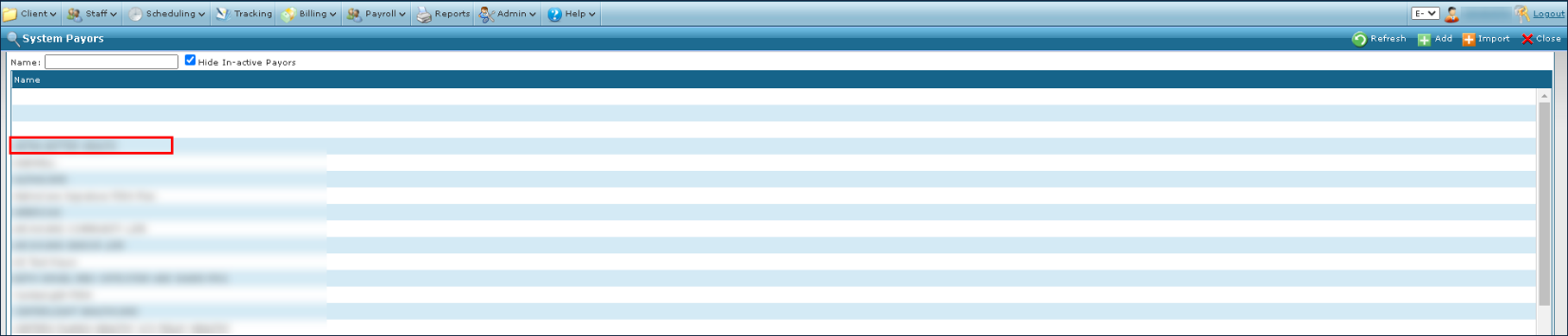
To add a new provider to a Payor:
-
Go to the System Payor window under Main Menu > Billing > Payors.
-
Double click the desired Payer.
-
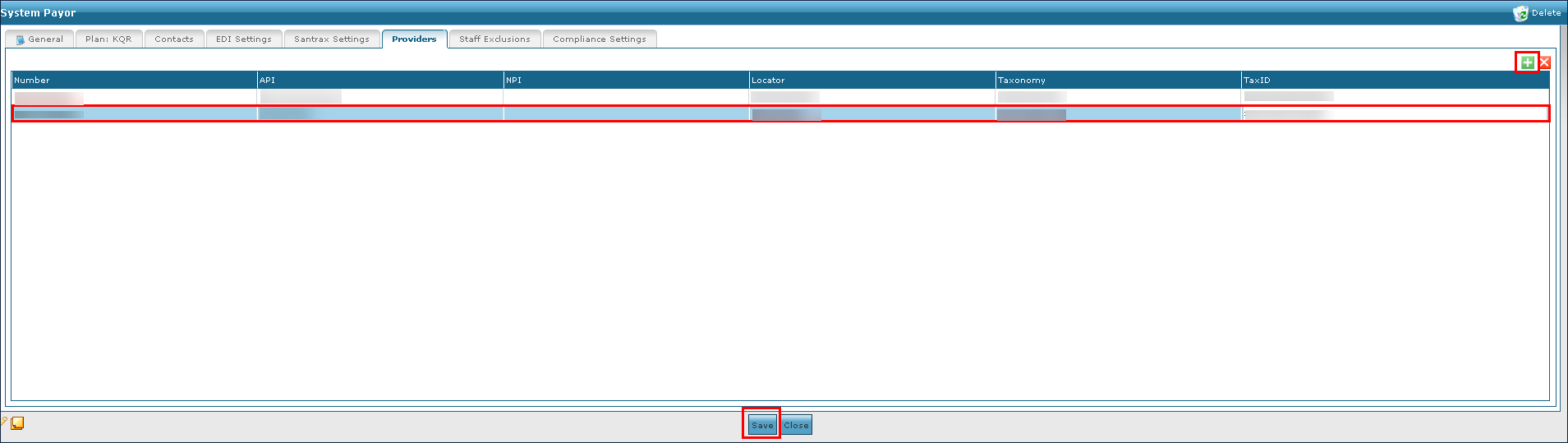
Select the Providers tab.

-
Select the Add icon to add a new provider.
-
Enter the provider numbers in the associated fields.
-
Select the Save button.
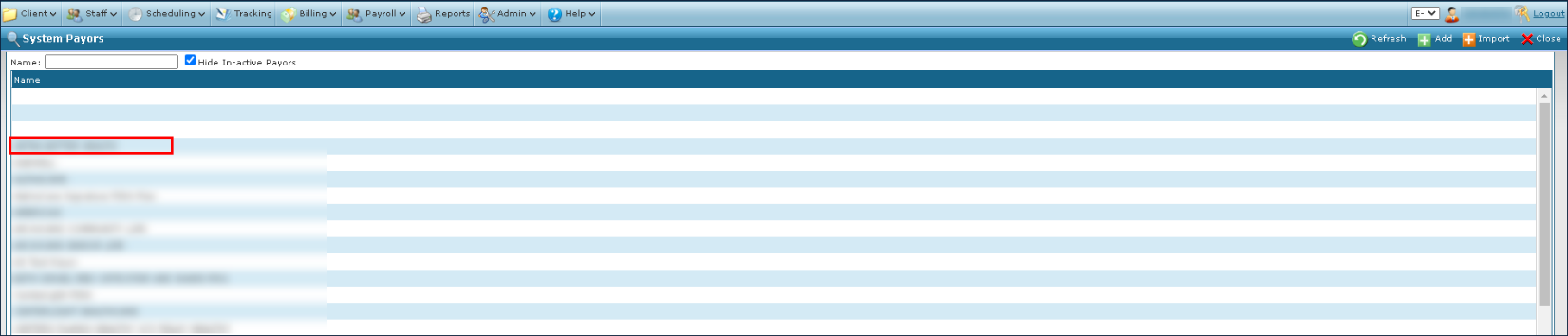
To remove an existing provider from a Payor:
-
Go to the System Payor window under Main Menu > Billing > Payors.
-
Double click the desired Payer.
-
Select the Providers tab.

-
Select the Provider to be removed.
-
Select the Delete icon to delete the Provider.

-
Select the Yes button to confirm the change.
The selected provider is removed from the Payer.
To add a new staff exclusion to a Payor:
-
Go to the System Payor window under Main Menu > Billing > Payors.
-
Double click the desired Payer.
-
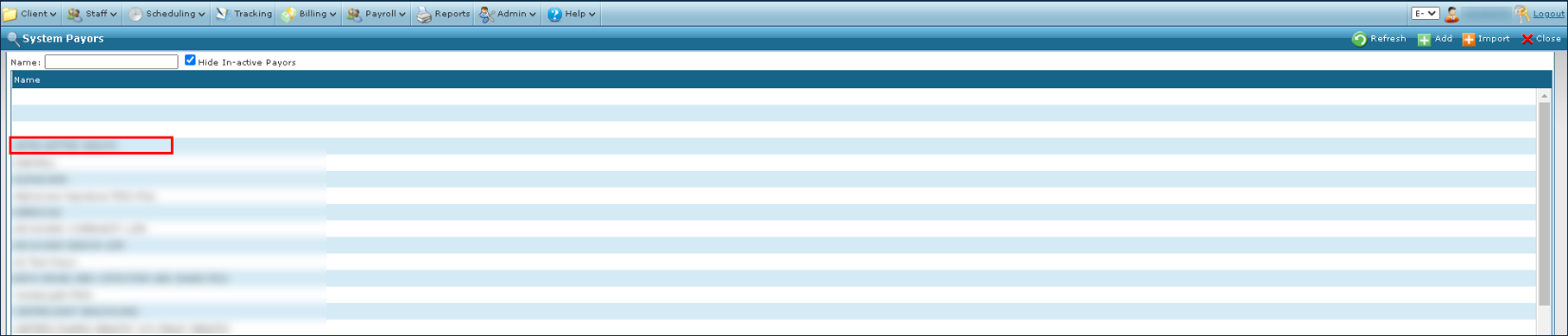
Select the Staff Exclusions tab.
-
Select the Add icon to add a new staff exclusion.

-
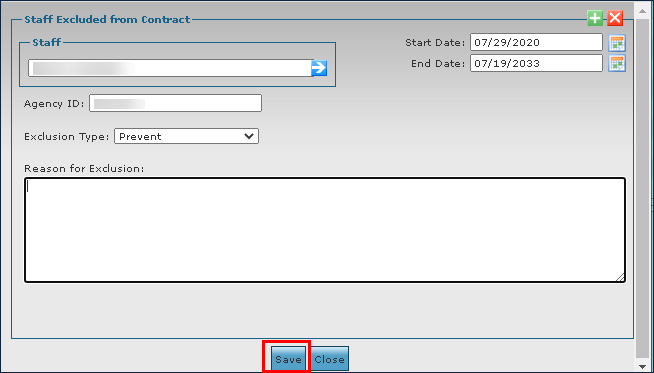
Use the filters to locate the Staff Member and enter the exclusion reason information.
-
Select the Save button.
To remove an existing staff exclusion:
-
Go to the System Payor window under Main Menu > Billing > Payors.
-
Double click the desired Payer.
-
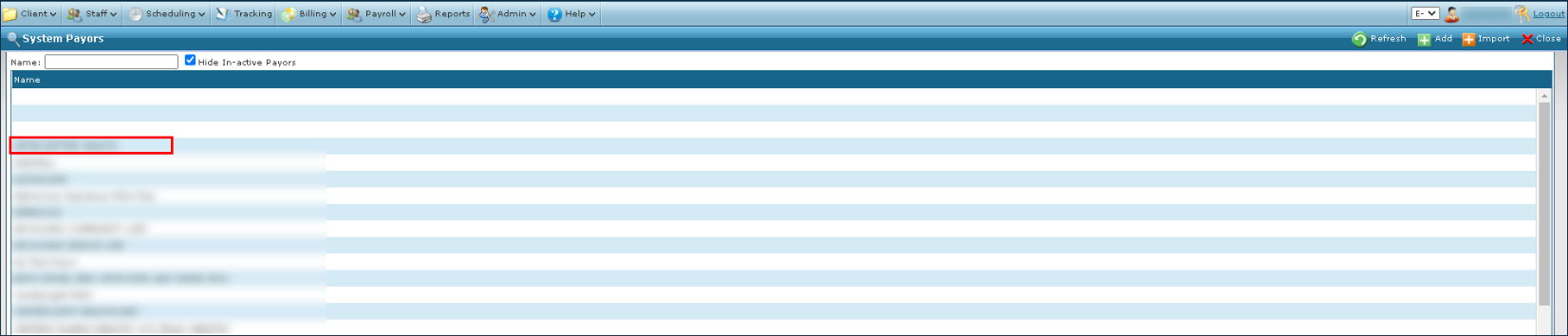
Select the Staff Exclusions tab.
-
Double click the staff exclusion to be removed.

-
Select the Delete icon to delete the exclusion.
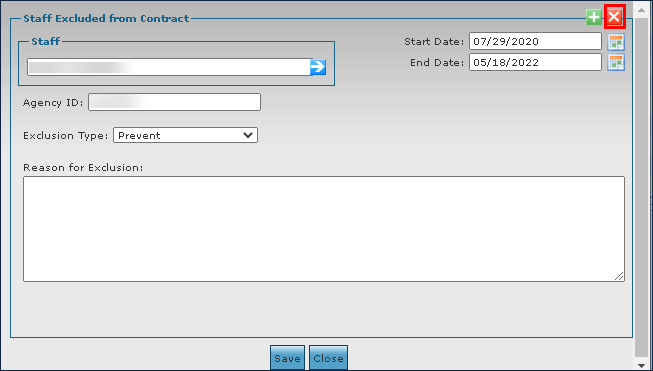
-
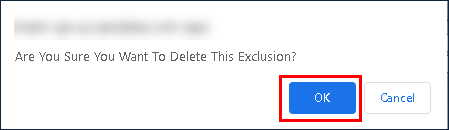
Select Ok button.
To add a new compliance item to a Payor:
-
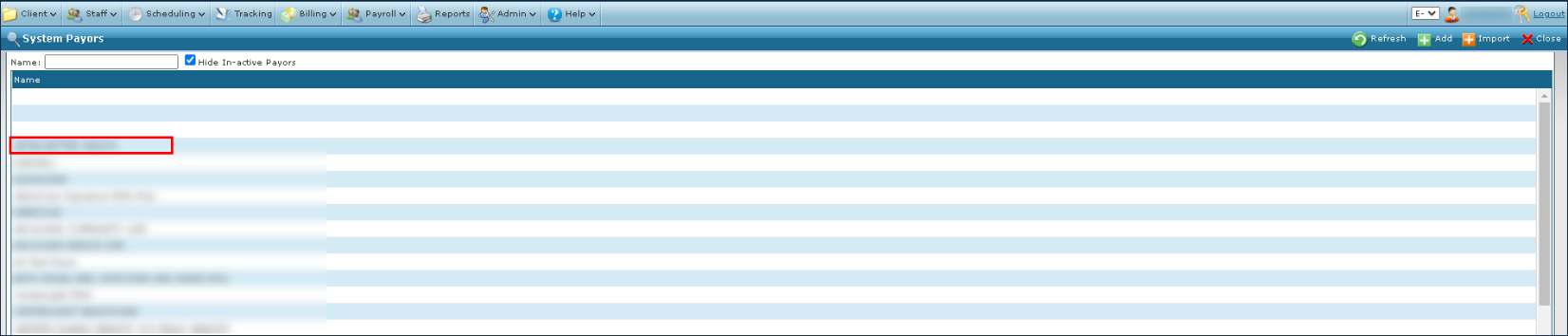
Go to the System Payor window under Main Menu > Billing > Payors.
-
Double click the desired Payer.
-
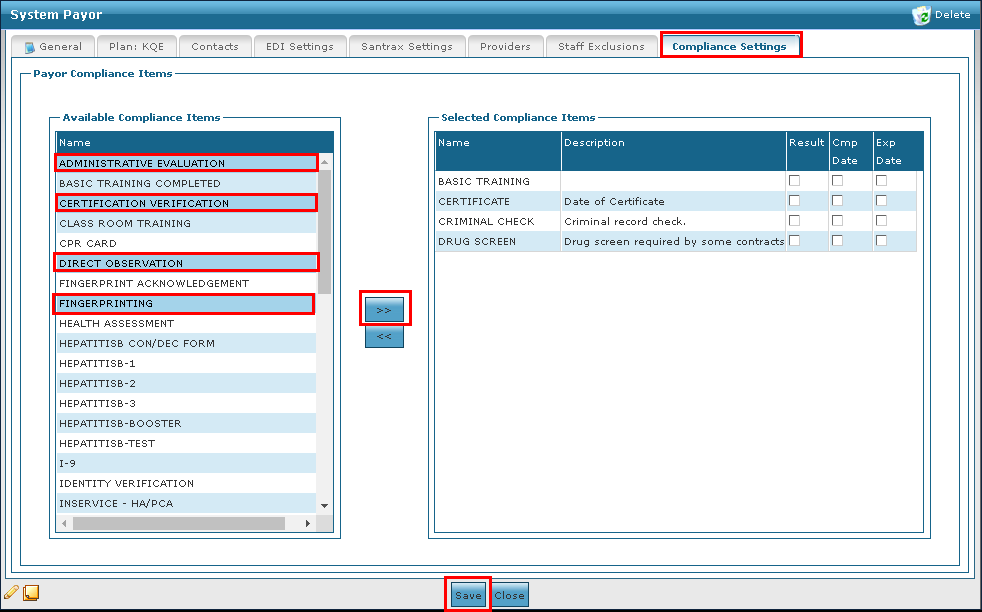
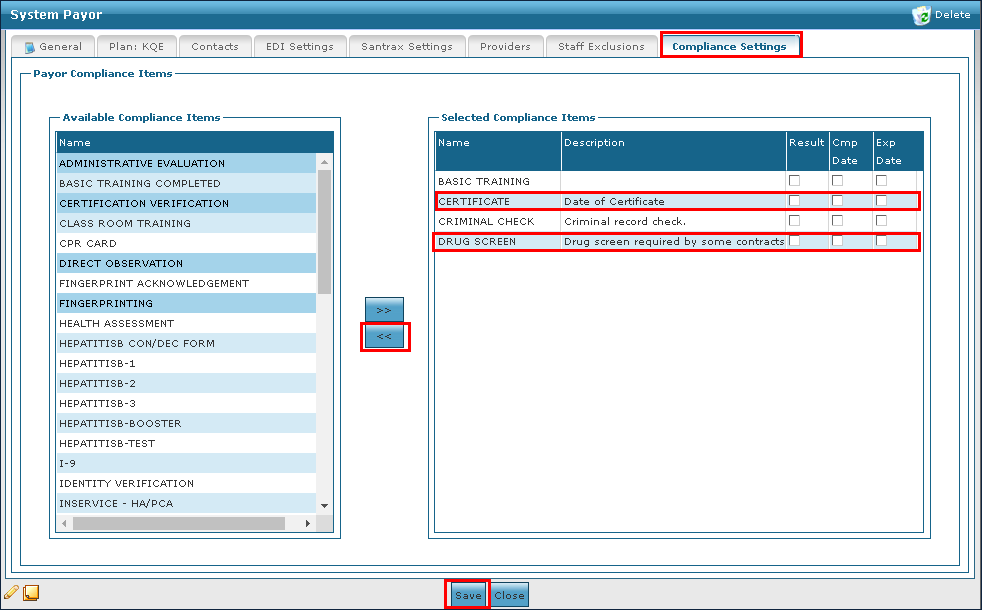
Select the Compliance Settings tab.

-
Select the compliance item to be added. More than one item can be selected by pressing Ctrl and clicking on the additional items.
-
Select the double arrowhead button to add compliance items.
-
Enter the compliance item information in the fields.
-
Select the Save button.
To remove a compliance item from a Payor:
-
Go to the System Payor window under Main Menu > Billing > Payors.
-
Double click the desired Payer.
-
Select the Compliance Settings tab.

-
Select the compliance item to be removed. More than one item can be selected by pressing Ctrl and clicking on the additional items.
-
Select the Remove Compliance Item.
-
Select the Save button.
These rounding rules apply to both Billing and Payroll.
|
Script Name |
What It Does |
|---|---|
|
BillandPayRoundDurationNoLimit |
Actual Visit hours rounded to optional minutes: takes the total amount of hours and minutes for the visit and rounds this total to the Nearest quarter hour based on the minutes.
|
|
BillandPayRoundDurationScheduleLimit
|
Actual visit hours rounded to optional minutes. The hours cannot exceed the scheduled amount: rounds the actual hours out to the nearest quarter hour AND restricts the hours from exceeding the scheduled hours. |
|
BillandPayRoundTimesNoSchedule |
This rule examines both the in call and the out call. If either time is greater than 7 minutes outside of the schedule, the call times will be rounded to the nearest quarter hour. It does NOT look at the schedule duration. |
|
BillandPayRoundTimesWithSchedule
|
Examine both the in call and the out call, if either time is greater than 7 minutes of the schedule, the call times will be rounded to the nearest Quarter hour Within the schedule. If no schedule was entered the actual visit hours will be used. |
These rounding rules apply only to Billing.
|
Script Name |
What It Does |
|---|---|
|
BillOnlyRoundDurationNoLimit
|
Actual visit hours rounded to optional minutes.
|
|
BillOnlyRoundDurationScheduleLimit
|
Actual visit hours rounded to optional minutes. The hours cannot exceed scheduled hours. |
|
BillandPayRoundTimesNoSchedule |
Pay rule with 7 minutes without schedule |
|
BillOnlyRoundTimesWithSchedule |
Pay rule with 7 minutes within schedule for VNS accounts. In case of no schedule actual visit hours are used. |
Advanced Rounding Rules
|
Script Name |
What It Does |
|---|---|
|
EventBillingQuantityRoundedDown |
Rounds the billable visit time down to the nearest hour or quarter hour.
This cannot exceed the proposed duration.
|
|
BillandPayRoundConsumerDirect |
Rounds to quarter hour, takes the calculated duration, and adjusts the Adjusted/Scheduled durations to match.
If the duration is 0 with standing exceptions, the visit will be moved to a 09-Hold.
This is for CDS Agencies
|
|
BillandPayRoundTimesNoSchedule |
Rounds the Santrax and Adjusted times for Billing and Payroll. Must be greater than 8 to count as a unit for the visit. |
|
PayOnlyRoundDurationScheduleLimit |
Rounds the adjusted time for payroll based on the maximum proposed schedule time in 15 minute increments. Does not touch billing. Visits exceeding the maximum duration are capped and cannot exceed this time. |