Schedules in the Client Profile

To view a client’s past or current schedule in the Client Profile:
-
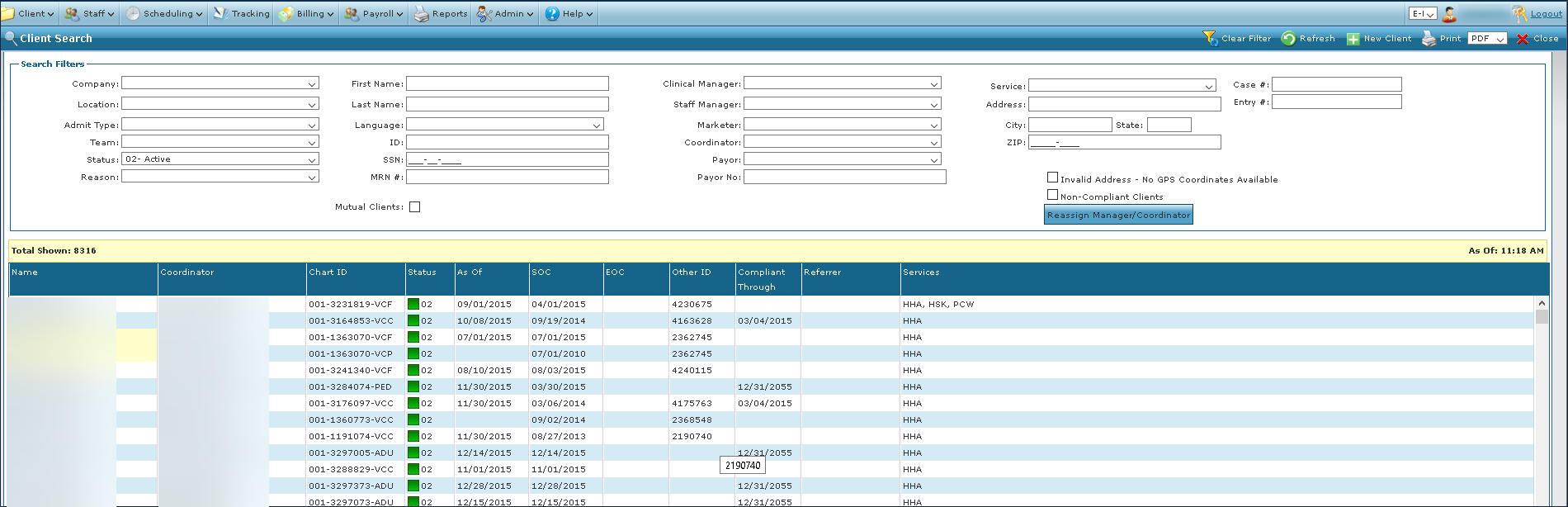
Go to the Client Search screen via Main Menu > Client.
-
Locate and double click on the client using the search filters.
-
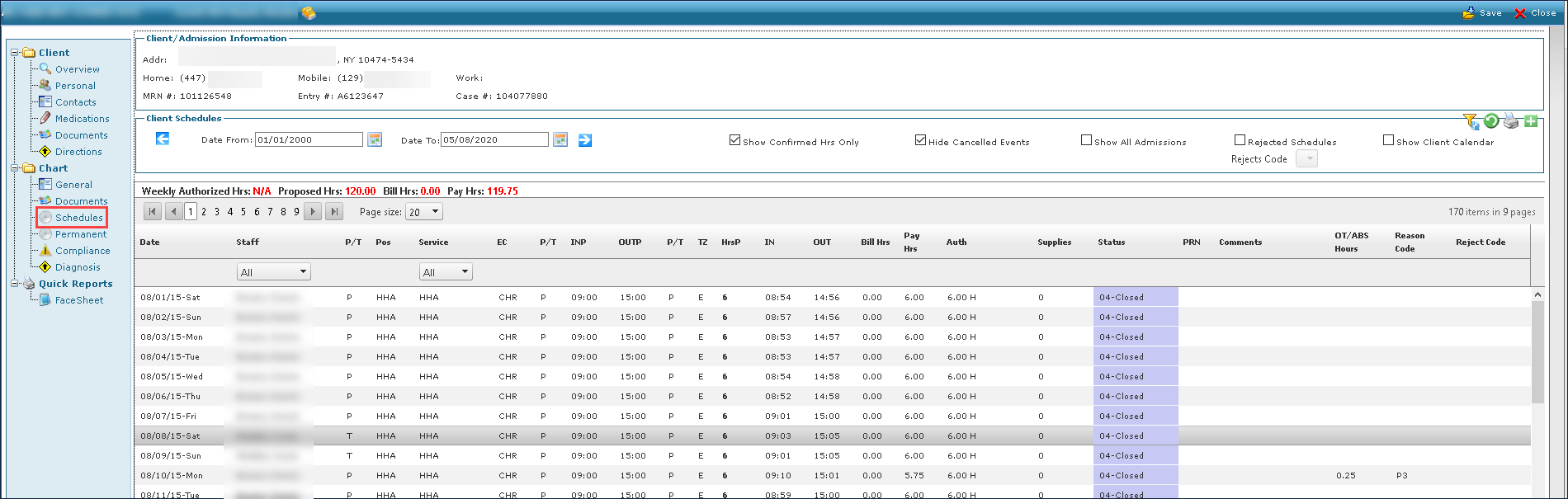
Click Schedules.
-
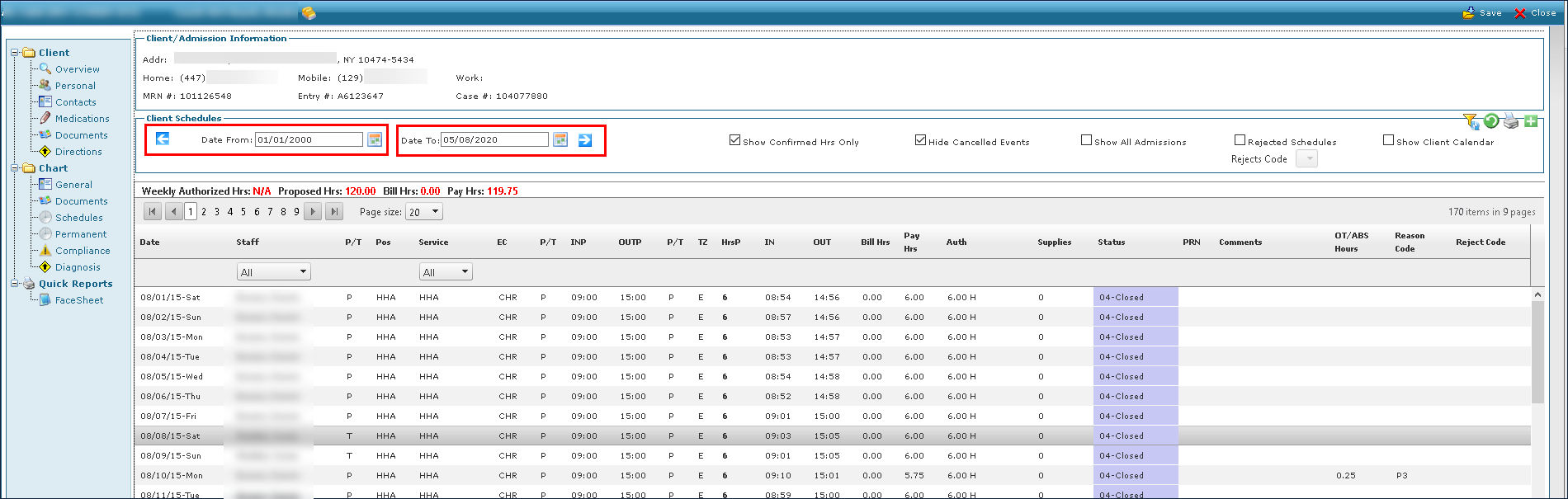
Use the filters and check boxes to select the starting and ending dates for the schedules to be viewed.
-
Click Refresh.
-
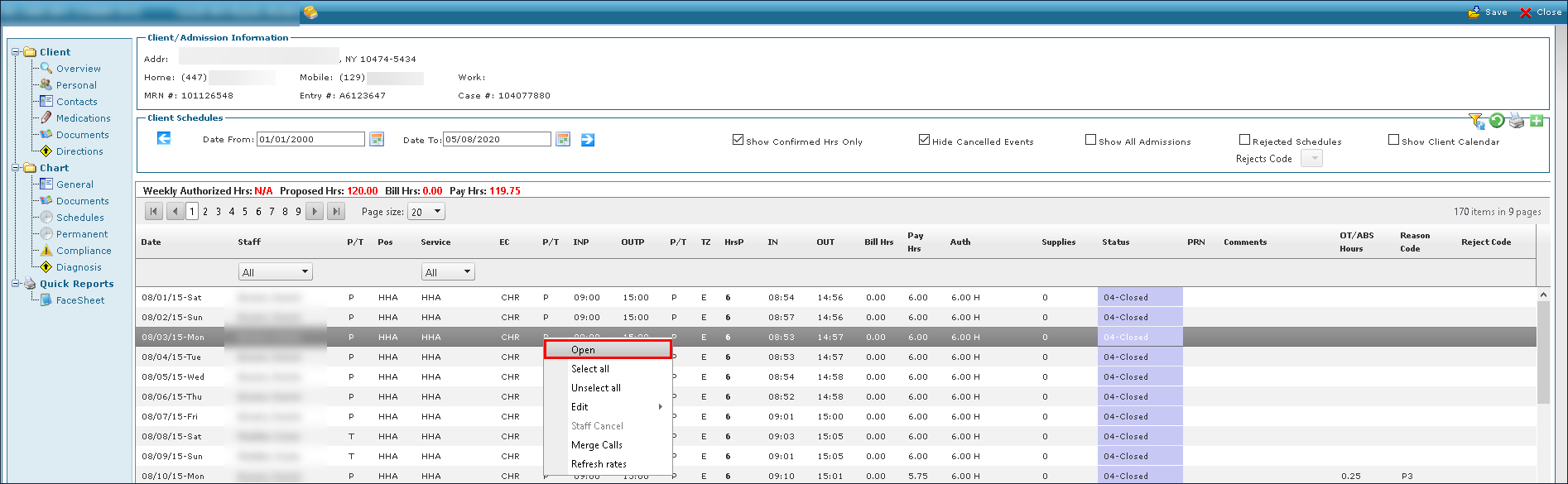
To see further information about a schedule, right click on it and select Open.
To mass select the schedules on a client’s profile:
-
Go to the Client Search screen via Main Menu > Client.
-
Locate and double click on the client using the search filters.
-
Click Schedules.
-
Use the filters and check boxes to select the starting and ending dates for the schedules to be viewed.
-
Click Refresh.
-
Right click on the first schedule and then click Select All.
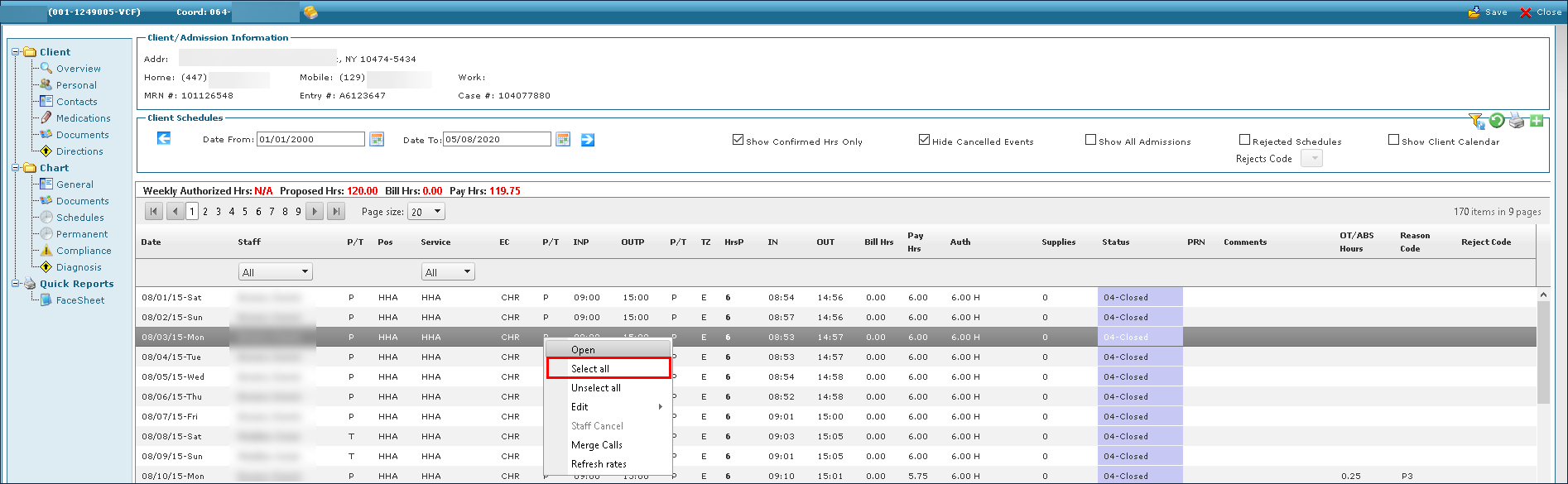
To undo the selections, right click on the first schedule and then click Unselect All.
Certain fields can be edited on a client’s profile. To edit a schedule:
-
Go to the Client Search screen via Main Menu > Client.
-
Locate and double click on the client using the search filters.
-
Click Schedules.
-
Use the filters and check boxes to select the starting and ending dates for the schedules to be viewed.
-
Click Refresh.
-
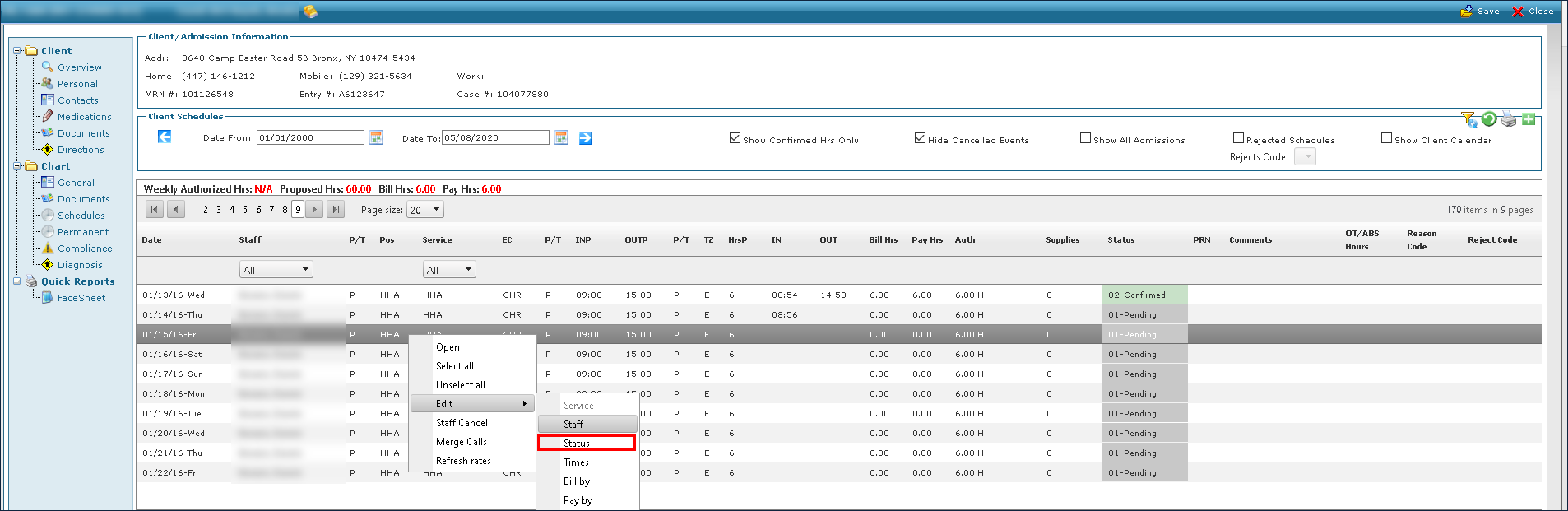
Right click on the schedule to be edited, select Edit, and select the field to be changed.
-
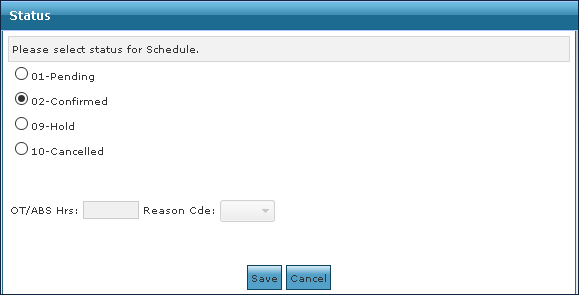
Make the needed changes.
-
Click Save.