Replace a Staff Member on a Schedule in a Client Profile
In a situation where a staff member cannot make a visit, a replacement can be selected. To change a scheduled staff member on the client’s admission:
-
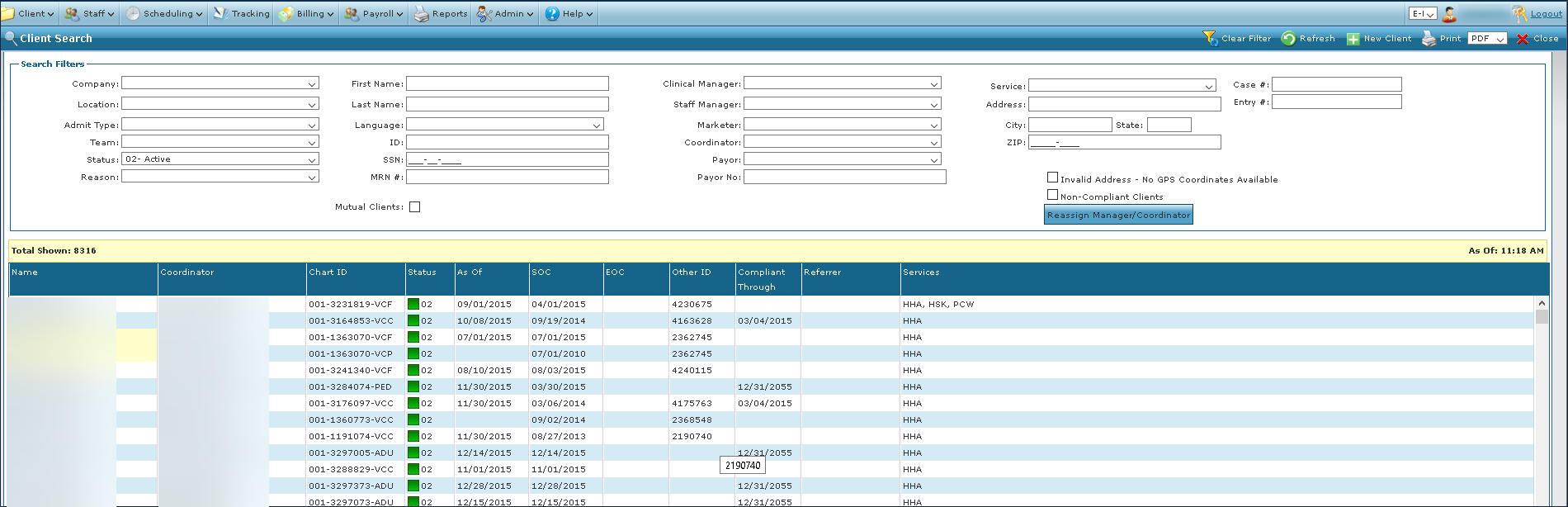
Go to the Client Search screen via Main Menu > Client.
-
Locate and double click on the client using the search filters.
-
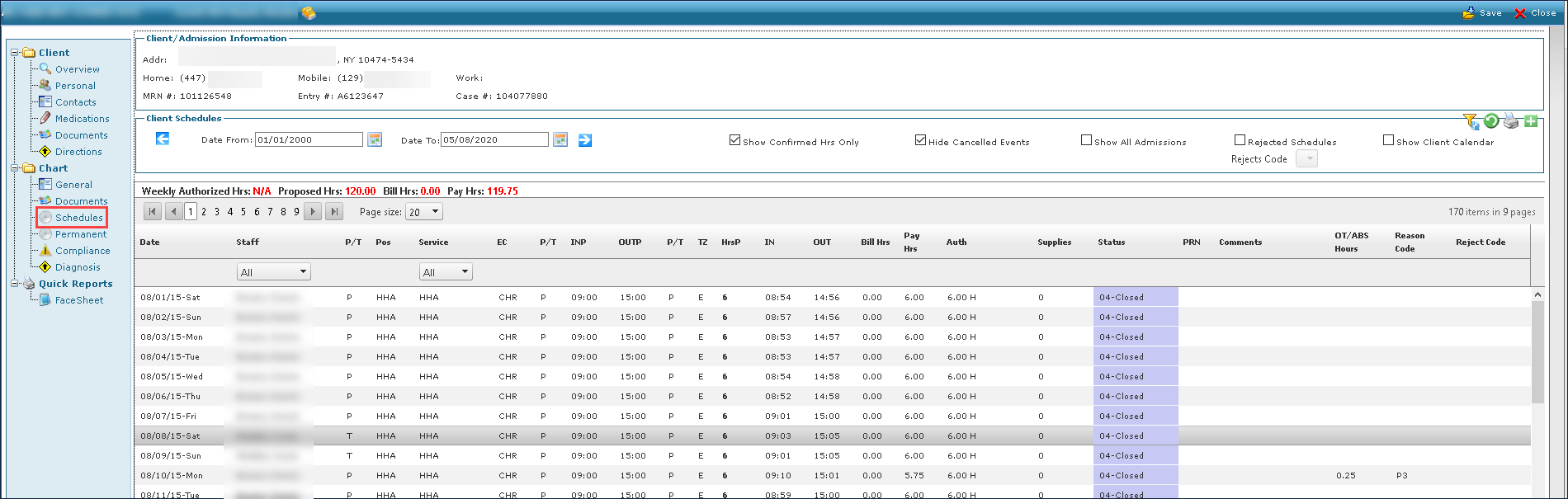
Click Schedules.
-
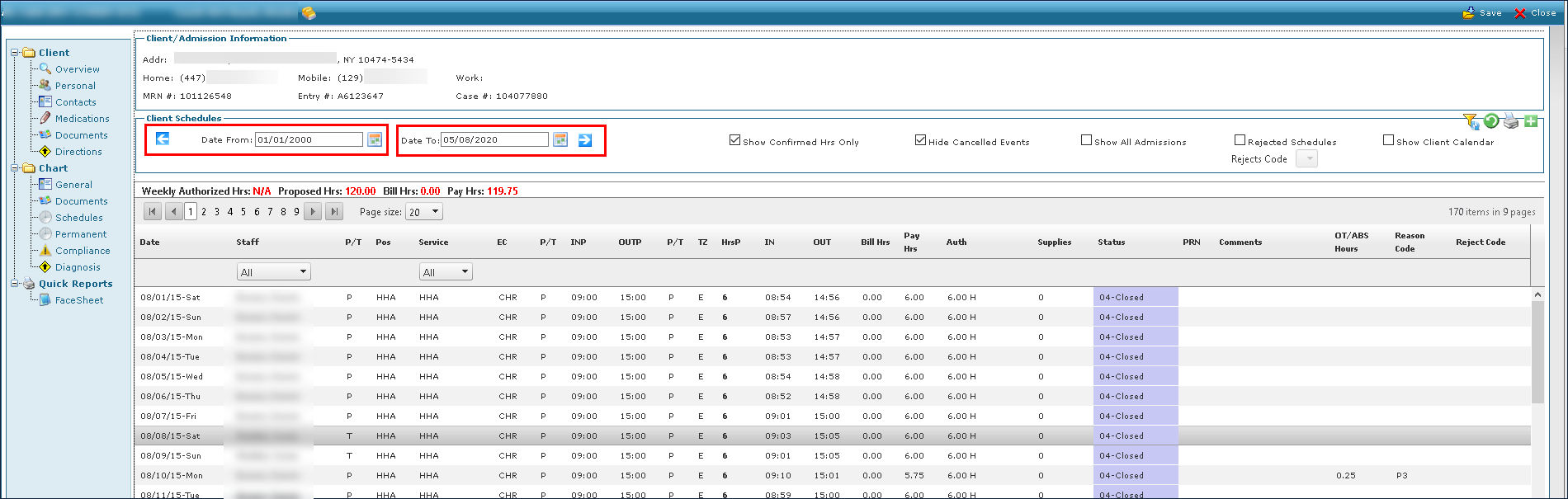
Use the filters and check boxes to select the starting and ending dates for the schedules to be viewed.
-
Click Refresh.
-
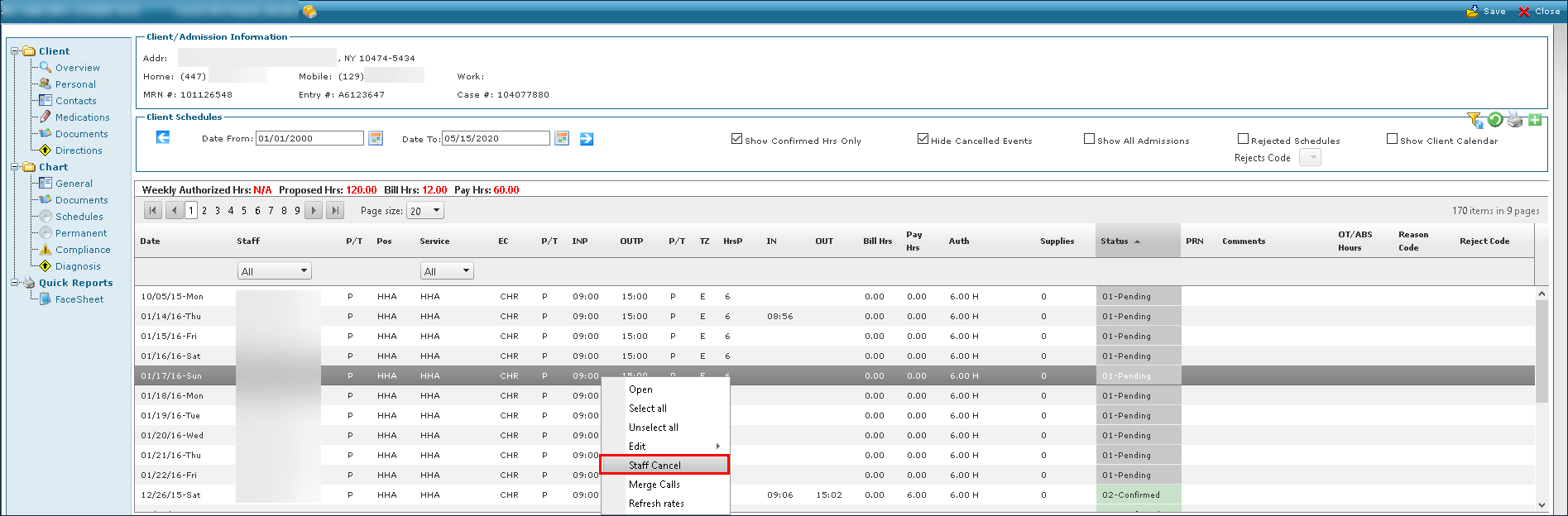
Right click on the schedule to be edited, and select Staff Cancel.
-
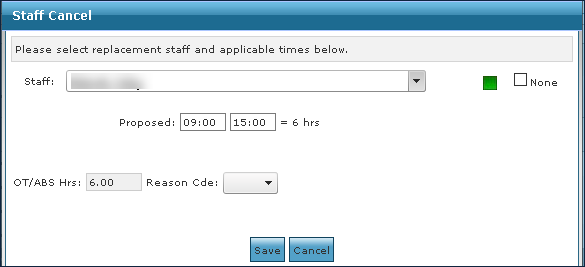
Enter the replacement staff information.
-
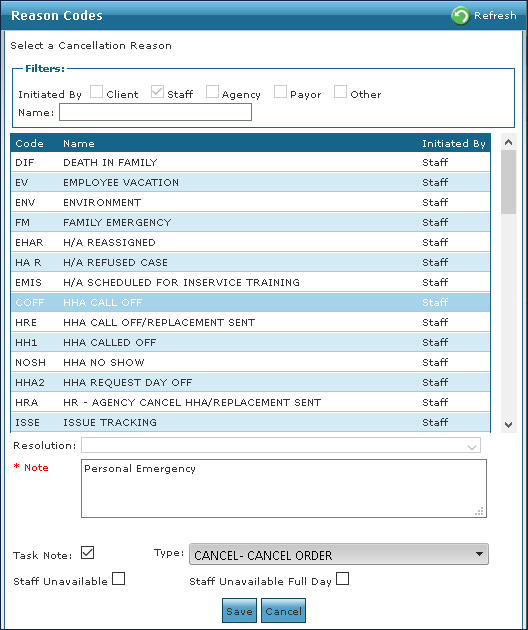
Select the reason code.
-
Click Save.