Create a Permanent Schedule for a Client
A reoccurring schedule can be created using the Permanent section of the Client Admission. A permanent schedule is indicated with a P under the P/T heading on the Schedules section of the Client Admission.
Patterns for permanent schedules should last at least two weeks and no longer than four.
Permanent schedule patterns can be pushed forward for as long as needed.
To create a reoccurring schedule:
-
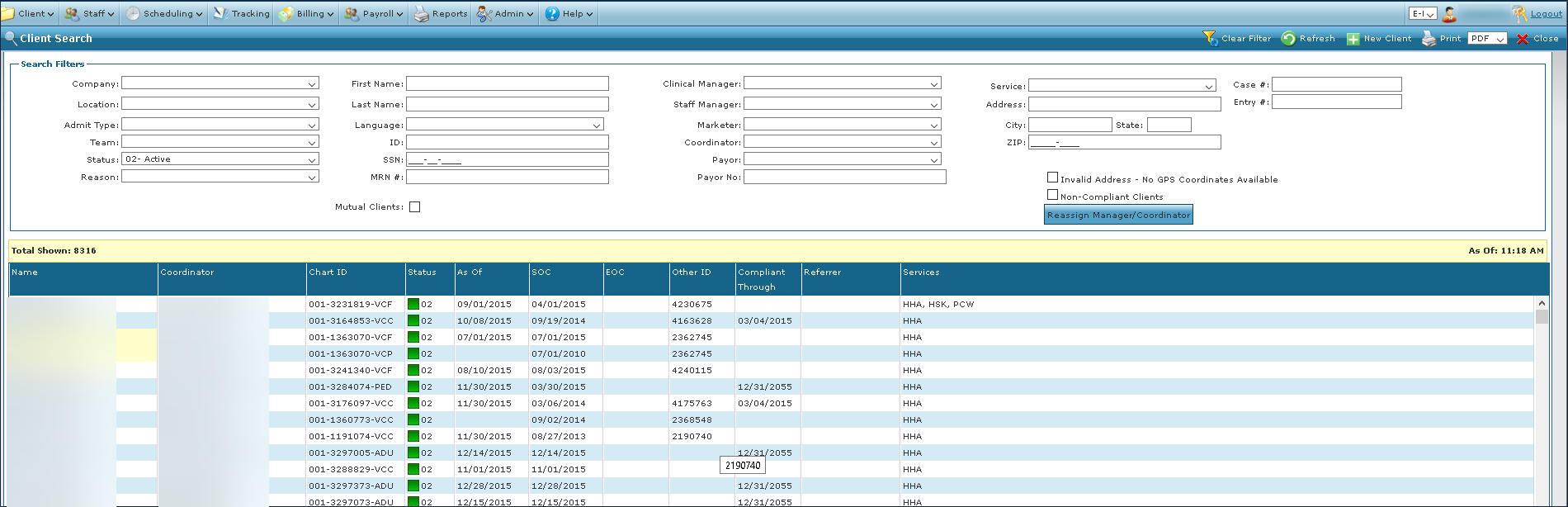
Go to the Client Search screen via Main Menu > Client.
Locate and double click on the client using the search filters.
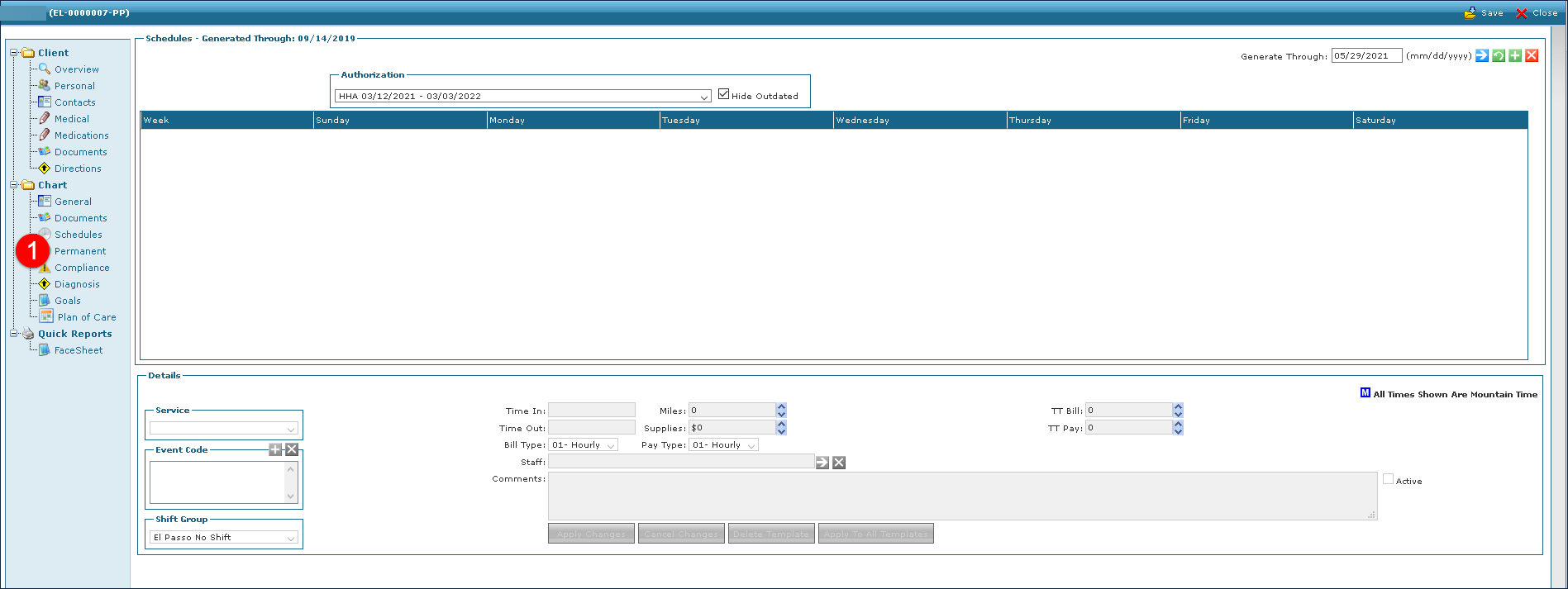
Click Permanent.
-
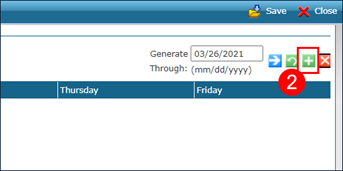
Click the green + button.
-
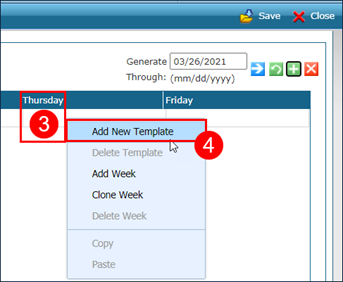
Right click the day being scheduled.
-
Select Add New Template.
-
Select/Enter all applicable fields.
-
Click Apply Changes.

Repeat steps 4-6 to create new schedules for different days of the week.
Right click on the schedule to Copy and Paste it to another day of the week if adding additional visits with same schedule details.
After all templates are created, users can right click and select Clone Week to duplicate the week’s templates and create alternating weekly schedules.
-
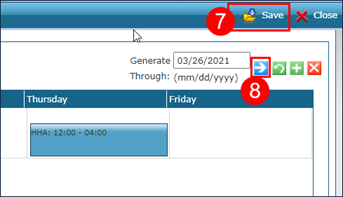
Click Save.
-
Click the blue Arrow button to generate schedules for this client through the date listed in the Generate Through field.