Change a Client's Payor
When it is necessary to add another payer to a client’s profile, users can transfer a balance or perform other billing tasks.
-
Go to the Client Search screen via Main Menu > Client.
-
Select the appropriate search criteria and click Refresh.
-
Right click on the client’s name.
-
Click Change Payor.
-
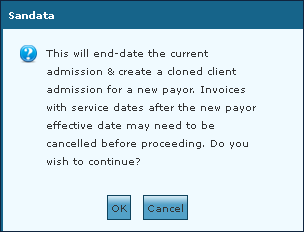
A warning message appears. Click OK. This opens the Clone Admission Wizard.
-
Select a date for the admission change to take effect. Select the Update Service Begin Dates or the Retain Cert Period Dates check boxes to retain or make additional changes to the date range of service.
-
Click Continue.
-
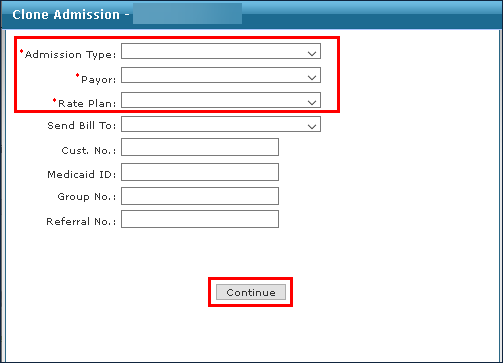
Enter the necessary information into the fields. Click Continue.
-
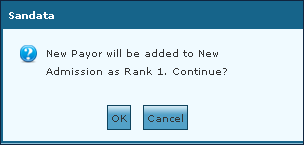
A warning message appears. Click OK.
-
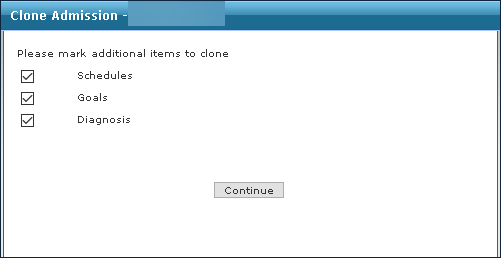
Check or uncheck the necessary boxes. Click Continue.
-
Click Finish.
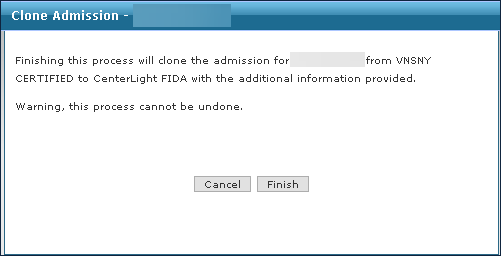
This completes the cloning process with the new payer set as rank 1 in the cloned client’s profile.