Perform a Write Off from Manual Remittance
To perform a write off on the Manual Remittance screen:
-
Go to Billing > Manual Remittance.
-
Use the Batch Option filters to prepare the batch.
-
Click Create Batch.

-
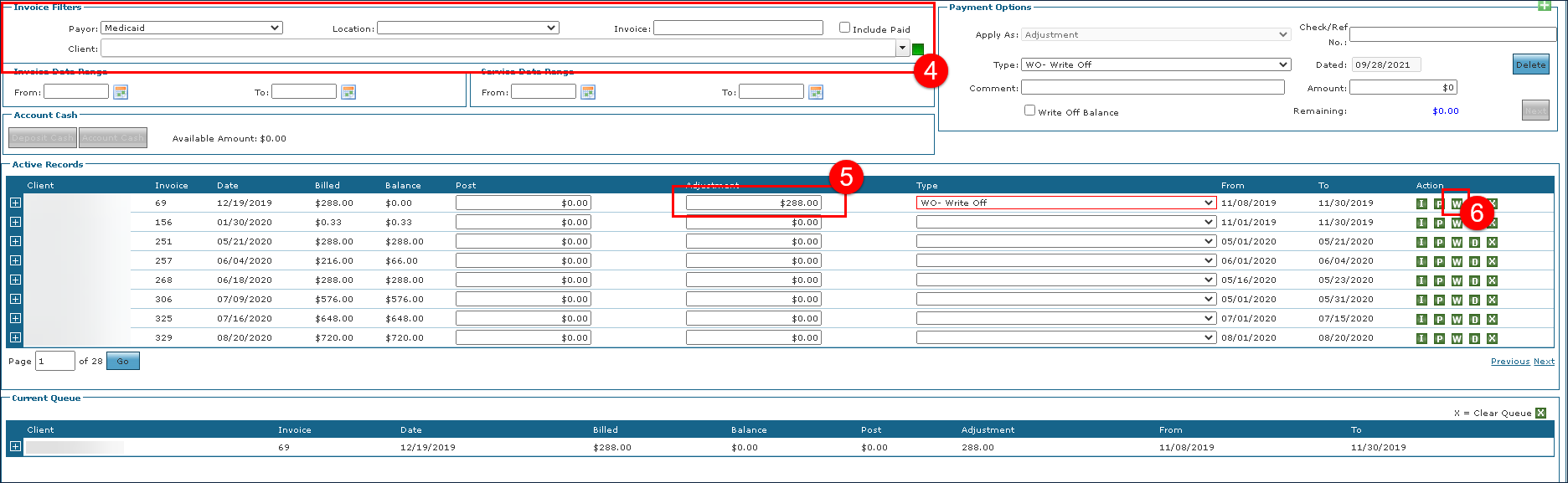
Use the Invoice filters to locate the invoice needing the adjustment.
-
Enter the Adjustment amount.
-
Click the W or select WO – Write Off from the Type dropdown. The Write Off is added to the Current Queue.
-
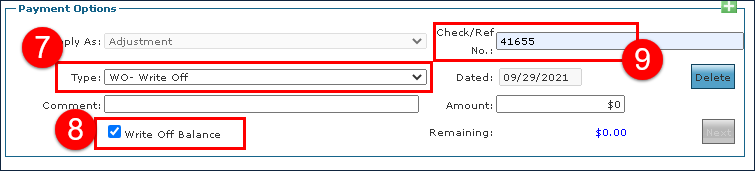
Select WO – Write Off in the Type drop down.
-
Select the Write Off Balance checkbox.
-
Enter a Check / Ref No for the write off.
-
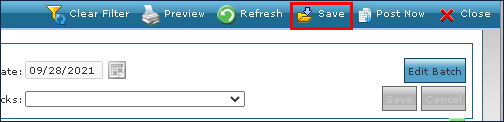
Click Save.
-
Click OK.
-
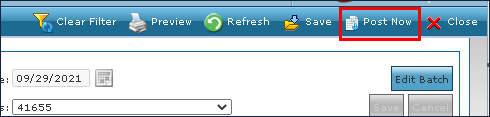
Click Post Now.
-
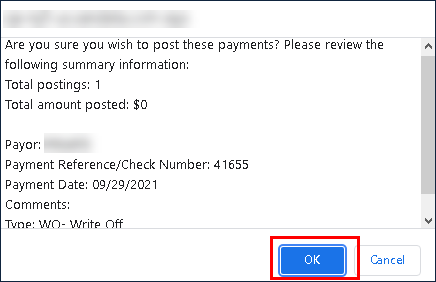
Click OK.
-
Click OK to run display the Manual Remittance Queue Report. Click Cancel to skip the report.

The write-off is completed. The invoice status is changed to 07 – Bill Paid and the write off is displayed in the Payments & Credits tab.