Add a Payment to an Account
To add a payment to a client’s account:
-
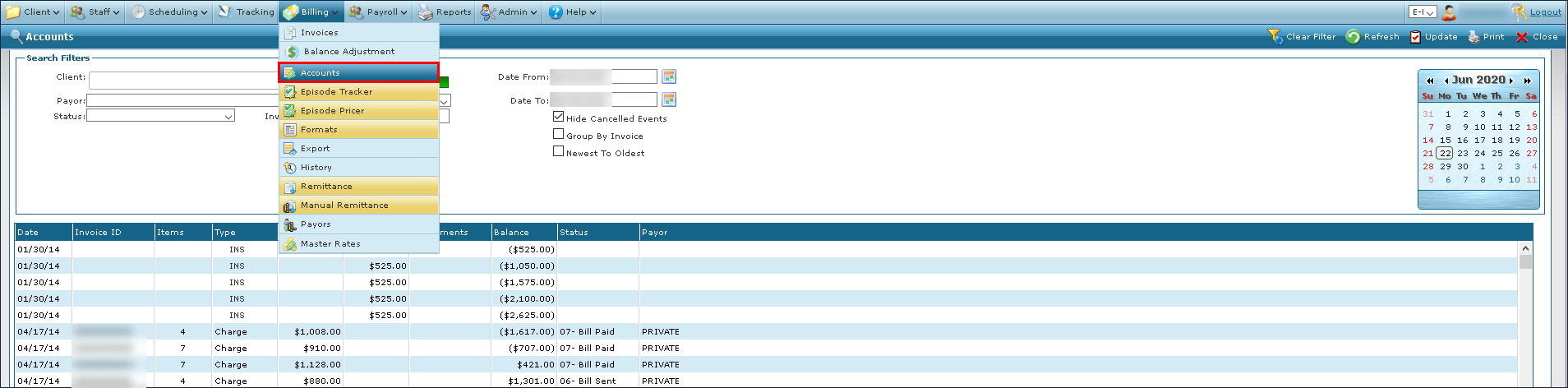
Go to Main Menu > Billing > Accounts.
-
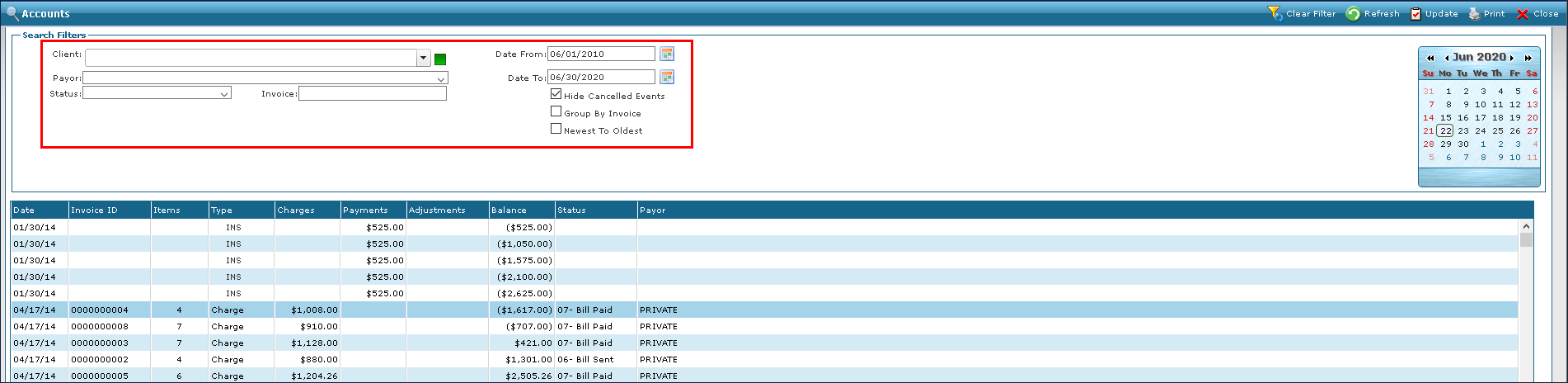
Use the filters to search for a client.
-
Double click on the invoice to open it.
-
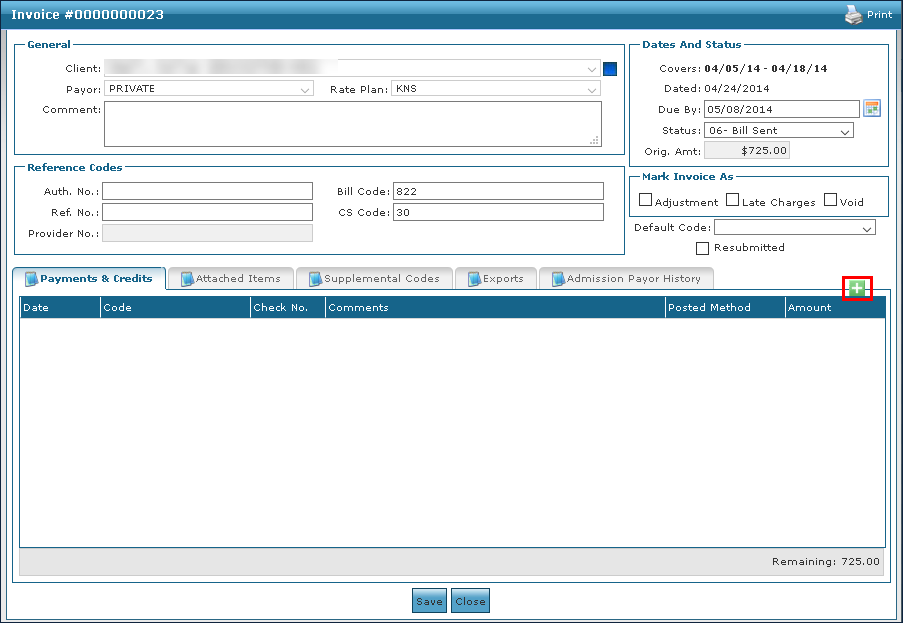
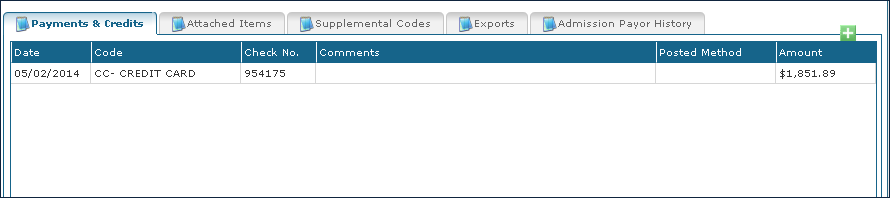
Click the green plus icon.
-
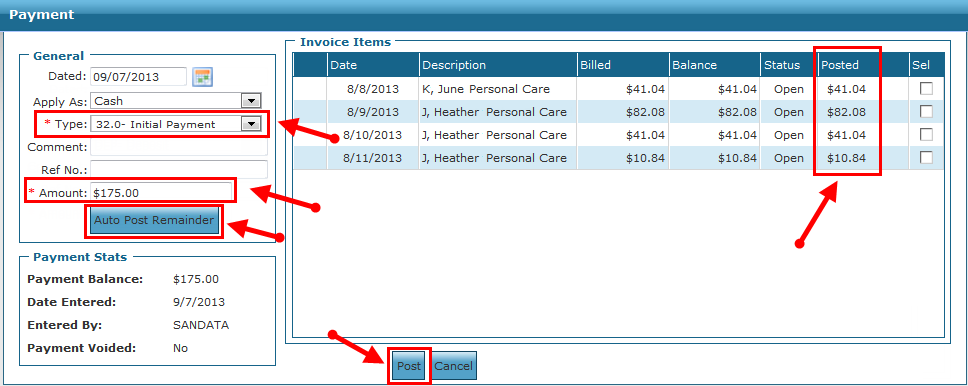
Select the payment type, enter the Amount received, and then either:
-
Click Auto Post Remainder, to distribute the Amount posted to Invoice Items, in date order, until the Amount that was entered is exhausted.
-
Enter the amount that is applied to each Invoice Item manually, via the Posted field column.
-
-
Enter Comments and Ref No. (Reference Numbers) as required.
-
Click Post.
The payment is added to the invoice.