Void Individual Line Items
-
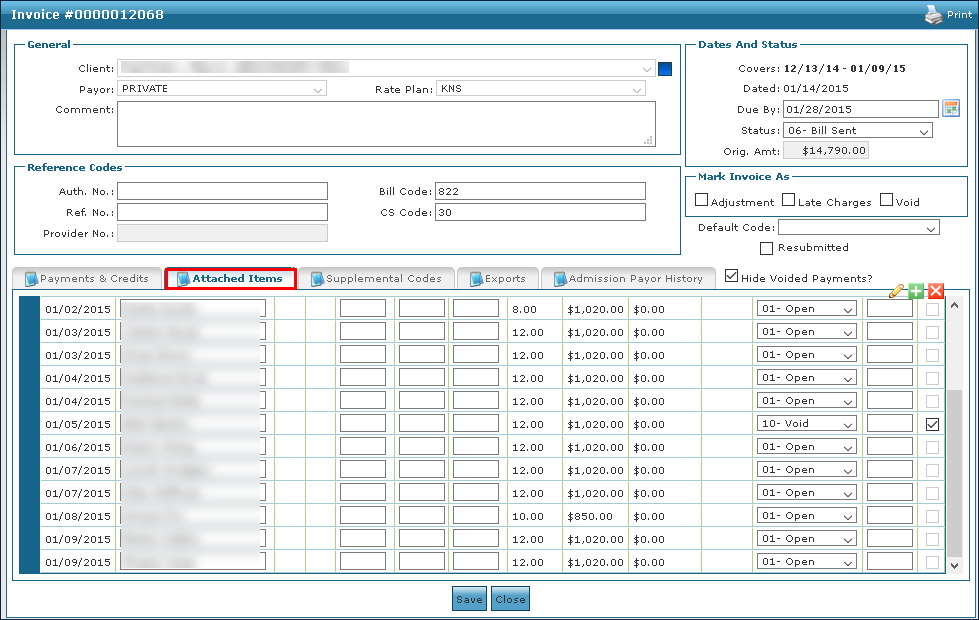
Go to Billing > Invoices and open the desired invoice.

-
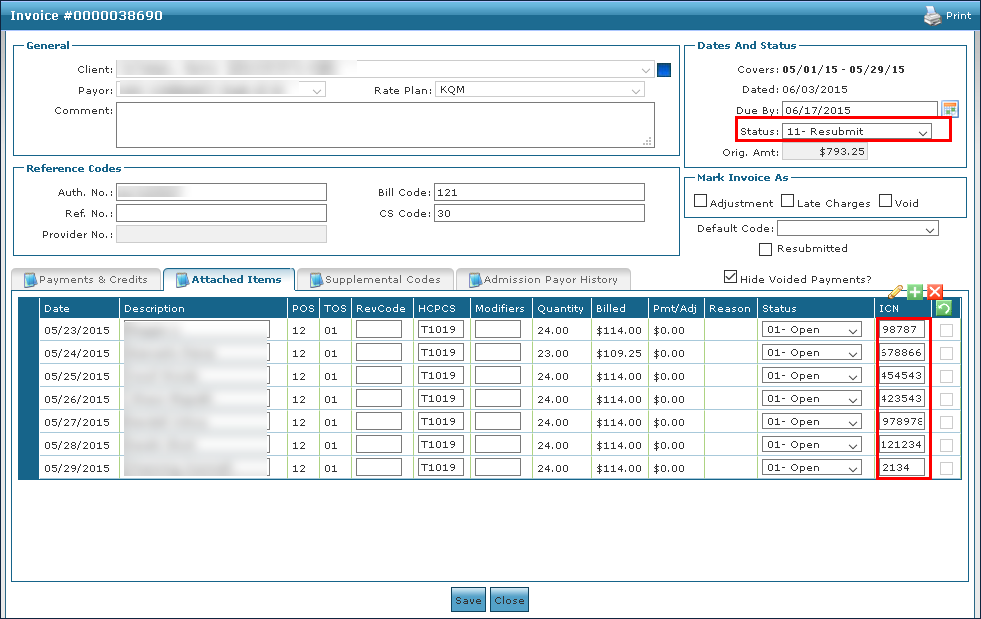
Click the Attached Items tab.
-
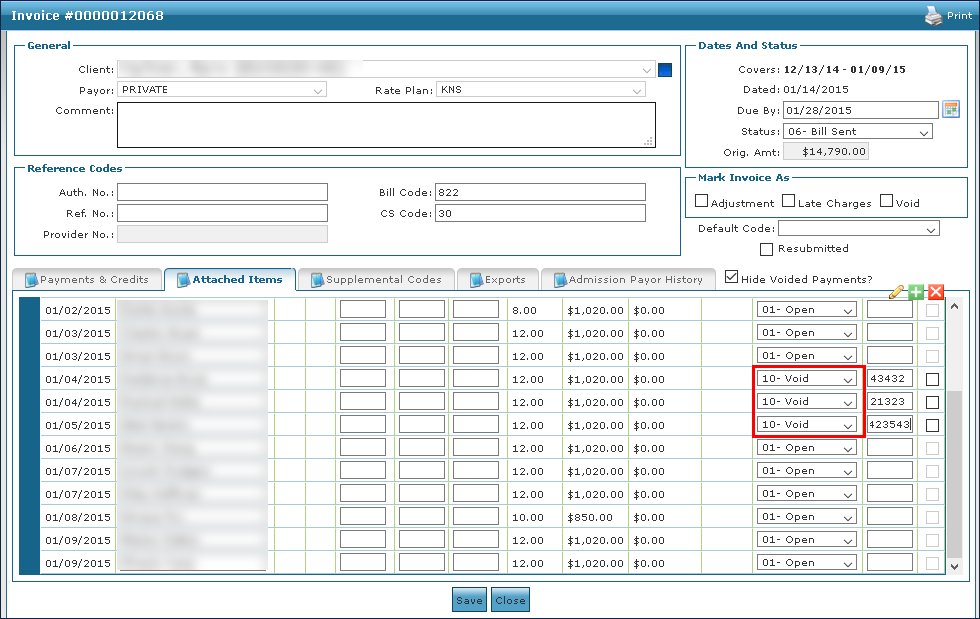
Change the Status of all applicable line items to Void.
-
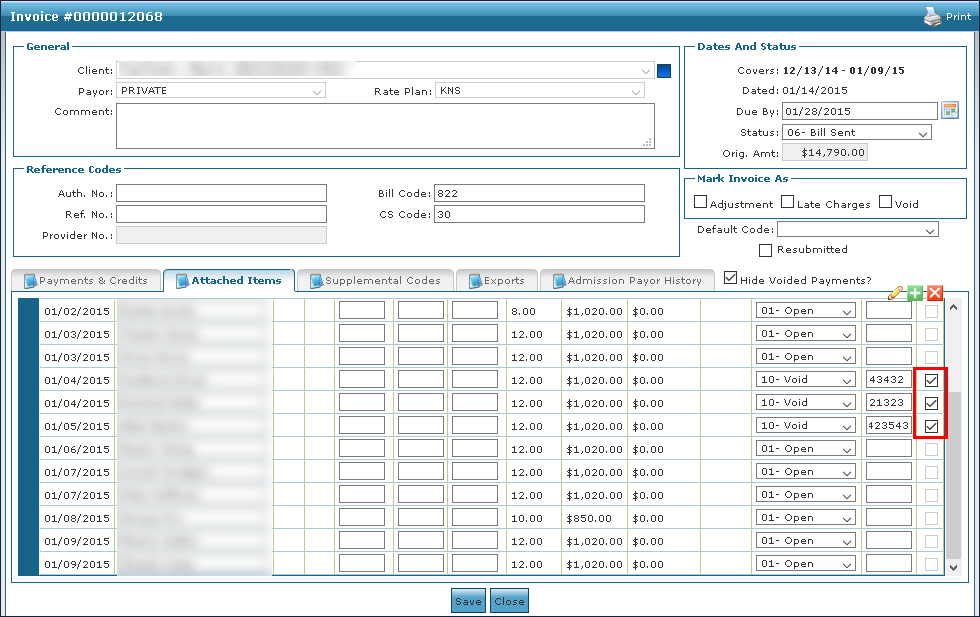
Select the corresponding checkbox to release the visit(s) back to the Confirmed Status if further action is needed to correct, cancel, or adjust the schedule.
If no further action is required, leaving the checkbox unselected will not return the schedule to billing review but will void the service line from the invoice.
-
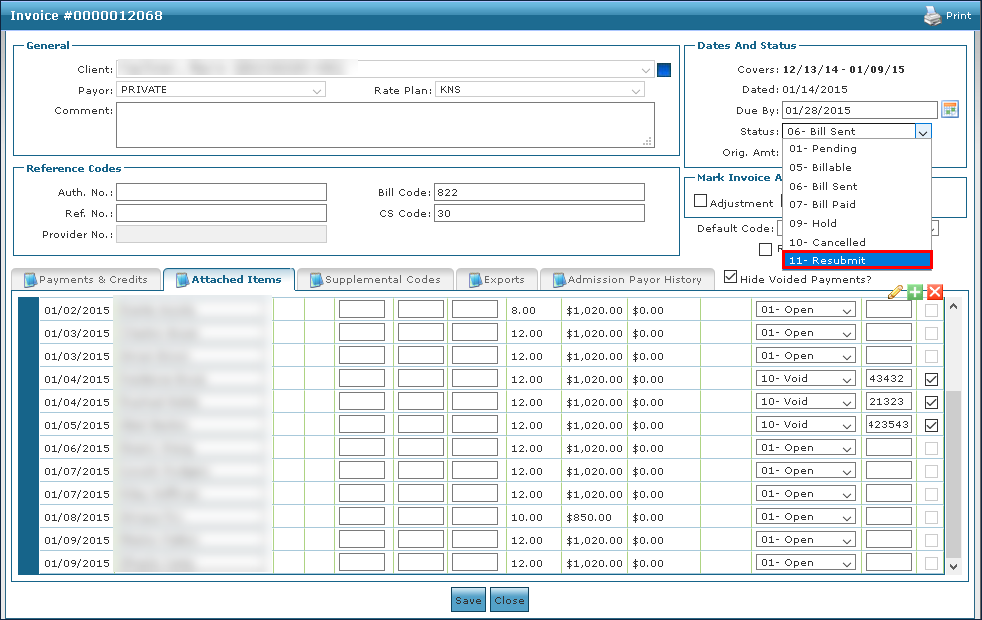
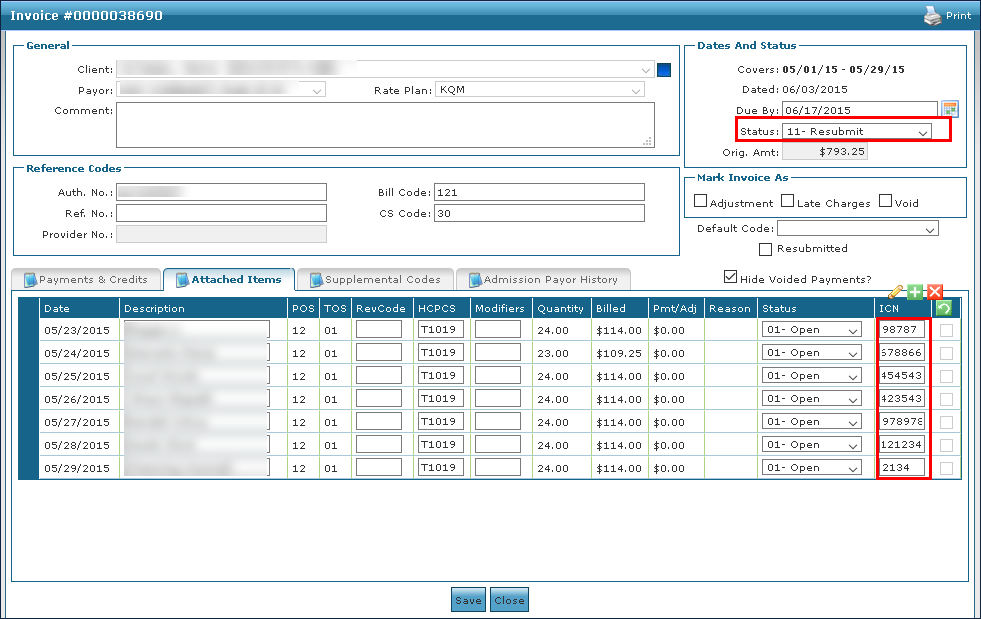
Change the invoice Status to 11-Resubmit.
-
Click Save.
-
Re-export the updated invoice from the Export screen for any remaining services that were not voided.
-
Make any required adjustments or changes for the applicable released visits.
-
Generate a new invoice for the voided visits from the Billing Review screen (Billing > Exports).
Add the ICN number from the previous invoice to the newly generated invoice, if applicable.
-
Change the Status of the new invoice to 11 – Resubmit to send the new invoice as a correction for the previously voided service lines.
-
Export the invoice with the corrected visits from the Billing Export screen (Billing > Export).
The invoice Status should be 11 – Resubmit.